About
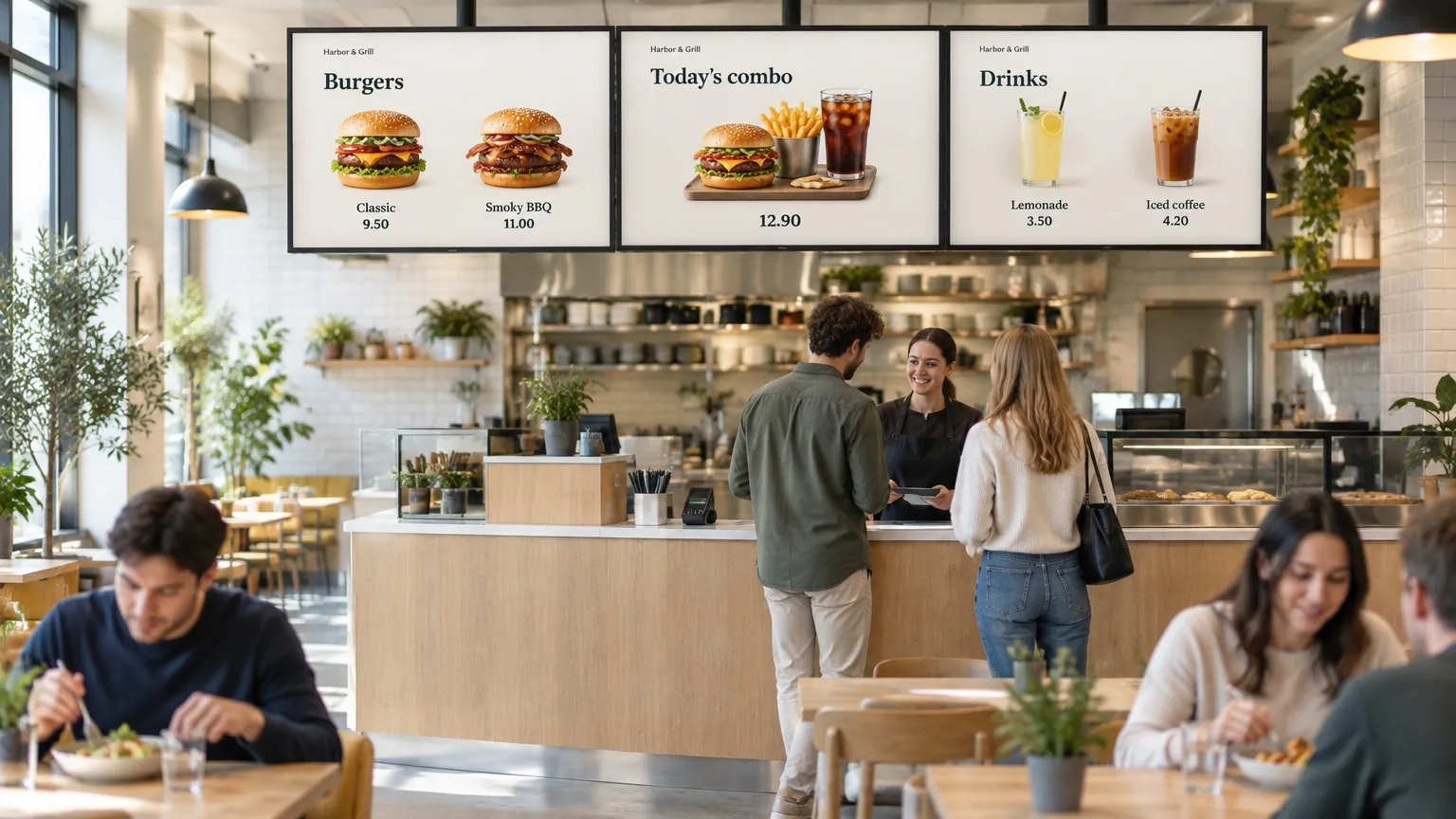
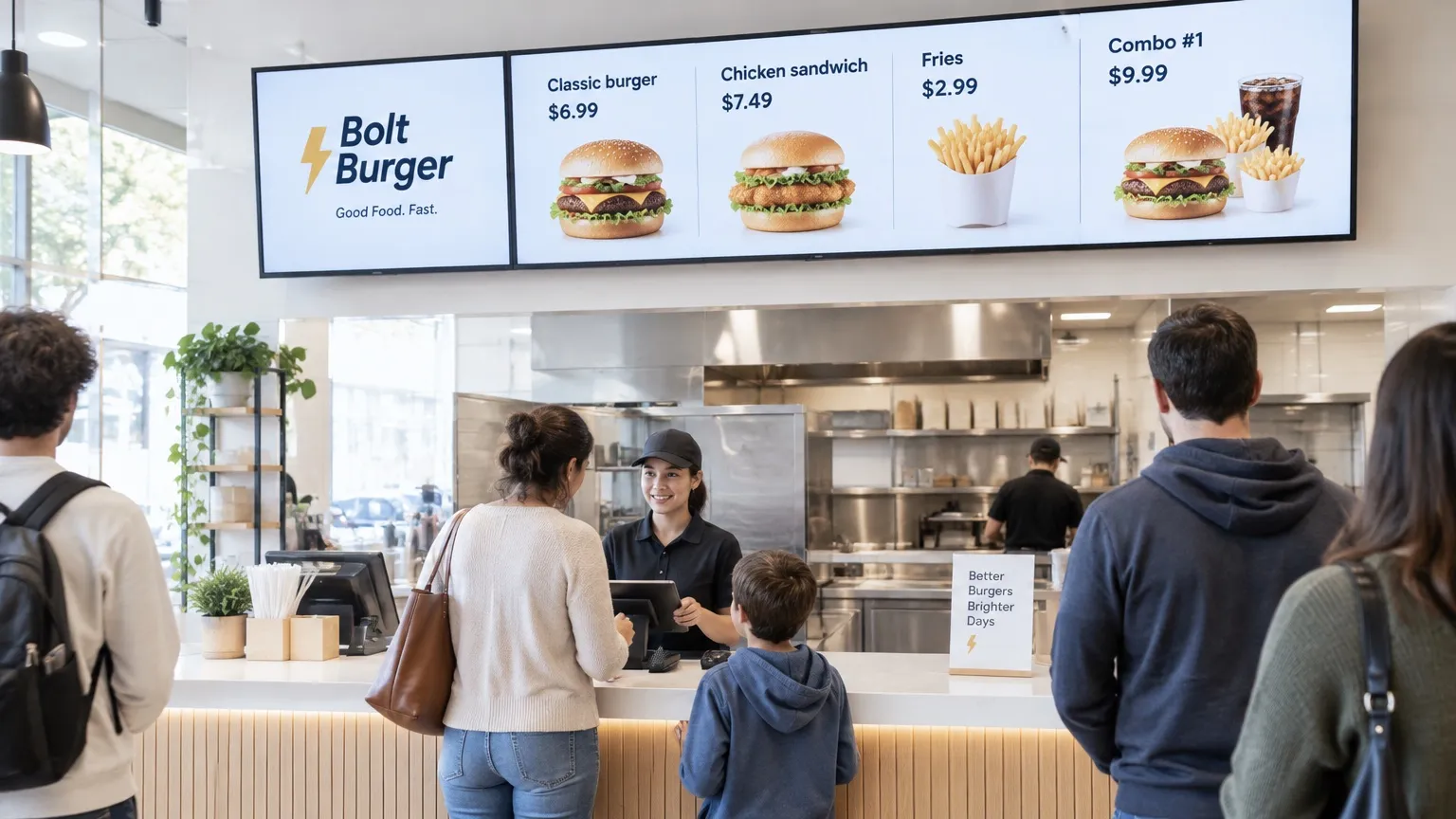
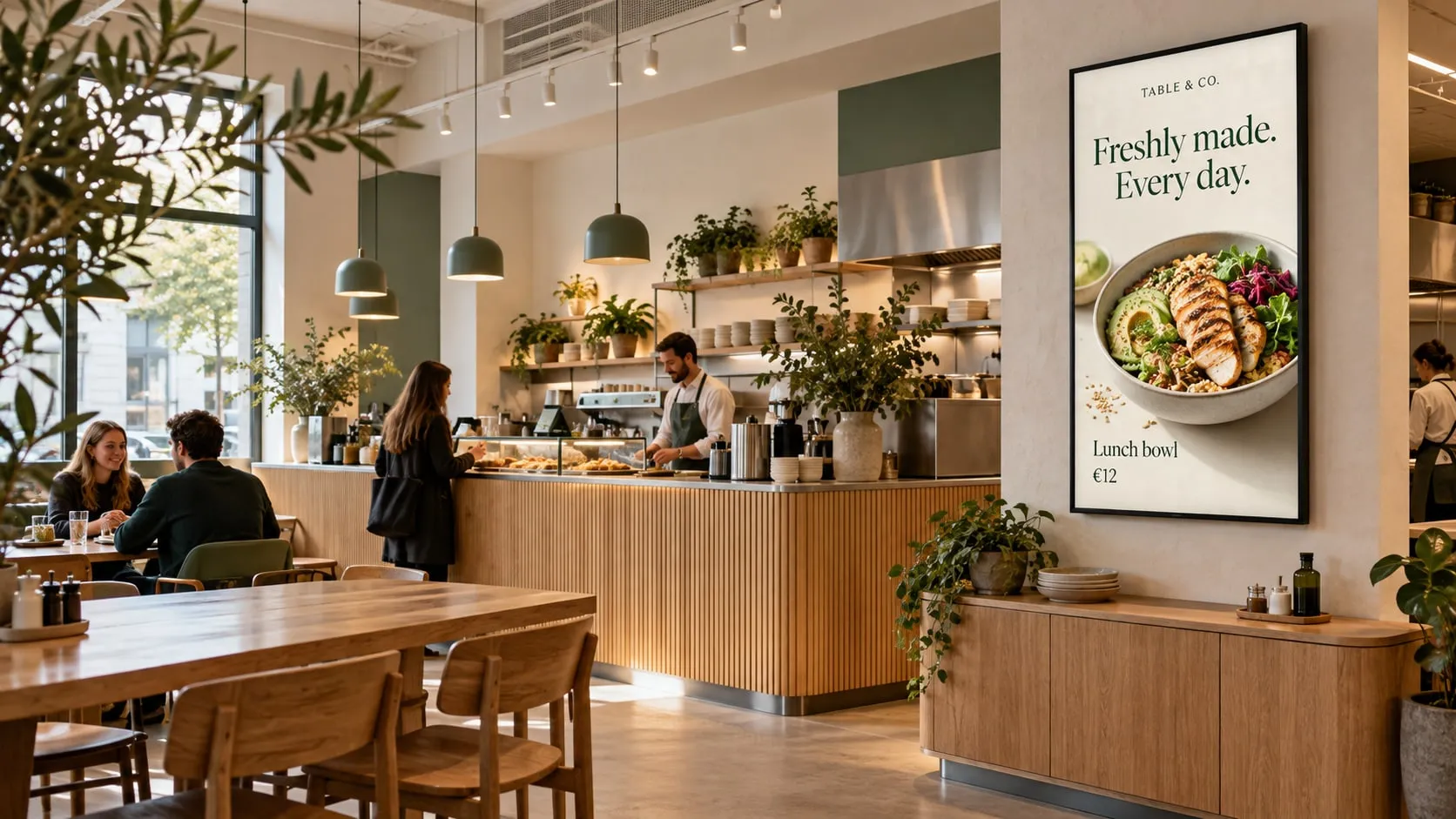
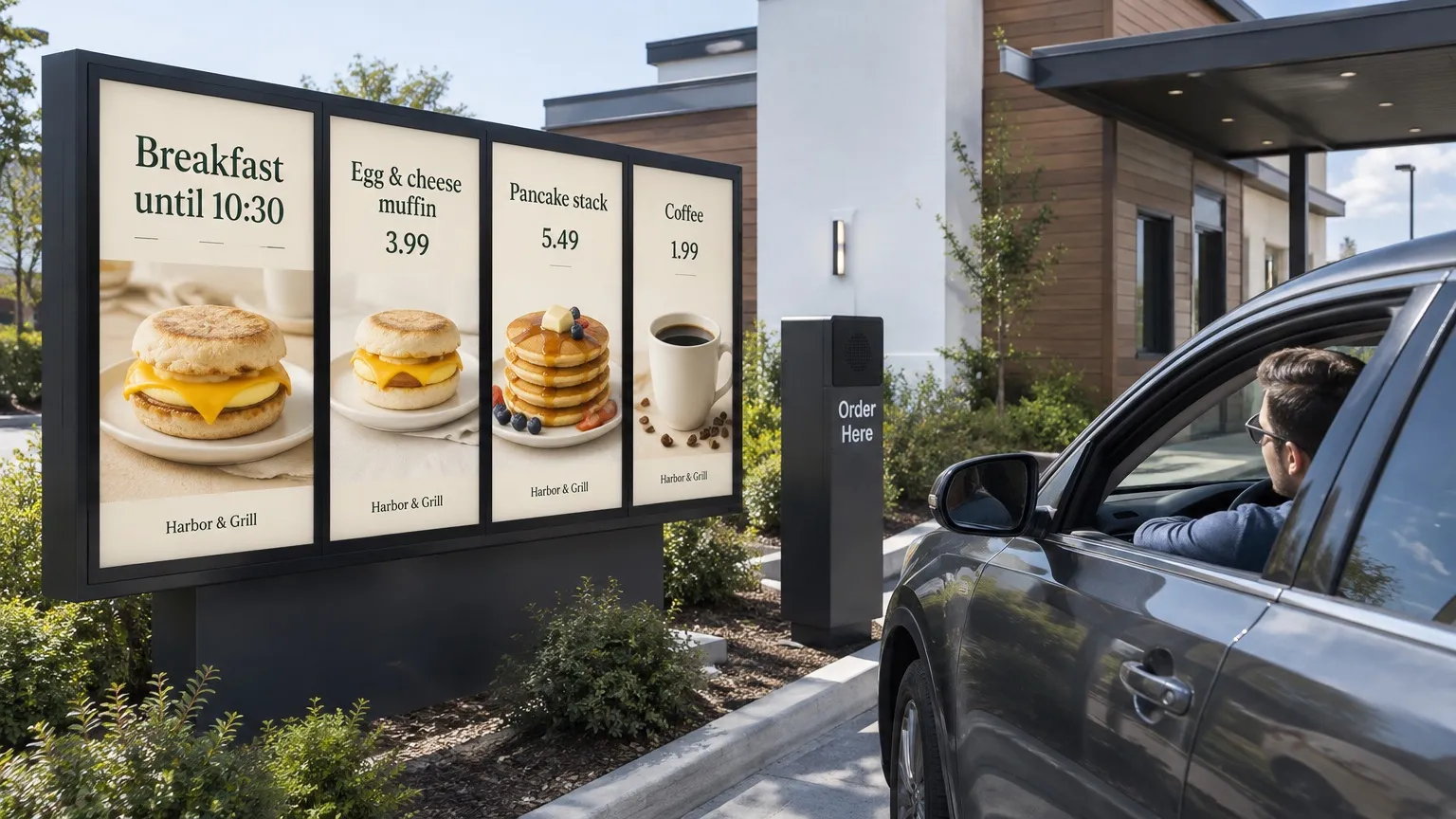
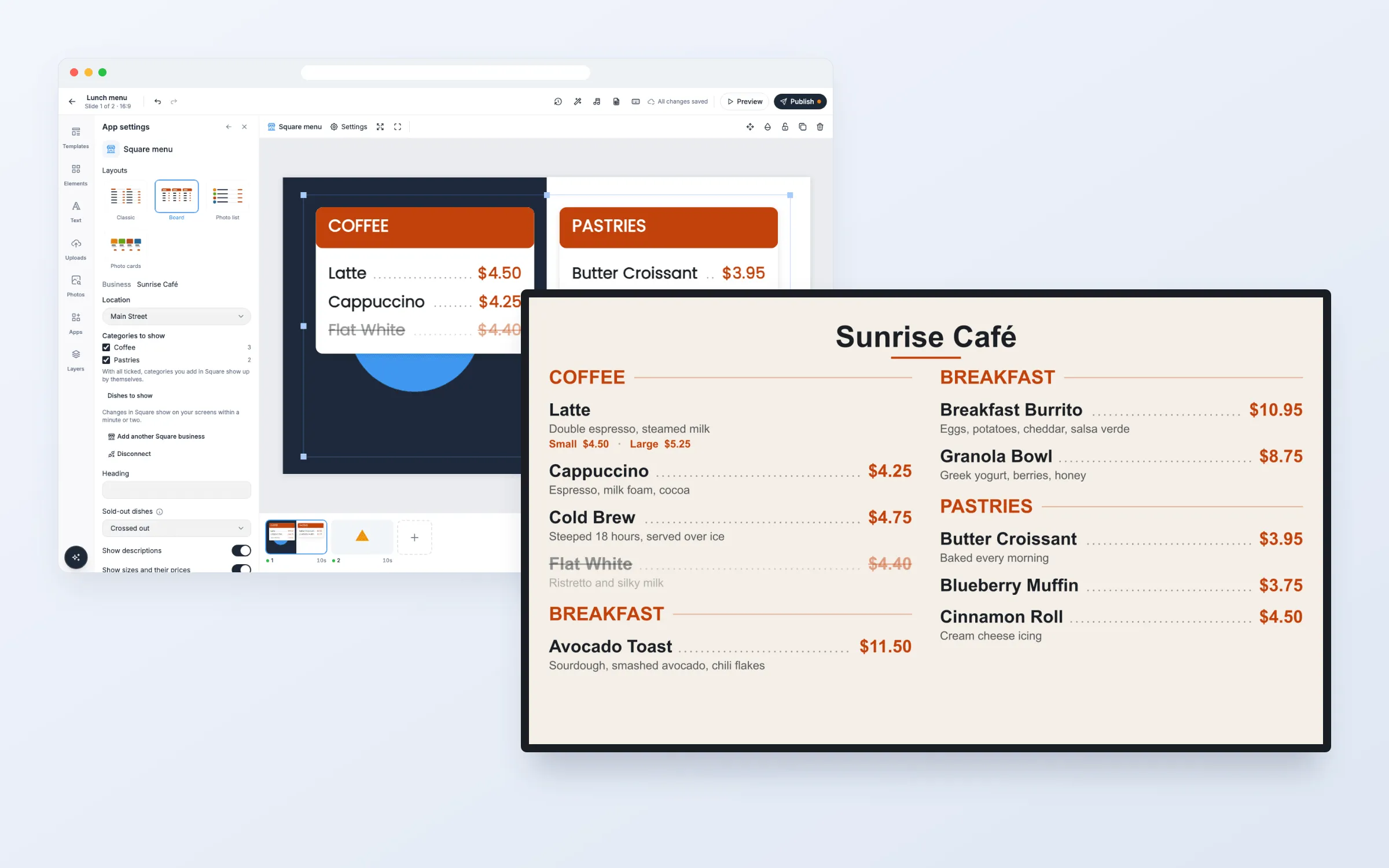
Show the menu of your restaurant, café or bar straight from your Square point of sale. Dishes, prices, sizes, add-ons and pictures come from Square, and when you change something there, your screens follow within a minute or two. Sold-out dishes are marked by themselves. Pick one of four layouts. Play only reads your menu and never changes anything in Square. On the Pro and Ultimate plans.
Get Started
Everything here starts in the editor: open your playlist and the slide. The editor saves by itself (“All changes saved”). When you’re done, click Publish.
Set up your Square menu
Add your Square menu to a slide
- Click Apps, and click Square menu under Point of sale (or type “square” in Search apps)
- In App settings, click Connect Square
- A Square sign-in window opens: the owner of the Square account signs in and allows Play
- Back in the editor, pick the Location whose menu to show
The menu of that location appears on the slide, with all its categories and dishes.
Choose which categories to show
- Under Categories to show, untick the categories you don’t want on this menu
All categories are ticked at first. While all of them are ticked, categories you add in Square later show up by themselves.
Leave dishes off the menu
- Open Dishes to show and untick the dishes you don’t want on this menu
New dishes in a category you show appear by themselves.
Show the menu of another location
- Add another Square menu, for example on another slide or in another playlist
- Pick the other location under Location
Each Square menu shows one location. Only the business’s open locations are listed.
Change the look
Pick a layout
- In App settings, click one of the four layout pictures:
- Classic: the dish, a dotted line and the price, in columns
- Board: a panel for each category with a coloured header band, as in a quick-service restaurant
- Photo list: a round photo of the dish before each row
- Photo cards: a grid of cards, each with the photo, name, description and a price tag
- A dish without a picture in Square shows its first letter in the photo spot
Choose what the menu shows
- Type a Heading above the menu, or leave it empty
- Turn Show category headings, Show descriptions and Show pictures on or off
- Turn on Show sizes and their prices to show each size, for example “Small $4.50 · Large $5.25”
- Turn on Show add-ons to show the extras a guest can add, for example “+ Oat milk $0.75”
- Turn Dotted lines to the price and Show the currency sign on or off
Choose how sold-out dishes look
- Under Sold-out dishes, pick Crossed out, “Sold out” tag or Hidden
A dish counts as sold out when it is marked sold out in Square, or when Square tracks its stock and it is at 0. When it is back in stock, it shows as normal again.
Change the font and colours
- Pick the Font and the Text size
- Pick the Text colour, Headings colour, Price colour and Background. The Price colour starts as the headings colour; picking a layout sets both again
- In the Board and Photo cards layouts, pick the Panel colour and Panel opacity
Fit a long menu
- Columns: Auto uses as many columns as the shape of the Square menu on the slide allows, or pick 1 to 4
- Seconds per page: when the whole menu doesn’t fit, it shows in pages that take turns this often
Manage the connection
Reconnect Square
If Square stops accepting the connection, for example because Play’s access was removed in Square, the app settings ask you to connect again. Screens keep showing the last menu they have for up to a week.
- In App settings, click Reconnect Square, sign in and allow Play again
Disconnect Square
- In App settings, click Disconnect
The connection is removed, and its menus disappear from your screens.
Options
Click the Square menu on the slide to change these in App settings.
| Option | What it does |
|---|---|
| Connect Square, Reconnect Square, Disconnect | Connect your Square account, connect it again when Square asks for it, or remove the connection |
| Location | The Square location whose menu to show. Only open locations are listed |
| Categories to show | The Square categories on this menu. All are ticked at first; with all ticked, new categories show up by themselves |
| Dishes to show | Untick a dish to leave it off this menu |
| Layouts | Classic, Board, Photo list or Photo cards, picked from pictures |
| Heading | A title above the menu. Leave it empty for none |
| Sold-out dishes | Crossed out, “Sold out” tag or Hidden |
| Show category headings, Show descriptions, Show pictures | Turn each part of the menu on or off |
| Show sizes and their prices | Each size with its price, for example “Small $4.50 · Large $5.25” |
| Show add-ons | The extras a guest can add, with their prices, for example “+ Oat milk $0.75” |
| Dotted lines to the price | A dotted line between the dish and its price |
| Show the currency sign | Show or leave out the currency sign in the prices |
| Columns | Auto, or 1 to 4 columns |
| Seconds per page | How long each page shows when a long menu takes turns in pages |
| Font and Text size | The font of the menu, and how big the text is |
| Text colour, Headings colour, Price colour, Background | The colours of the menu. The price colour starts as the headings colour; picking a layout sets both again |
| Panel colour and Panel opacity | The colour of the panels and cards, and how see-through they are (Board and Photo cards) |
| Language | The language of the texts the menu writes itself, such as the “Sold out” tag |
FAQ
Which plans include the Square menu?
The Pro and Ultimate plans, in Play’s own portal. On the Essential plan you can try it in the editor, but screens show it only on Pro and Ultimate. It isn’t available in partner portals yet.
What does the menu show from Square?
For the location you picked: the names and descriptions of your items, their prices (the location’s own price when it has one), sizes with their prices, add-ons, pictures, categories, and which items are sold out.
How fast do changes in Square reach my screens?
Within a minute or two. Square tells Play when your items change, and Play also checks regularly.
What happens when the internet drops?
Screens keep showing the last menu they got, for up to a week, also after a restart. Changes made in Square meanwhile show up once the screen is back online.
Can Play change anything in Square?
No. Play only reads your items, prices, pictures and stock. It never changes anything in Square and never sees payments or customers. You can disconnect at any time.
Which currency are the prices in?
The currency of the Square location, written the way it is written there. Turn off Show the currency sign to show the numbers only.
Why don't I see a dish?
Its category may be unticked under Categories to show, the dish may be unticked under Dishes to show, or it may be sold out while Sold-out dishes is set to Hidden. A long menu may also show the dish on a later page.