About
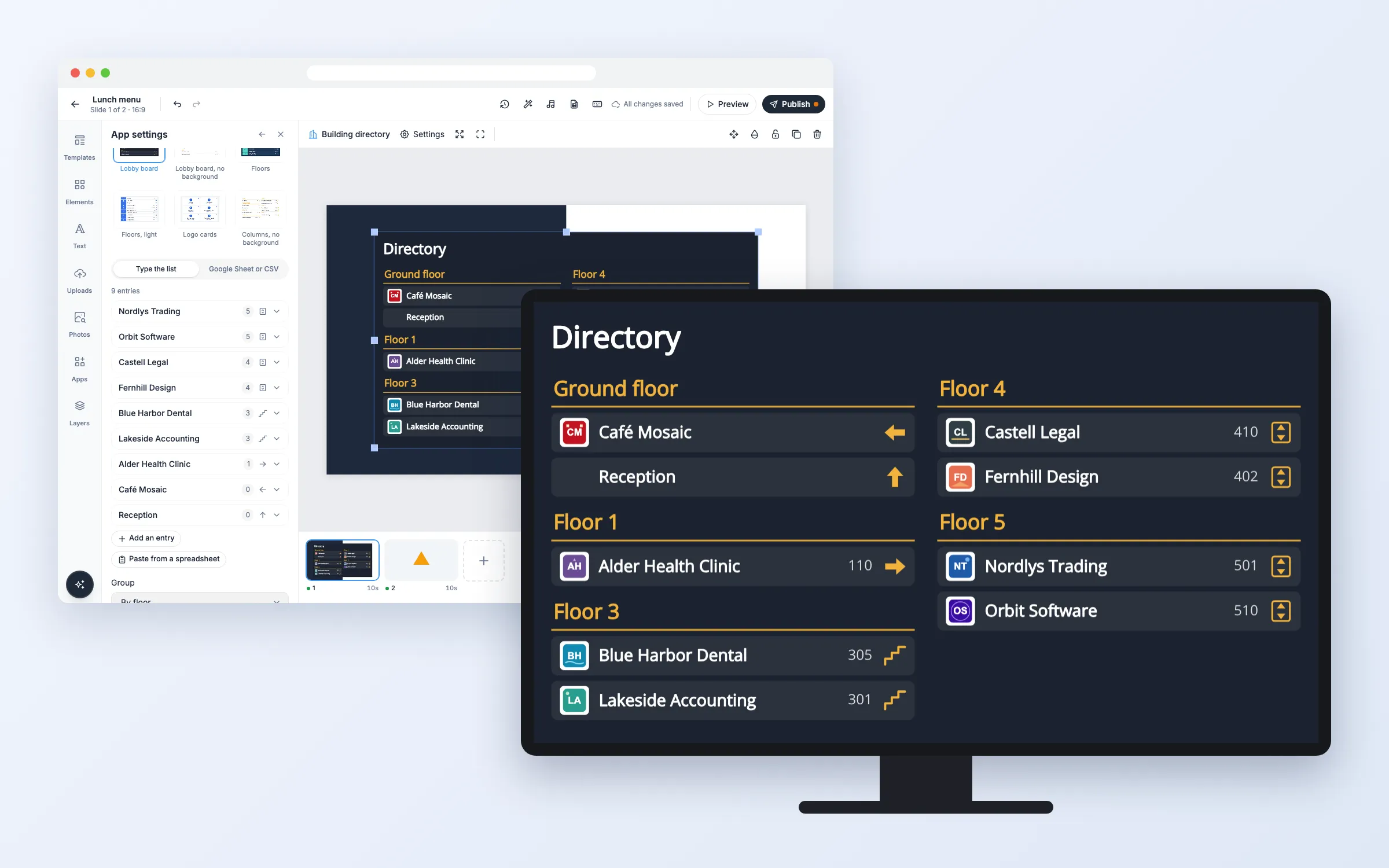
Put a clear directory on the screen in your lobby. List the companies, departments, shops or rooms of your building, grouped by floor, each with its room number, a logo and an arrow that shows the way: left, right, straight ahead, the lift or the stairs. Type the list in the editor, or keep it in a Google Sheet or CSV file. Long lists turn their pages by themselves, and on a touch screen visitors can search, pick a floor or a first letter, and tap a name to see the way. On every plan.
Get Started
Everything here starts in the editor: open your playlist and the slide. The editor saves by itself. When you’re done, click Publish.
Set up the directory
Add a building directory to a slide
- Click Apps, and click Building directory under More apps (or type “dir” in Search apps)
- It’s added with sample entries, and the settings open
- Pick a Layout: Lobby board, Floors, Logo cards or Columns, with or without a background
You can publish once the list has an entry or a sheet is linked.
Type the list
- Under Type the list, click Add an entry
- Type the Name and the Floor, and if you like the Room or suite, a Direction and a Description
- Click Choose a logo to pick a picture from your library
- Click Add
Click an entry to change it, move it up or down, or delete it. Fill in an example gives you a made-up list to start from.
Paste a list from a spreadsheet
- Copy the rows in Excel or Google Sheets, one entry per row: name, floor, room, direction, logo link, description
- Click Paste from a spreadsheet, paste them, and click Add to the list (or Replace the list)
A first row with the column names is fine.
Use a Google Sheet or CSV file
- Click Google Sheet or CSV
- Put the column names in row 1: a name, a floor and, if you like, a room, a direction, a logo link (a web address of a picture) and a description
- In Google Sheets, set sharing to “Anyone with the link” and paste its normal link into Google Sheet or CSV link. A sheet published to the web as CSV, or any public CSV file, works too
- Or click Try the sample list to see it with a made-up office building
Columns are recognized by their names in many languages. If one isn’t, pick it under Name column, Floor column and the others, or choose Not used. Change the sheet, and screens pick it up within 30 minutes. To see it in the editor at once, click Reload.
Change what it shows
Choose how floors and names are ordered
- Group By floor shows a heading for each floor, A to Z one list with the floor on each entry
- Order of the floors: Lowest floor first, Top floor first or As listed
- Order of the entries: A to Z or As listed
Floors are read as people write them: 3, -1, B1, G, Ground floor, Level 4, 2. sal. A bare number shows as “Floor 3” in the screen’s language, anything else as you wrote it.
Show the way with arrows
- Pick a Direction for an entry: left, right, straight ahead, back, the four diagonals, Lift or Stairs
- In a sheet, write it in the direction column in words or arrows, like “right”, “lift”, “stairs”, “→” or “Højre”
Turn off Show direction arrows to hide them all.
Let visitors search on a touch screen
- Turn on Touch screen: search and filter
The screen then shows a bar with Search, All, the floors and the letters A to Z. Search opens a keyboard on the screen itself, so the device needs no keyboard of its own. Tap a name to see its floor, room and arrow in large type. After 45 seconds without a touch, the full list comes back and the pages turn by themselves again.
Show a long list
When the entries don’t fit, they are split into pages that turn every 10 seconds; change it under Seconds per page. A floor that continues on the next column or page shows its heading again. The text never gets smaller than what reads from across a lobby, so a larger element or a portrait screen fits more on each page.
Options
Click it on the slide to change these in App settings.
| Option | What it does |
|---|---|
| Layouts | Lobby board, Lobby board, no background, Floors, Floors, light, Logo cards or Columns, no background |
| Type the list, Google Sheet or CSV | Where the entries come from |
| Entries | Name, Floor, Room or suite, Direction, Logo and Description of each entry |
| Google Sheet or CSV link | Your list in a sheet |
| Name column, Floor column, … | Which column holds what |
| Group | By floor or A to Z |
| Order of the floors | Lowest floor first, Top floor first or As listed |
| Order of the entries | A to Z or As listed |
| Touch screen: search and filter | Off to start with. Search, floors and letters for visitors |
| Show logos, Show direction arrows, Show room or suite, Show description | What each entry shows |
| Show the title, Your own title | The heading. Empty shows “Directory” in the screen’s language |
| Seconds per page | 4 to 60, 10 to start with |
| Font | Open Sans to start with |
| Colors | Text colour, Highlight colour, Card colour, Background colour, and how see-through the cards and background are |
| Language | Same as the screen, or one of 12 languages |
FAQ
Which plans include Building Directory?
Every plan.
How many entries can it show?
Up to 1,000. A sheet can have up to 5,000 rows, in a file of up to 5 MB.
Which logos work best?
Square or wide logos with a transparent or white background. On the dark layouts each logo sits on a small white tile, so it looks as designed.
Which screens can visitors touch?
Touch screens where visitors can already tap a web page shown with the Website app. Try it once on your own screen. On screens without touch the directory still shows and turns its pages.
What if the screen goes offline?
A typed list is part of the slide, so it keeps showing. A list from a sheet shows the last copy for up to 7 days, also after a restart.
Do my screens need an update?
No. Screens show it like other web apps, on the players you already have.