
About
Organizations may use Microsoft Active Directory to manage employee access to apps like Play Digital Signage. This tutorial covers how to set up the Play Digital Signage app in your Entra ID tenant.
If you want to use your personal Microsoft account to access Play Digital Signage and don’t need to manage employee access within your Entra ID tenant, you can skip this tutorial and sign up for Play Digital Signage.
Get Started
Prerequisites
In order to complete this tutorial, you will need the following:
- An existing Entra ID tenant (if you don’t have one, you can sign up for Microsoft Entra ID)
- Your user must have a Global Administrator role for the Entra ID tenant
1. Install Play Digital Signage using Entra ID Marketplace
As a global Entra ID tenant administrator, start by clicking “New Application” on the “Enterprise Applications” page.
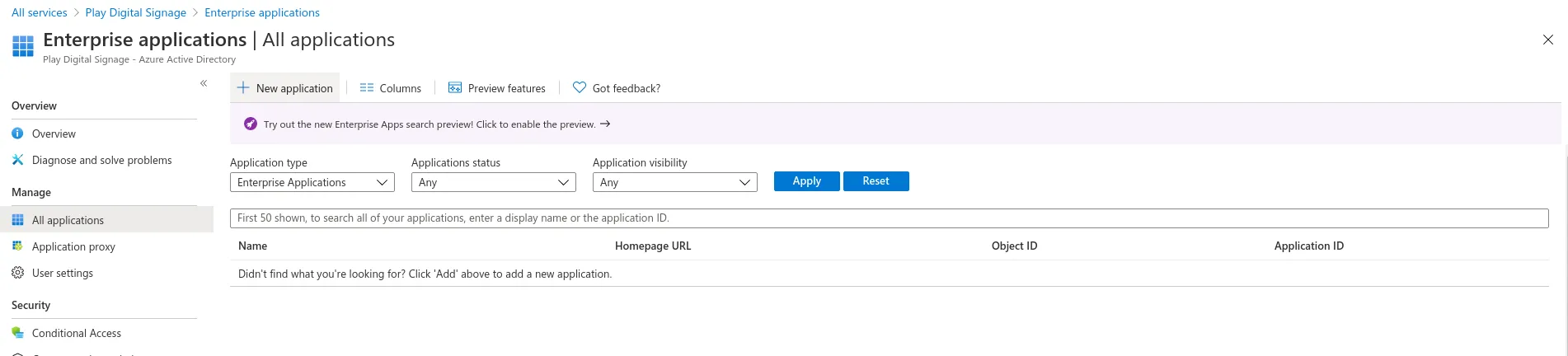
Figure 1: Click New Application on the Enterprise Applications page
On the following page, search for “Play Digital Signage”, click the search result, and follow the “Signup for Play Digital Signage” link on the right side menu.
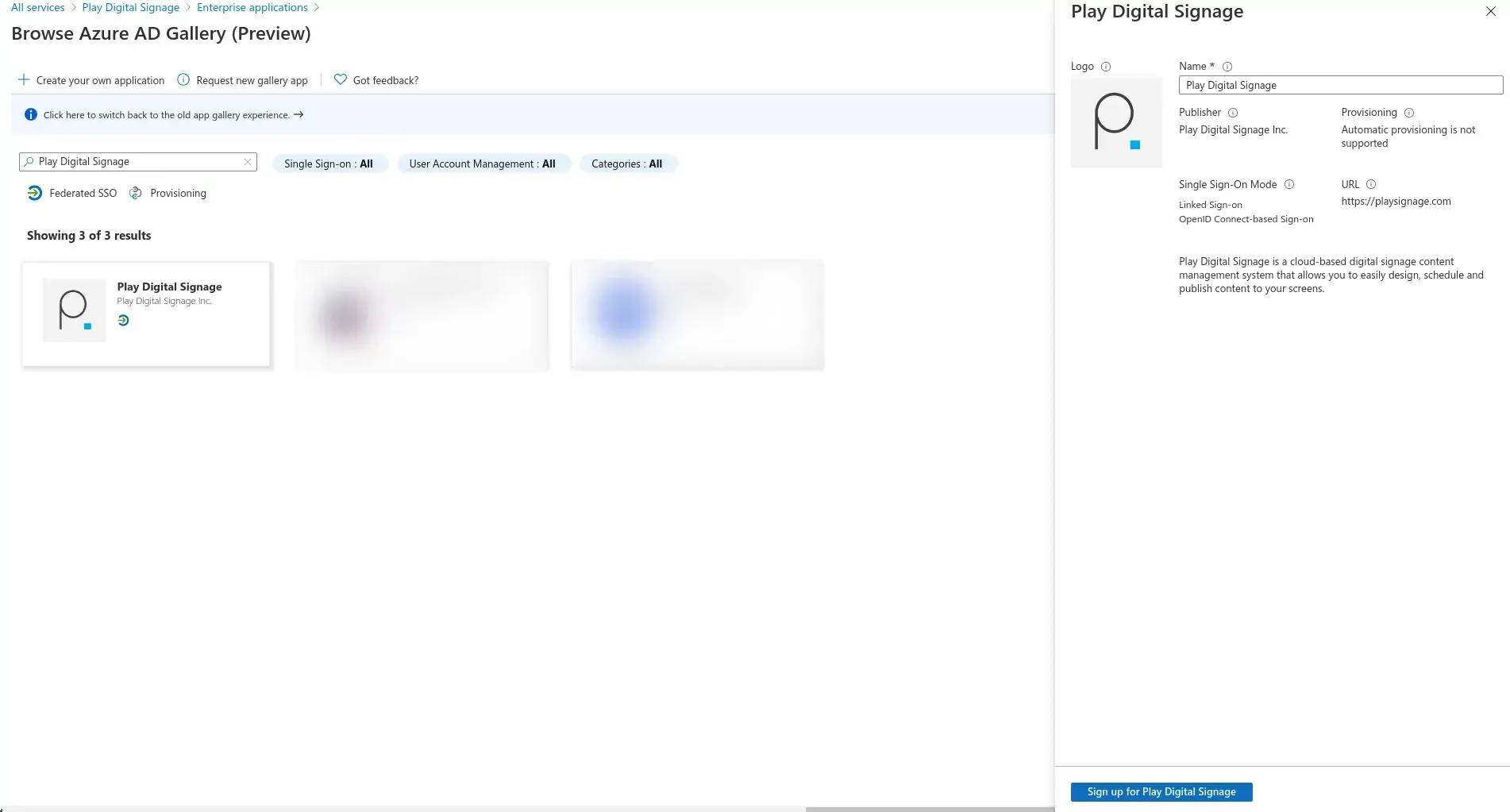
Figure 2: Search for Play Digital Signage in Entra ID Marketplace
The sign-up button will take you to a page where you’ll need to click the “Log in with Microsoft” button.
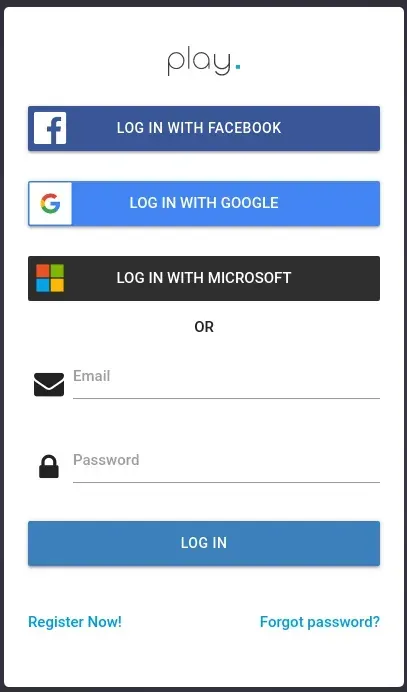
Figure 3: Click Login with Microsoft
In the resulting window, ensure you pick a work account that is a Global Administrator for your tenant.
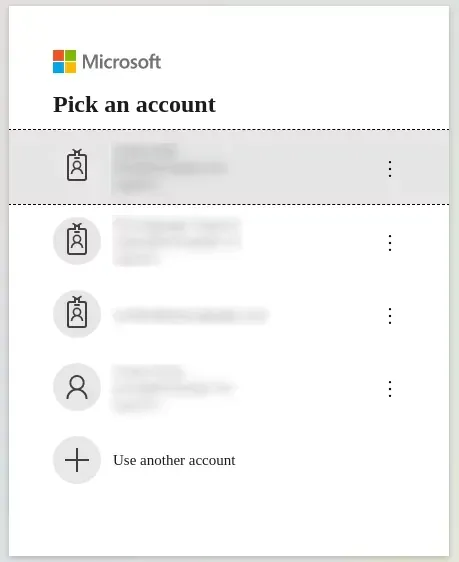
Figure 4: Pick a work account that has a global administrator role in your tenant
Once you pick an account, you will see a page listing all permissions that Play Digital Signage requires from you to complete the signup. If you wish, you can consent to those permissions on behalf of your whole organization, so that your co-workers won’t have to make this choice again.
Review the permissions, and if you agree, click “Accept” to create a new Play Digital Signage account for your tenant. Your user will be considered the owner of that account, and all subsequent users that sign up from your tenant will have a member role (you can change this later).
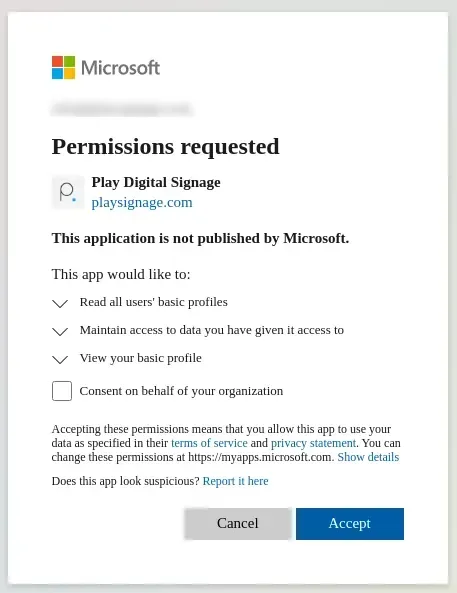
Figure 5: Consent to Play Digital Signage accessing your account data. Optionally, as a global administrator, you may consent on behalf of your whole organization
2. Manage Access
Once you follow through with the installation process, you will see Play Digital Signage in the list of your Enterprise Applications. From there, you can further manage access to Play Digital Signage if you wish. By default, a freshly installed instance of our application does not require any user assignments.
Once you are satisfied with your setup, you can point your co-workers to our login page and ask them to click “Login with Microsoft” and select their work account. Your co-workers will automatically become members of your team in Play Digital Signage. If you want to change their user role, you can do that on the team page.
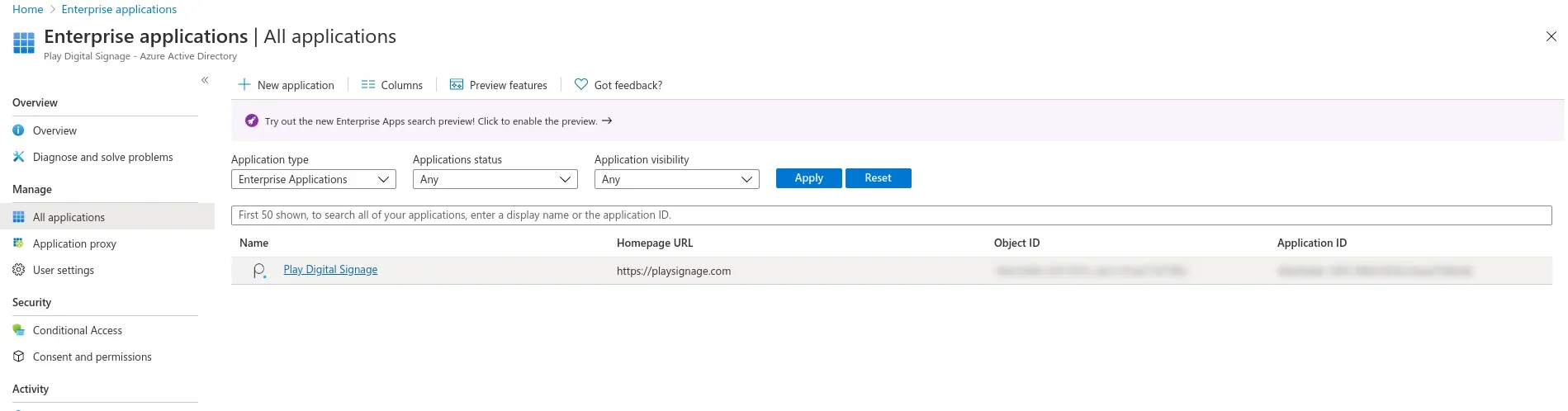
Figure 6: Now you can find Play Digital Signage in your enterprise application list