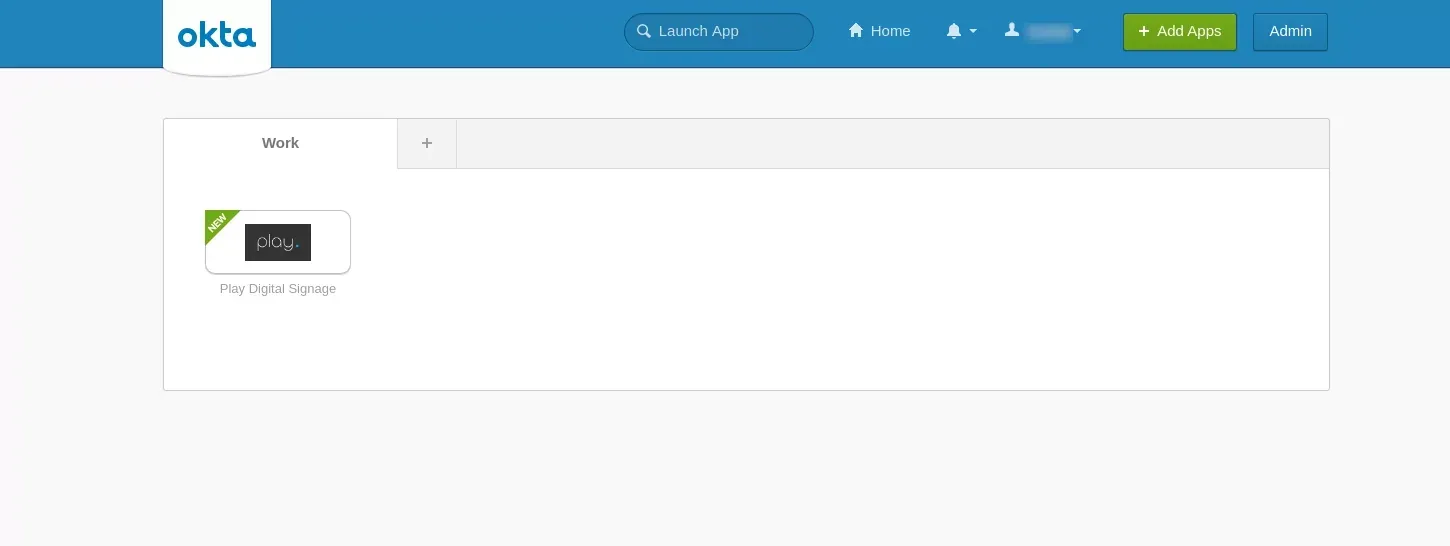
About
With the help of the Okta Single Sign-on solution, organizations can manage employee access to apps like Play Digital Signage securely and centrally. Follow this tutorial to learn how to set up Play Digital Signage in your organization.
Supported features: IdP-initiated SSO
Get Started
Prerequisites
This tutorial assumes that you have the following:
- An existing Play Digital Signage account that you own (if you don’t have one, you can sign up for Play Digital Signage)
- An existing Okta organization with administrator rights to it (if you don’t have an organization yet, you can sign up at okta.com)
1. Install Play Digital Signage OIDC app
Search the integration network (OIN) for the Play Digital Signage app and install it from the Okta Play Digital Signage page.
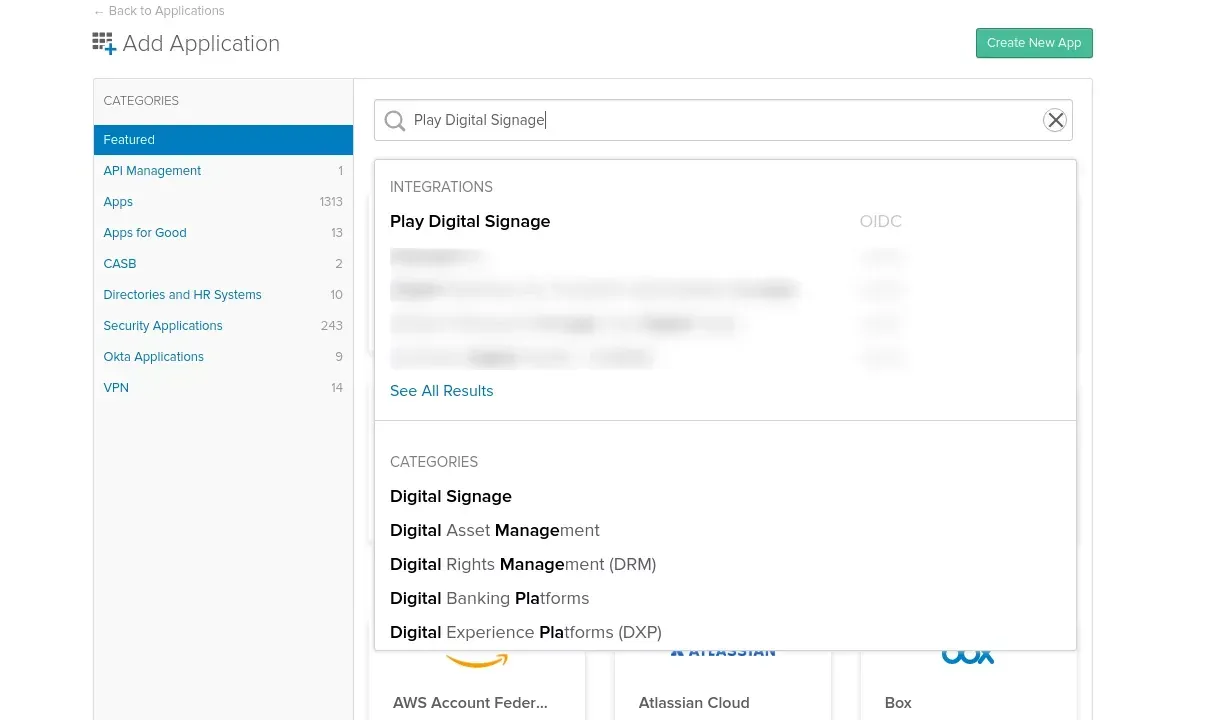
Figure 1: Search for Play Digital Signage in the integration network (OIN)
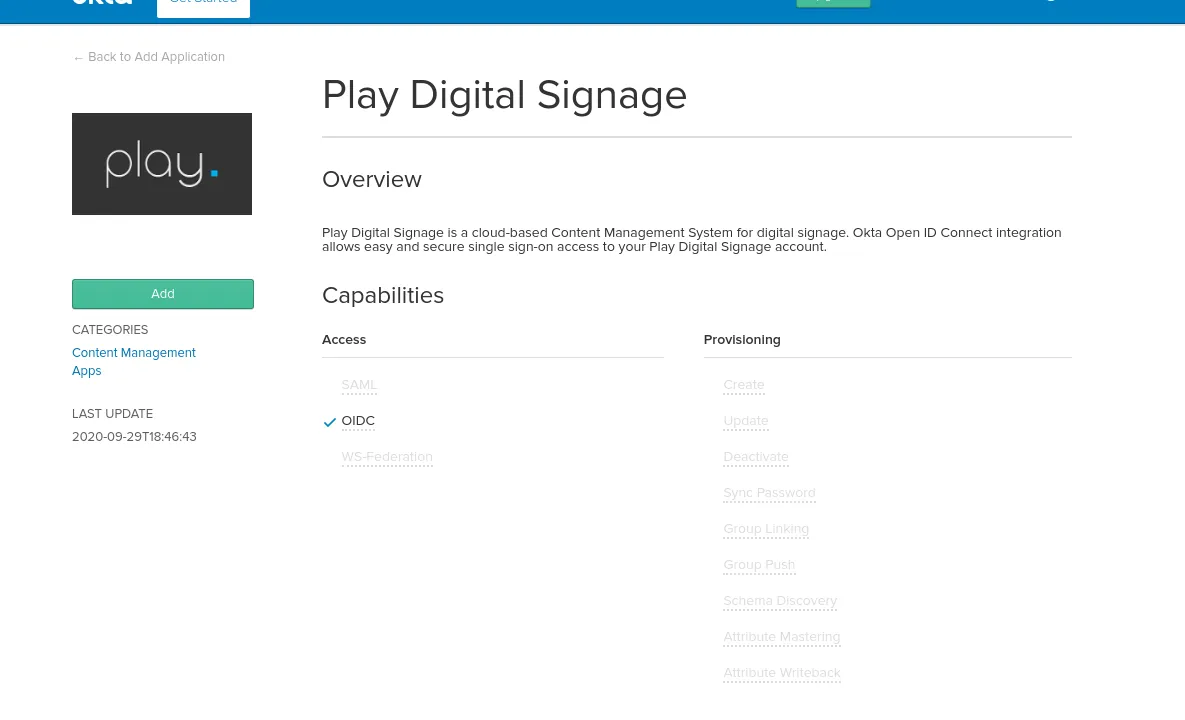
Figure 2: Add Play Digital Signage to your Okta organization
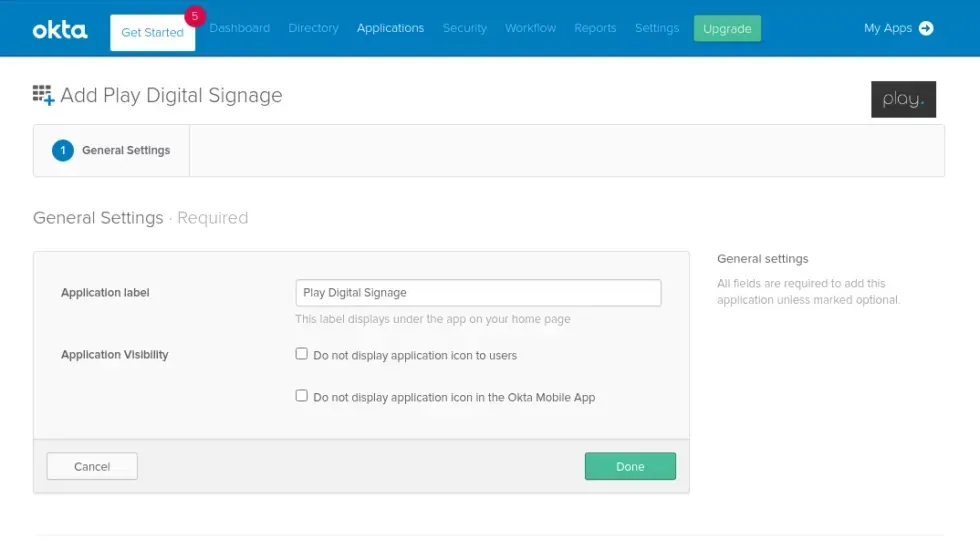
Figure 3: Optionally set a different app name and click Done.
2. Assign Users
Assign users or groups that should be able to log in to your Play Digital Signage team using the tile on the applications page.
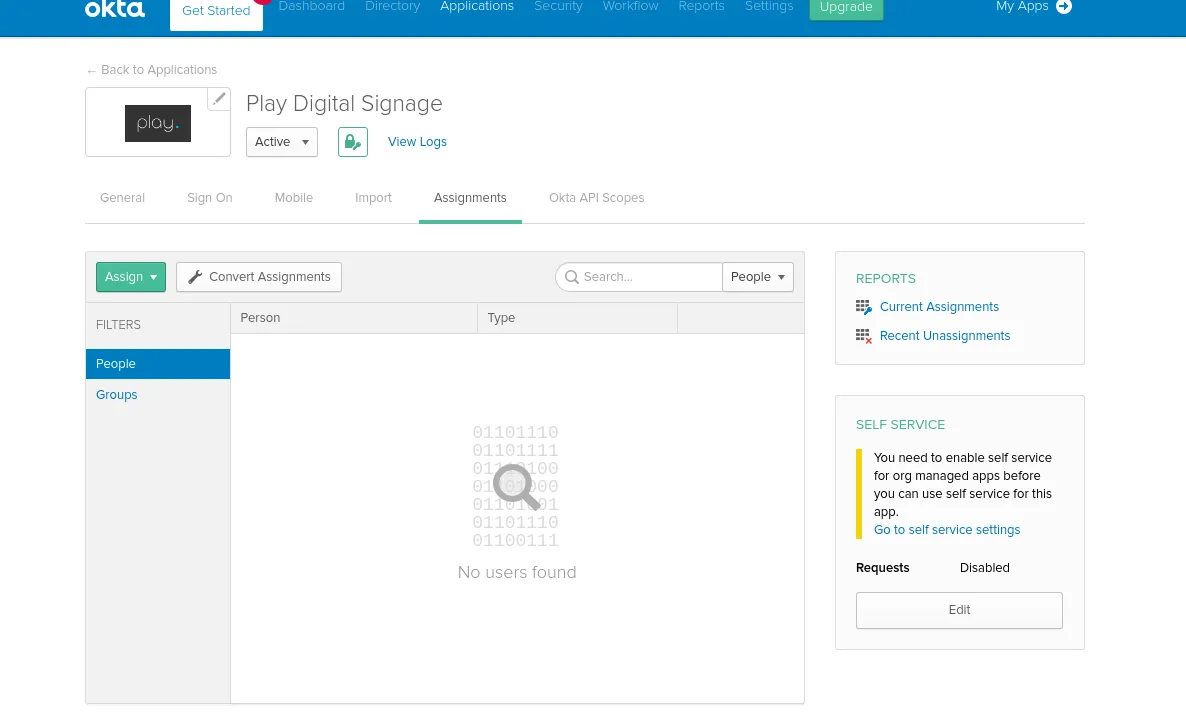
Figure 4: Assign users or groups to the Play Digital Signage app
3. Set up your Play Digital Signage team
Go to the Sign On section of the Play Digital Signage app settings and note down the client ID and client secret.
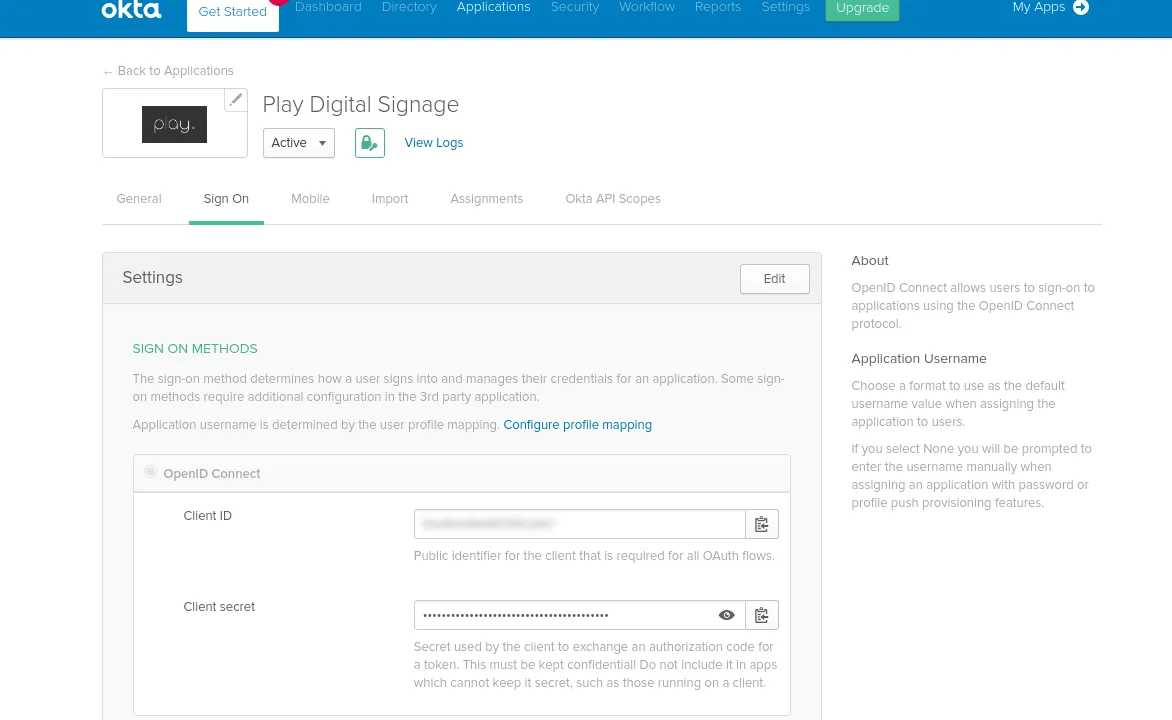
Figure 5: Copy client ID and client secret
Now navigate to the team page of your existing Play Digital Signage account and find the “Setup Okta Authentication” button (you must be the owner of the team for this).
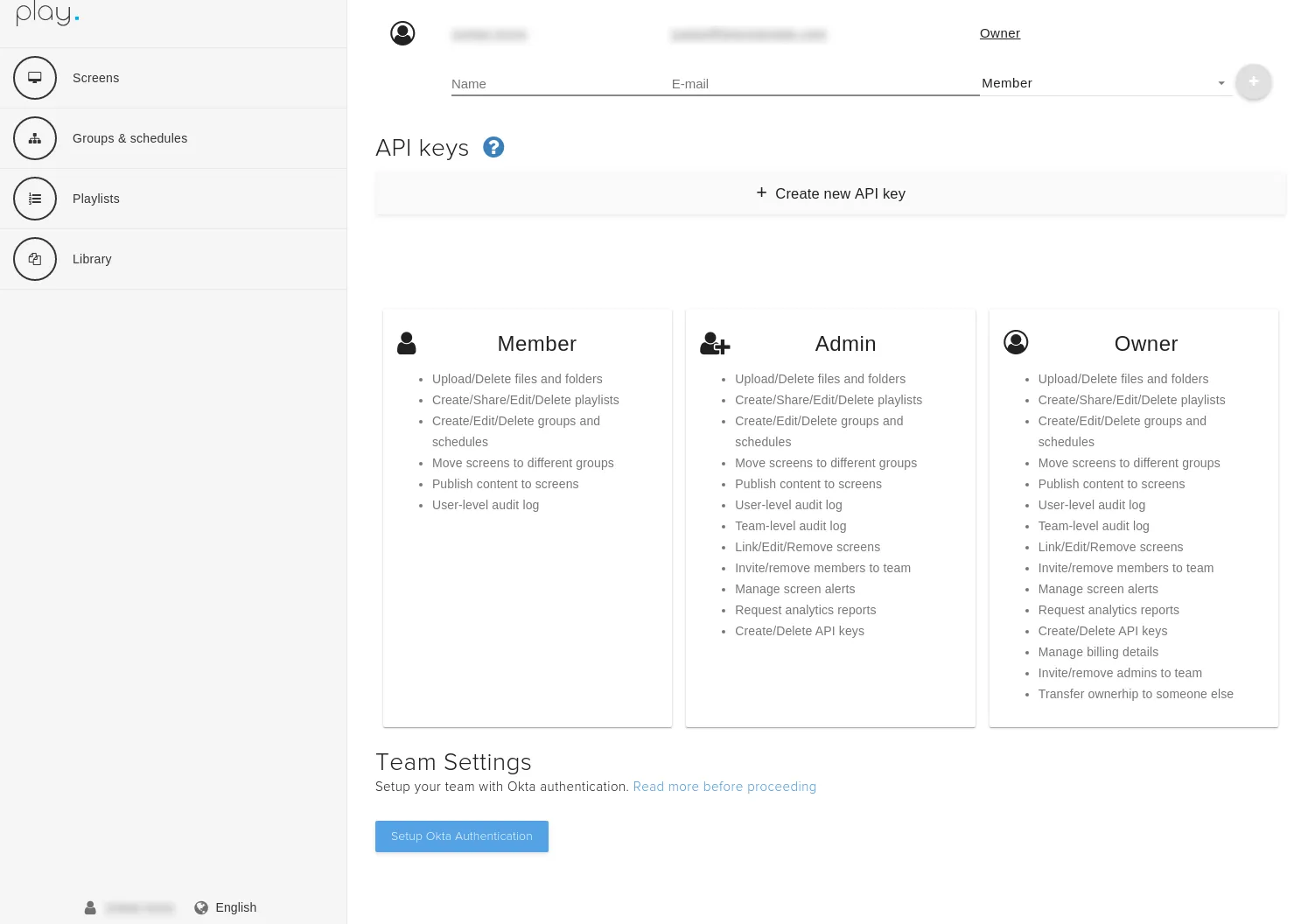
Figure 6: Go to the team page of the existing account and click Setup Okta Authentication
Click the “Setup Okta Authentication” button and fill in your Okta organization URL (e.g. https://my-org.okta.com), your client ID and your client secret. Then click the “Save” button.
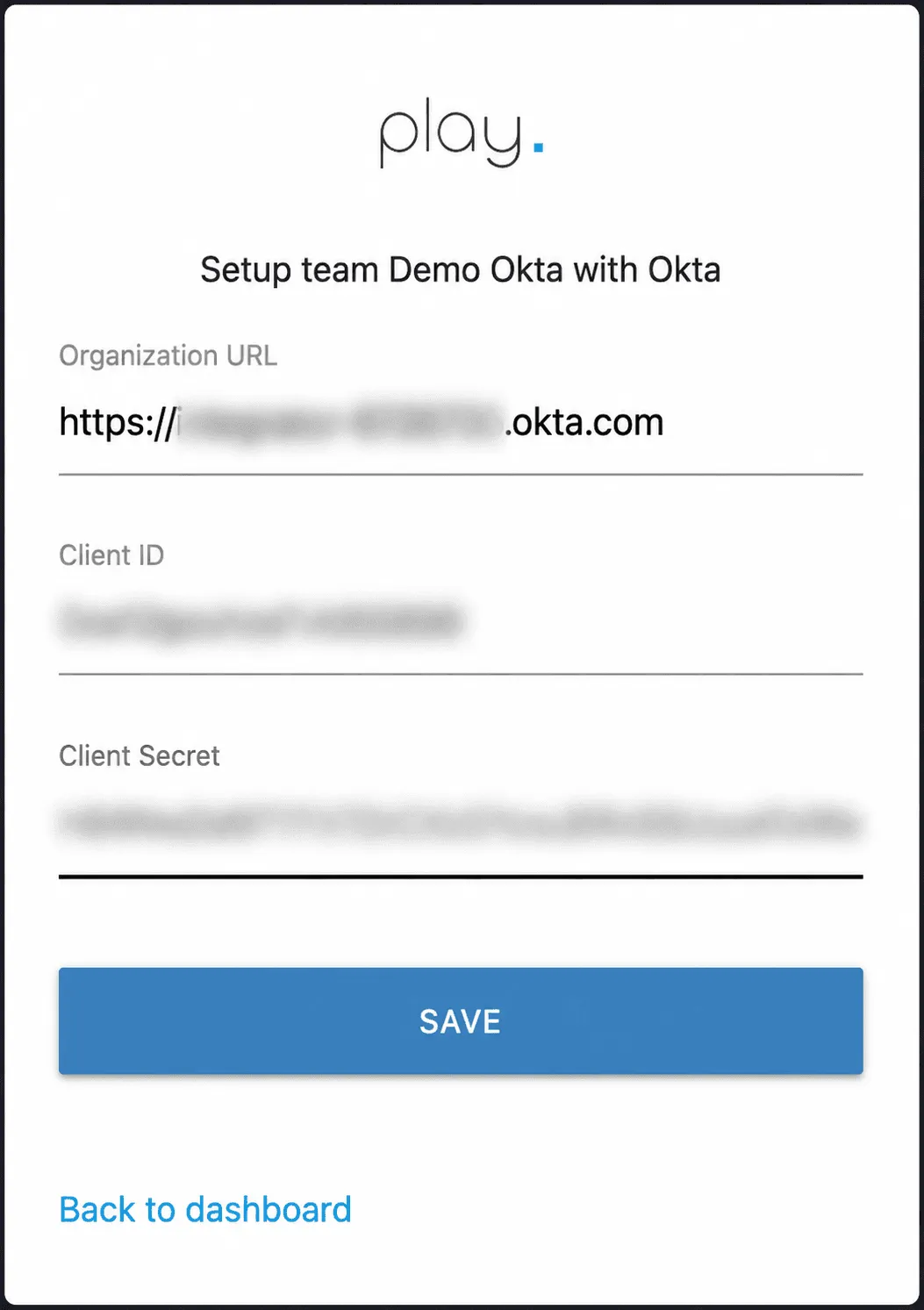
Figure 7: Enter App Credentials you noted down earlier, along with your organization URL, and click “Save”
4. Log in to your team
Now that your Play Digital Signage team is set up with Okta authentication, you can go ahead and log in to your team using the Play Digital Signage tile in your dashboard.