About
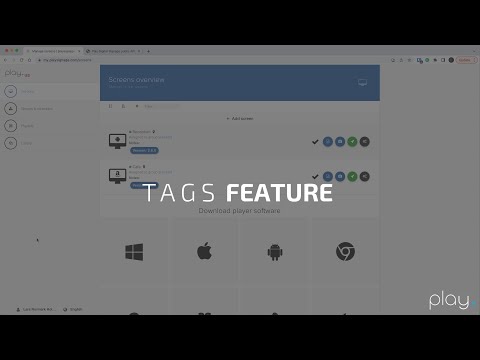
Tags switch chosen screens to another playlist at once, for a set time, overriding schedules. Think of an emergency: one click shows evacuation instructions on every tagged screen. Tags also work as labels for slide conditions, and can be activated through the API, for example by a sensor.
Get Started
Tags are under your profile name in the lower-left corner, then Tags.
Make the playlist for the tag
- Go to Playlists, click Create Playlist, and name it, for example “Emergency”
- Design it like any other playlist
Create a tag
- Click Create a tag and give it a name, like Fire Emergency or Hurricane Warning
- Pick the playlist (or several)
- Tick the screens to include
The screens download the playlist right away, so they can switch instantly when you activate the tag.
Activate a tag
- Click Activate tag and set how long: seconds, minutes or hours (9999 hours is practically forever)
The tag’s playlist plays on its screens, overriding schedules. You can always stop it early.
Stop a tag
- Click Deactivate tag
The screens go back to their normal content. Activating another tag also overrides it: the most recently activated tag wins.
Automate tags with the API
Activate tags with our REST API, for example from sensors or other systems. One tag can control all your screens, and others a few each:
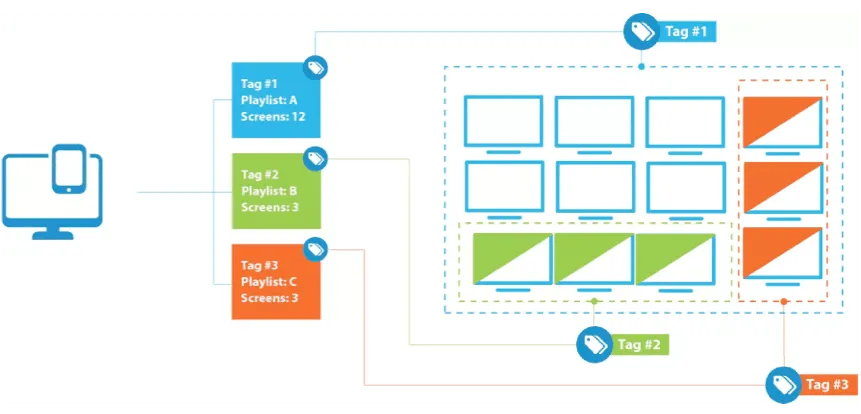
Options
| Option | What it does |
|---|---|
| Name | The name of the tag |
| Playlist | What plays when the tag is active |
| Screens | The screens in the tag |
| Activate tag | Starts the tag for the time you set |
| Deactivate tag | Stops it |
FAQ
What if a screen is offline when I activate a tag?
When it’s back online, it plays the tag’s playlist for the rest of the time. Set up alerts to hear when screens go offline.
What if several tags are active?
The one activated last wins.
Why choose the playlist beforehand?
So the screens already have all its files. When you activate the tag in a hurry, they can switch right away.
Can I use tags to show a slide on some screens?
Yes. Add a Tag condition to the slide. See Slide Conditions.