About
Slides are the pages of a playlist, just like in PowerPoint. A slide can hold one image, or images, video, text and plugins together. For each slide you choose how long it plays, how it enters, its background color, and, if you like, when or on which screens it plays.

Get Started
Everything here is in the editor: go to Playlists and open your playlist. The slides are in the row at the bottom. Most slide settings open with the pencil on a slide; click Save when you change them.
Add and arrange slides
Add a slide
- Click the slide the new one should come after
- Click New Slide
Copy a slide (clone)
- Click the slide
- Click Clone Slide. The copy is added right after it
Add a slide from a template
- Click From Template
- Search or scroll, and click the slide you want
Make many slides from images at once
Have a stack of images, for example from a PowerPoint or PDF file? Make all the slides in one go with Multi Create.
Change the order
- Drag the slide to where you want it and let go
Keep a slide for later (Slide Stash)
- Click the grey bar with two arrows above the slides to open the stash
- Drag the slide up into the stash. The slide stays in your playlist too
- Click the grey bar again to close the stash
Use stashed slides in any playlist. Read about Slide Stash.
Remove slides
- Hover over the slide and click X
To remove several: click Select on each slide, then click Delete Slides.
Slide settings
Change how long a slide plays
- Click the pencil on the slide
- Set Slide Duration
Play a slide forever
- Click the pencil on the slide
- Tick Play this slide forever
Use it when the playlist has one slide, or for touch screens.
Name a slide
- Click the pencil on the slide
- Type a name in Slide Name
Add a transition
- Click the pencil on the slide
- Pick an effect in Entering Transition: Random, Fade to black, Ken Burns, Bounce in and more
- Set Transition duration (0.3 to 7 seconds)
The slide must play at least 1 second longer than the transition: a 3-second transition needs a slide of 4 seconds or more. Watch the video on transitions.
Set the background color
- Click outside the slide, next to it
- In Slide Background Color, pick a color, or use the picker to take one from the slide
Pause the background music on a slide
- Click the pencil on the slide, then Advanced
- Tick Pause Playlist background music for this slide
Only shows when the playlist has background music.
Choose which slide plays next
- Click the pencil on the slide, then Advanced
- In After this slide play, choose the slide
Mostly for touch screens, where you don’t want the normal 1, 2, 3 order.
Play a slide only at some times or on some screens
- Click the pencil on the slide, then Slide Conditions
- Add your conditions
For example only on some screens, only from 10 to 11 am, or only when the network is offline. Learn more about slide conditions.
Change several slides at once
- Click Select on each slide
- Click Edit Slides
- Change the duration, play forever, transition, transition duration, background color or slide conditions
- Click Save
The changes apply to all the selected slides. Watch the video on bulk editing.
Content on the slide
Make an image with AI
- Click outside the slide, then Generate with AI
- Describe what you want, and click Enhance Prompt for a better result
- Choose an aspect ratio (it matches your slide by default)
- Click Generate, then Preview
- Click the check mark on the image to add it
Learn more about the AI Image generator.
Put objects in front of or behind each other
- Open the Layers tab
- Drag an object higher to bring it to the front
You can also lock and unlock objects there (see Locking Objects). Some plugins, like Website, always show on top, because they’re a separate window over the slide.
Options
Slide settings (the pencil)
| Option | What it does |
|---|---|
| Slide Duration | How long the slide plays |
| Play this slide forever | The slide never moves on. For one-slide playlists and touch screens |
| Slide Name | A name for the slide (optional) |
| Entering Transition | The effect when the slide comes in |
| Transition duration | How long the transition takes, 0.3 to 7 seconds |
| Pause Playlist background music for this slide (Advanced) | Mutes the background music on this slide |
| After this slide play (Advanced) | The slide that plays next, instead of the following one |
| Slide Conditions | When and where the slide plays. See Slide Conditions |
Next to the slide (click outside it)
| Option | What it does |
|---|---|
| Slide Background Color | The background color of the slide |
| Generate with AI | Makes an image from your description |
Several slides selected (Edit Slides)
| Option | What it does |
|---|---|
| Set selected slide duration | The duration of all selected slides |
| Play selected slides forever | Plays the selected slides forever |
| Entering Transition and Transition duration | The transition of all selected slides |
| Slide background color | The background color of all selected slides |
Default values for new slides, like the duration and background color, are in your profile. See Default Values.
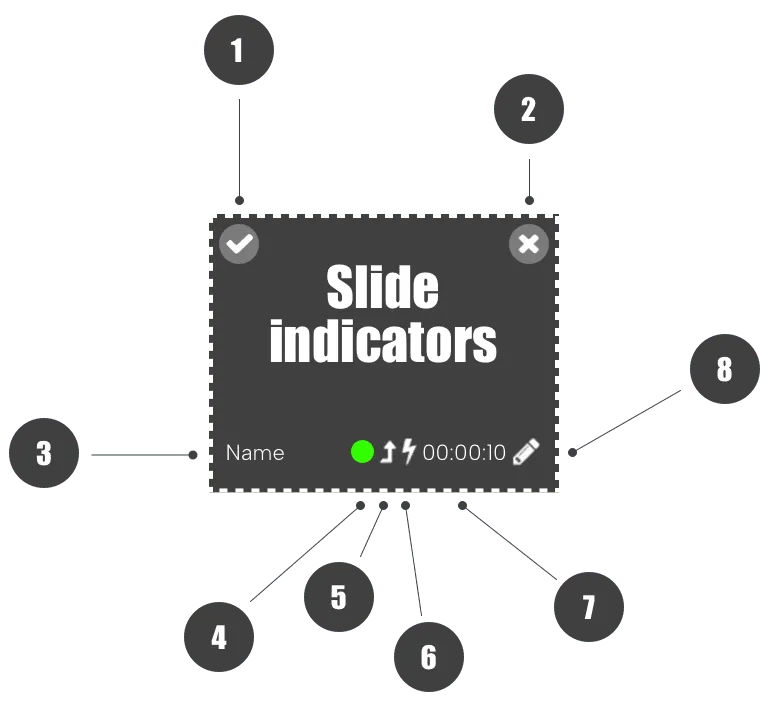
The icons on a slide
- Select the slide
- Delete the slide
- Slide number or name
- Slide condition: green means it has conditions and plays now; red means none of its conditions match now, so it’s skipped
- After this slide play is on
- A transition is on
- How long the slide plays
- Edit the slide (the pencil)
FAQ
Editing
Why can't I drag an object to the top layer?
Some plugins aren’t part of the slide when it plays: video, Facebook, Twitter, YouTube, Website, Ticker, Playlist and Media RSS are separate windows placed exactly over it. That’s how web standards work, and for video and tickers it makes playback faster. For video and tickers you can set Always on top to No to put objects above them, but playback will likely be slower.
What does the exclamation mark mean?
The object was dragged off the slide. Click the blue Center object button to bring it back.
Can I edit several slides at once?
Yes. See Change several slides at once.
Can I combine a time of day and a screen condition?
Yes. Add a condition to start and stop at set times every day, and add the screens the slide should play on.
Smooth playback
Why aren't my transitions smooth?
Three things matter:
- The effect: some take more work. Try Fade to black
- The playlist: high-resolution images, many plugins and zones all add up. Try making it simpler
- The player: an entry-level Android device has less power than a mid-range player with an Intel i5. Try a stronger player
Why are animations slow?
During an animation the player draws the slide 24 times a second instead of once. To make it smoother:
- Use zoom, spin or fade instead of sliding animations, which take more power
- Make the animation longer
- Keep fewer and simpler objects on the slide
- Make the animation in other software, for example Keynote on a Mac, and export it as a video
If none of that helps, use a mid-range player.
Why do animations start stuttering after a while?
Devices slow down when they get hot. Make sure your player doesn’t overheat.
Why can't I add an exit animation?
The slide is set to Play forever, so it never ends. Only entrance animations are available.
Sound
Can I play music or internet radio?
Yes, in the whole playlist or on single slides: Background Music plays music from your Library, and Live Streaming Radio plays a radio station.