About
Zones split your screen into areas that each play their own content: for example your main content, news in a strip at the bottom and offers on the side. Start from a ready-made layout in seconds, or make your own custom zones. Behind the scenes, zones use Playlist in Playlist.

Get Started
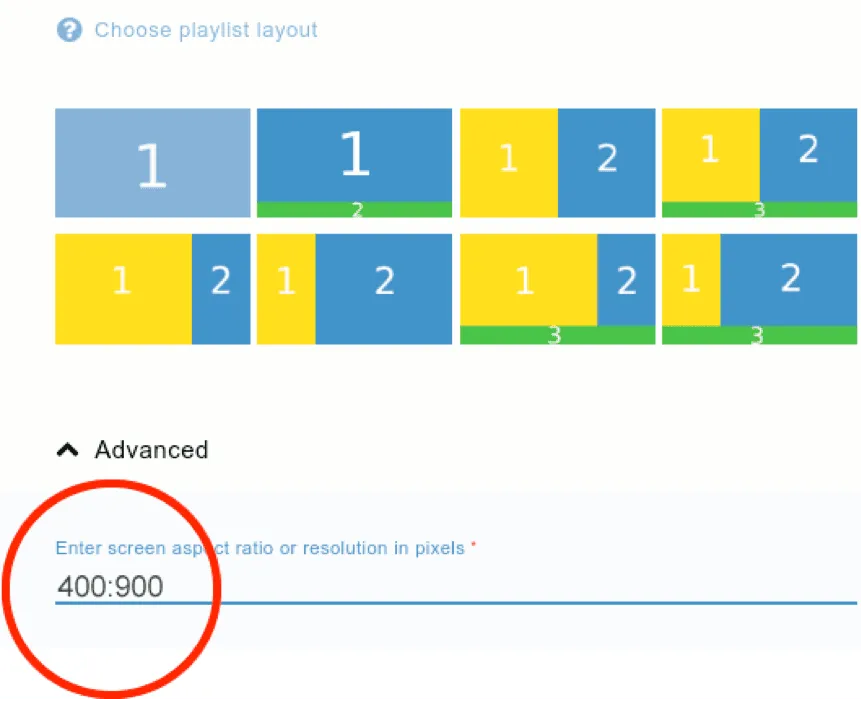
Create a playlist with zones from a layout
- Go to Playlists and click Create playlist
- Type a name and pick the aspect ratio (usually 16:9, or 9:16 in portrait)
- Pick a layout and click Create
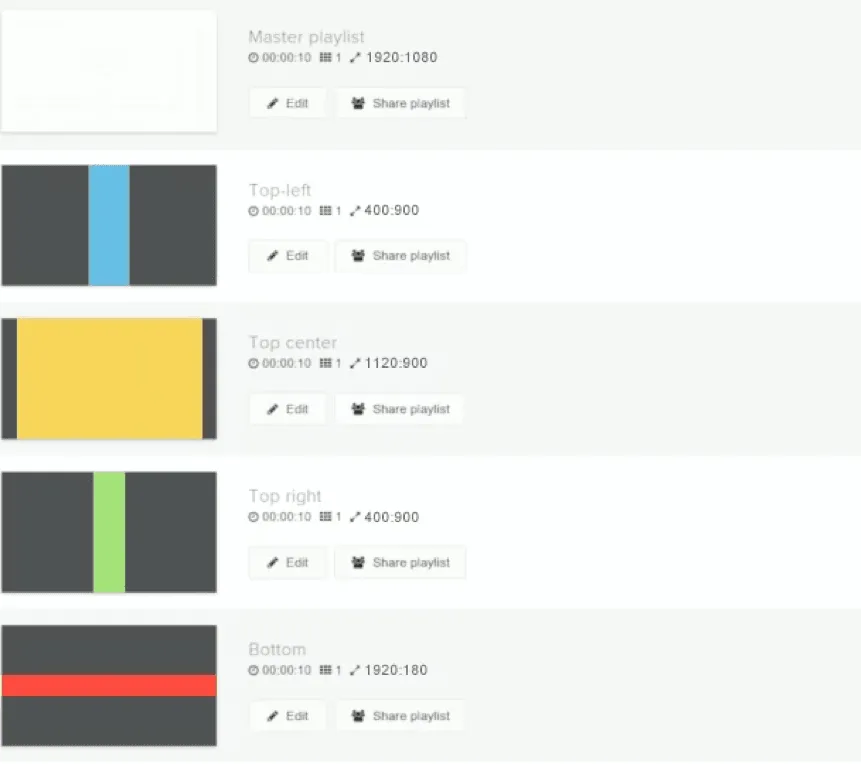
Play makes a master playlist plus one playlist per zone, for example “zone 1” and “zone 2”.
Add content to a zone
- Open the zone’s playlist and add slides, like any playlist
- Click Publish
Zones can have many slides with any duration, and each runs on its own.
Show the zones on your screens
- Make the master playlist the base playlist of your group, and publish
The master playlist has one slide that plays forever and holds all zones. Add background music there, if you want it.
Make your own zones
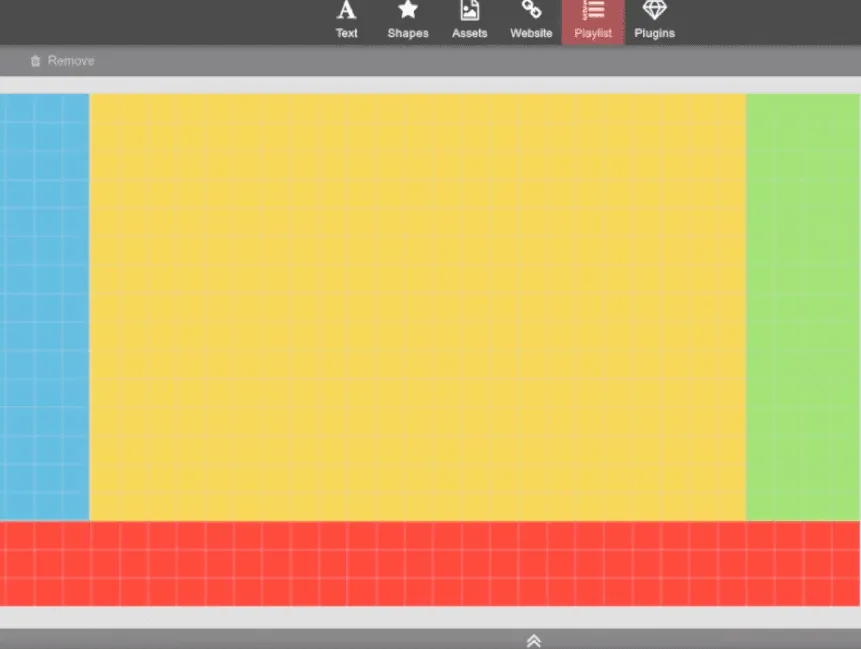
When no layout fits, make one playlist per zone in the exact size of that zone, and put them together on one slide. Prefer a video? See Zone Dimensions.
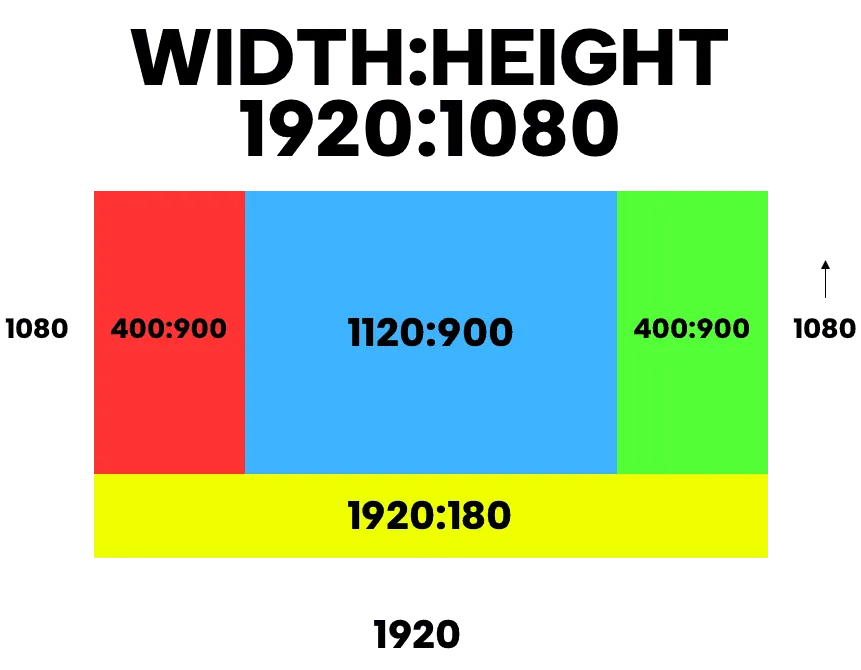
- Sketch the zones on (grid) paper. For a 1920 × 1080 screen, draw a 192 × 108 mm box, so each millimeter is 10 pixels
- Measure each zone. For example: left 40 × 90 mm =
400:900, center 112 × 90 mm =1120:900, right 40 × 90 mm =400:900, bottom 192 × 18 mm =1920:180. Together they must fill the whole screen - Create a playlist for each zone, with its size under Advanced when you create it
- Create a master playlist (
1920:1080) with one slide set to play forever, and a black background if you like - Add the zone playlists to that slide with Playlist in Playlist. If your sizes are right, they fill the screen
- Make the master playlist the base playlist of your group
Options
| Option | What it does |
|---|---|
| Layout | When you create a playlist: ready-made zone layouts |
| Aspect ratio | The shape of the screen or the zone, width to height. 16:9 is the same shape as 1920:1080 (both 1.78) |
| Advanced: screen aspect ratio or resolution | Your own size for a custom zone, like 400:900 |
FAQ
How do I work out the zone sizes?
Draw the screen at a scale where 1 mm is 10 pixels and measure each zone, as in Make your own zones. The video in Zone Dimensions shows it step by step.
Why aren't my custom zones indented on the Playlists page?
Only zones made from a layout are shown under their master. Play doesn’t know which custom zone belongs where. It’s only how the list looks; everything works the same.
Can zones have a transparent background?
Yes. See Transparent Background.
Where do I add background music?
In the master playlist.