About
Keep people entertained while they wait: a question with four answers (or true or false), a countdown, then the right answer. Thousands of questions from Open Trivia DB, in 24 categories and three levels, change every day with nothing to type. Or show them as “Did you know?” fun facts. On every plan.
Get Started
Everything here starts in the editor: open your playlist and the slide. The editor saves by itself (“All changes saved”). When you’re done, click Publish.
Set up the quiz
Add trivia to a slide
- Click Apps, and click Trivia and fun facts under Fun and interactive (or type “trivia” in Search apps)
- A sample question is added in the middle of the slide, and App settings opens
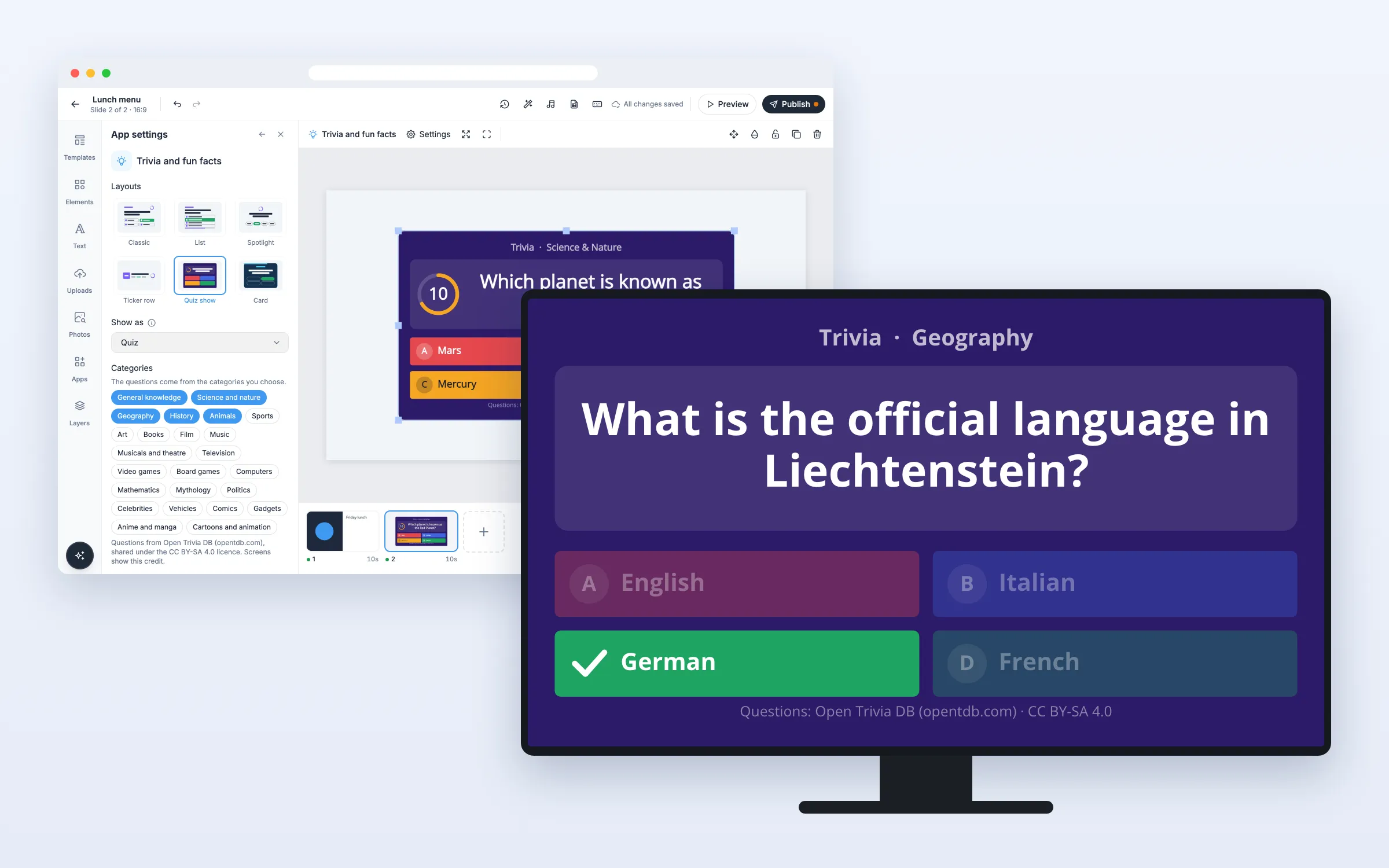
- Pick one of the six Layouts
- Under Categories, click the ones you want. Nothing chosen asks from every category
- Set Difficulty and Kind of question if you like
Set how long each question stays
- Set Seconds per question: the countdown on the screen
- Set Seconds to show the answer
One question takes both together, 15 + 6 = 21 seconds to start with. Make the slide as long as the questions you want in a row, for example 3 × 21 = 63 seconds. Each time the slide comes round, the screen goes on with the next question.
Show fun facts instead of a quiz
- Set Show as to Fun facts
Each question is then shown with its answer straight away, under “Did you know?”, for Seconds per question.
See how the answer looks in the editor
- Set Show in the editor to The answer
The editor shows the right answer highlighted, as screens do when the time is up. It only changes what you see while editing; screens always show both.
Options
Click the question on the slide to change these in App settings.
| Option | What it does |
|---|---|
| Layouts | Classic, List, Spotlight, Ticker row, Quiz show (purple, with coloured answer tiles) or Card (navy). The first four have no background |
| Show as | Quiz: question, countdown, then the answer. Fun facts: question and answer together |
| Categories | General knowledge, Science and nature, Geography, History and Animals to start with; 24 in all |
| Difficulty | All levels, Easy, Medium or Hard |
| Kind of question | Both kinds, Four options or True or false |
| Seconds per question | 5 to 120, 15 to start with |
| Seconds to show the answer | 2 to 30, 6 to start with (Quiz) |
| Show in the editor | The question or The answer (Quiz) |
| Show the countdown | On to start with (Quiz) |
| Show the category, Show the heading | On to start with |
| Heading | Your own heading. Empty shows “Trivia” (or “Did you know?”) |
| Font | Open Sans to start with, or one of your team’s fonts |
| Colors | Text colour, Accent colour and Right answer colour; background color and opacity for Quiz show and Card |
| Rounded corners | For every layout but Spotlight |
| Language | The words around the questions (heading, True and False): English to start with, Same as the screen, or one of 12 languages |
FAQ
Which plans include Trivia and Fun Facts?
Every plan.
Where do the questions come from?
From Open Trivia DB, a free database of about 5,000 checked questions, shared under the CC BY-SA 4.0 licence. That licence asks for a credit, so every layout shows a small “Questions: Open Trivia DB” line. Each day the screens get a new mix of questions from your categories.
Can the questions be in another language?
No, the questions are in English, as Open Trivia DB has them. The words around them, such as the heading and True or False, can be in any of 12 languages (Language).
What if the screen goes offline?
It keeps asking the questions it has, for up to 7 days.
Do my screens need an update?
No. Screens show the questions like other web apps, on the players you already have.