About
Show how many days your site has gone without an incident. The count goes up by itself every midnight, and the record is kept. When something happens, a safety officer reports it from a private link on their phone, and every screen starts again from 0 within seconds. Choose a big number, a green cross or a banner. On every plan.
Get Started
Everything here starts in the editor: open your playlist and the slide. The editor saves by itself (“All changes saved”). When you’re done, click Publish.
Set up the board
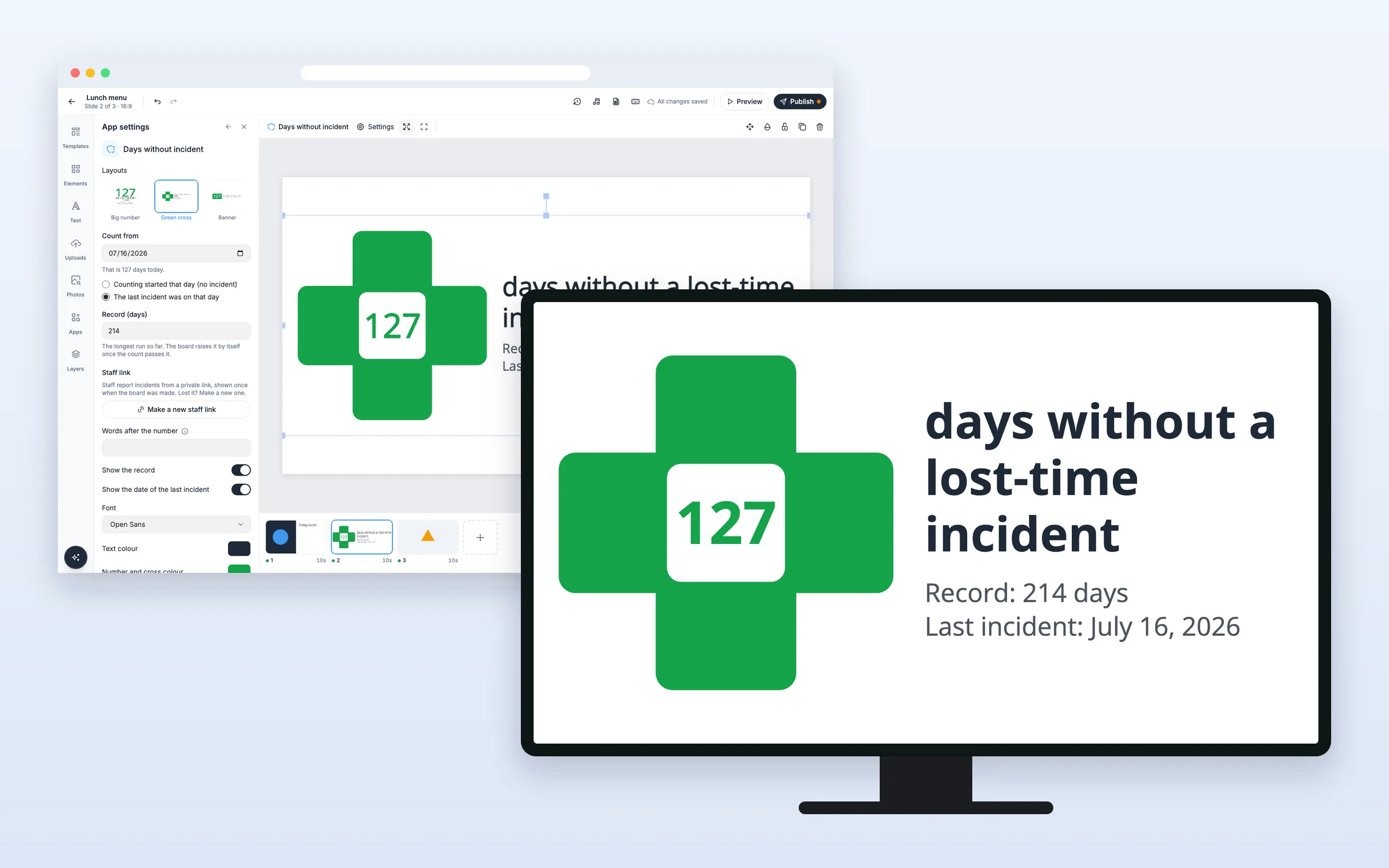
Add a safety board to a slide
- Click Apps, and click Days without incident under More apps (or type “incident” in Search apps)
- Pick a layout: Big number, Green cross or Banner
- Under Count from, pick the date, today or earlier, and choose Counting started that day (no incident) or The last incident was on that day
- Type your Record (days) if you have one
- Click Create board. The pop-up shows the staff link, with Copy and a QR code
- Copy the link and keep it, then click Close
The staff link is shown only this once. If you lose it, make a new one (see below).
Change the words after the number
- Type your own Words after the number, up to 120 characters
Empty shows “days without a lost-time incident” in the board’s language.
Make a new staff link
- In App settings, click Make a new staff link, and confirm with Make new link
The old link stops working at once. Copy the new one and share it with the people who should have it.
For your safety officer
Report an incident
- Open the staff link on a phone or a computer. No sign-in is needed
- Pick the date of the incident (today to start with), and confirm with Yes, report it
Every screen starts again from 0 within seconds.
Correct the count
On the staff page, change the date the count runs from, whether that day was an incident or the start, and the record. The page also shows the last 10 changes.
Options
Click the board on the slide to change these in App settings.
| Option | What it does |
|---|---|
| Layouts | Big number, Green cross or Banner. Colors, words and the count stay when you switch |
| Count from | The date the count runs from, not in the future |
| Counting started that day / The last incident was on that day | What happened on that date |
| Record (days) | 0 to 100,000. Screens show the change within seconds |
| Make a new staff link | Stops the old link and makes a new one |
| Words after the number | Up to 120 characters |
| Show the record | On to start with |
| Show the date of the last incident | Shows “Last incident: …”, or “Counting since …” when there was none |
| Font | Open Sans to start with |
| Text colour, Number and cross colour, Background | Your own colors. The background can be made see-through |
| Language of the board | One of 12 languages |
FAQ
Which plans include Days Without Incident?
Every plan.
When does the count go up?
At midnight, by the screen’s own clock and time zone. A screen with the wrong time or time zone counts at the wrong moment.
How is the record kept?
When an incident ends a run longer than the record, that run becomes the new record. The board always shows the longer of the record and the current run.
Who can use the staff link?
Anyone you give it to. It’s never shown on the screen or in the playlist, and it’s shown to you only when you make it. If it reaches the wrong people, make a new one.
What if the screen goes offline?
It keeps counting, midnight included, also after a restart, and shows a small grey dot. An incident reported meanwhile shows when the screen is back online.
Do my screens need an update?
No. Screens show the board like other web apps, on the players you already have.