About
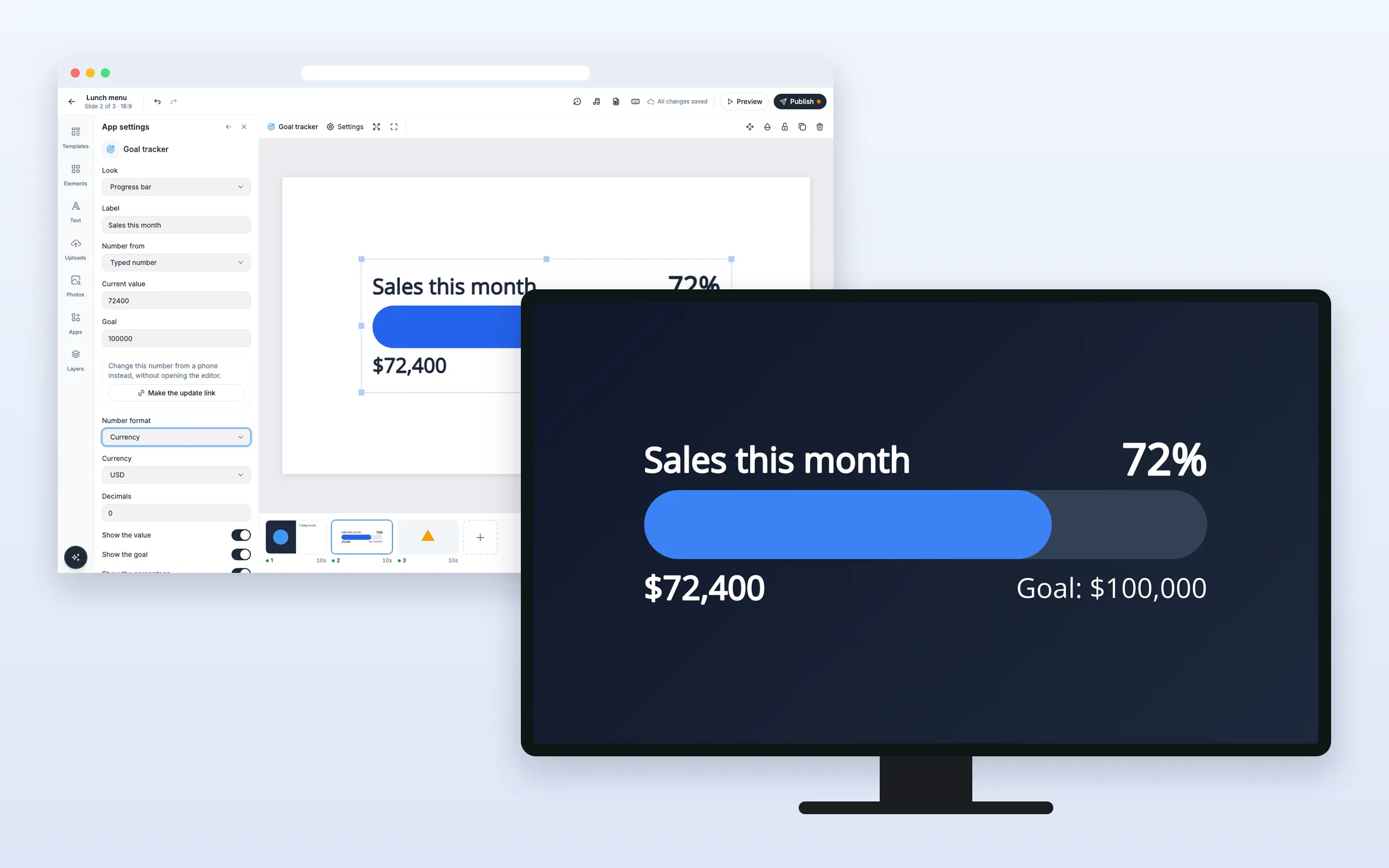
Show how close you are to a goal: sales this month, money raised, tickets closed. Pick a progress bar, a gauge or a thermometer. Type the number, read it from a Google Sheet or CSV file, or let staff change it from their phone with a link or QR code. Screens follow within seconds, and confetti falls when you reach 100%. On every plan.
Get Started
Everything here starts in the editor: open your playlist and the slide. The editor saves by itself (“All changes saved”). When you’re done, click Publish.
Set up the goal tracker
Add a goal tracker to a slide
- Click Apps, and click Goal tracker under More apps (or type it in Search apps)
- A tracker lands in the middle of the slide, with the label “Our goal” and 6500 of 10000, and App settings opens
- Choose the Look: Progress bar, Gauge (a half circle) or Thermometer
- Type your own Label, the Current value and the Goal
Read the number from a Google Sheet or CSV file
- In Google Sheets, set sharing to “Anyone with the link”
- In App settings, set Number from to Google Sheet (or CSV link)
- Paste the link into Google Sheet or CSV link
- Type the Value cell, for example B2. To read the goal from the sheet too, type the Goal cell (optional)
The From the sheet box shows what was read. Click Read now to read it again at once. The tracker reads the tab in the link you pasted, or the first tab. It understands numbers like “$12,345.67”, “12.345,67” and “45 %”.
Let staff update the number from their phone
- Click Make the update link under Goal, or set Number from to Update from a link
- Copy the link with Copy, or let staff scan the QR code in the panel
On the update page, staff type an Amount and tap Add, or Set number to replace it. They change the goal with Save goal. No sign-in is needed, and screens show the change within seconds. The QR code is only shown in the editor, never on the screen.
Stop the old update link
- In App settings, click Make a new link
The old link stops working at once, and pages still open on it say “This link no longer works”. Share the new link with the people who should have it.
Change the look
Show money or a percentage
- Set Number format to Currency and pick the Currency, or choose Percent
- Choose the Decimals, from 0 to 2
Change the color along the way
- Turn on Change colour along the way
- Set First change at (%) and its color, and Second change at (%) and its color, for example orange at 50% and green at 90%
Options
Click the goal tracker on the slide to change these in App settings. Some fields only show for the source you picked.
| Option | What it does |
|---|---|
| Look | Progress bar, Gauge or Thermometer |
| Label | The text above the number. Starts as “Our goal” |
| Number from | Typed number, Google Sheet, CSV link or Update from a link |
| Current value | The number, when you type it |
| Google Sheet or CSV link | The sheet or file to read. It must be public |
| Value cell | The cell with the number, like B2 |
| Goal cell (optional) | A cell with the goal. Empty uses the goal you type |
| Read again every (minutes) | How often the sheet is read: 2 to 1440 minutes, 5 to start with |
| Goal | The number to reach. Hidden when the goal comes from the sheet or the update page |
| Number format | Plain number, Currency or Percent |
| Currency | USD, EUR, GBP, DKK, NOK, SEK, CHF, CAD, AUD, NZD, JPY, PLN, CZK, BRL or RUB |
| Decimals | 0, 1 or 2 |
| Show the value, the goal, the percentage | Turn each part on or off |
| Celebrate reaching the goal | At 100%: the fill turns the Colour when reached, “Goal reached!” replaces the goal line, and confetti falls for 8 seconds |
| Font | Open Sans to start with, or one of your team’s fonts |
| Colors | Text colour, Bar colour, Empty part colour, Colour when reached and Background (none to start with) |
| Change colour along the way | Two steps where the bar changes color, by percentage |
| Language on screens | Same as the screen, or one of 12 languages, for “Goal: …”, “Goal reached!” and “… of …” |
FAQ
Which plans include the Goal Tracker?
Every plan.
What happens when we pass the goal?
The percentage keeps counting, for example 111%, and the bar stays full.
Who can change the number with the update link?
Anyone who has the link, without signing in. Share it only with your team, and click Make a new link if it reaches the wrong people.
What if the sheet can't be read or the screen goes offline?
The screen keeps showing the last number for up to 7 days and catches up when it can read again.
Do my screens need an update?
No. Screens show the goal tracker like other web apps, on the players you already have.