About
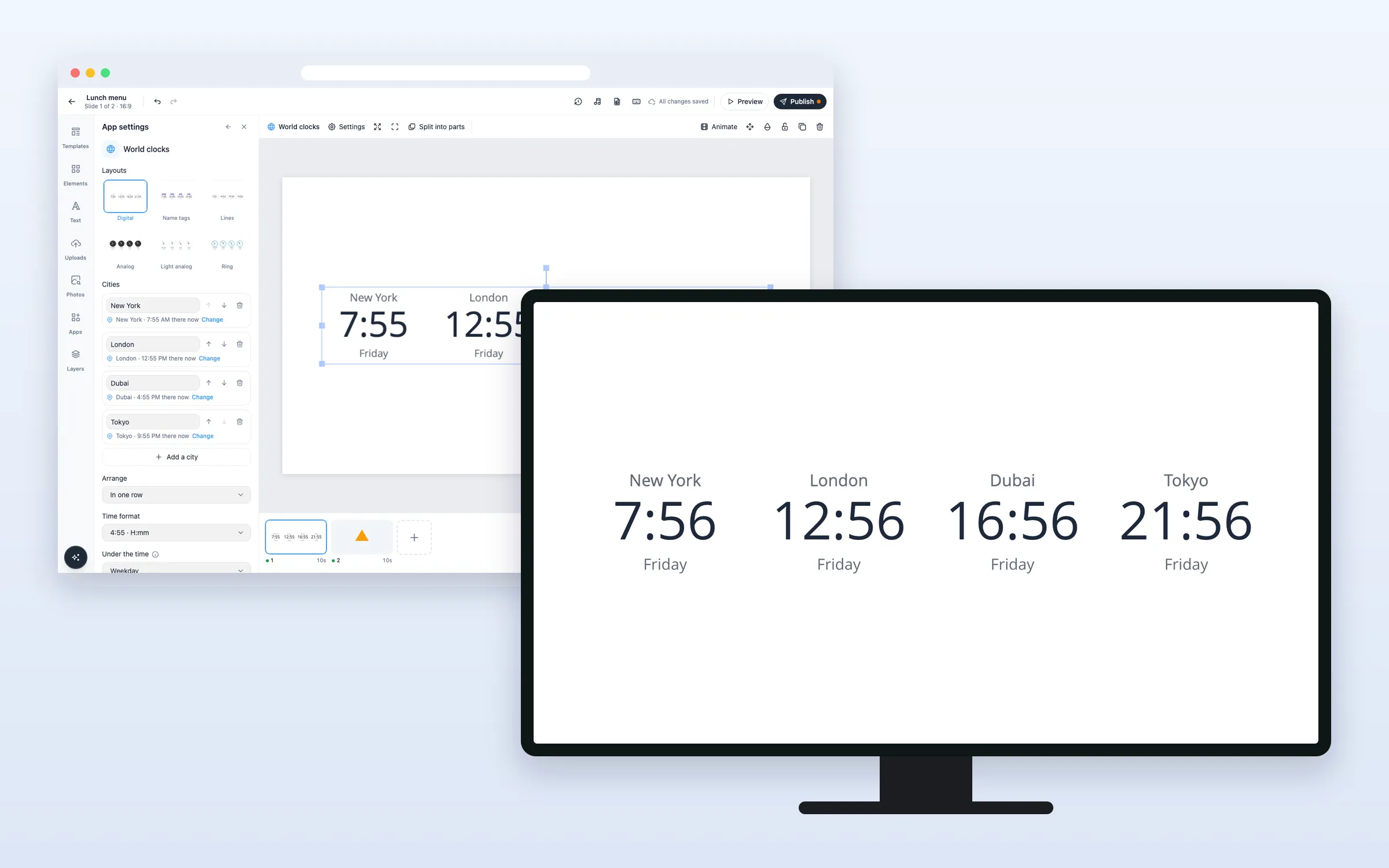
Show the time in 2 to 6 cities side by side, for offices, hotels and teams across time zones. Pick a digital or an analog look, name each city your way, and show the weekday or date, so it’s clear when a city is already on tomorrow. Daylight saving changes by itself. On every plan, and your screens need no update.
Get Started
Everything here starts in the editor: open your playlist and the slide. The editor saves by itself (“All changes saved”). When you’re done, click Publish.
Set up the clocks
Add world clocks to a slide
- Click Apps, and click World clocks under Time (or type it in Search apps)
- The clocks go on the slide with New York, London, Dubai and Tokyo, and App settings opens
- Pick one of the six Layouts
Add, change or remove a city
- Click Add a city, type in Search for a city and pick it
- To swap a city, click Change on its row and search again
- Use the arrows to move a city up or down, and the bin to remove it
You can show 2 to 6 cities. Each row shows the time there now.
Give a city your own name
- Type the name in the city’s name field, for example “NYC office”, up to 40 characters
Show the clocks in two rows
- Set Arrange to In two rows
Options
Click the clocks on the slide to change these in App settings.
| Option | What it does |
|---|---|
| Layouts | Digital, Name tags, Lines, Analog (dark face), Light analog (white face) or Ring |
| Cities | 2 to 6 cities, each with its own name |
| Arrange | In one row or In two rows |
| Time format | For the digital looks: H:mm, HH:mm, h:mm A, H:mm:ss or h:mm:ss A |
| Under the time | Nothing, Weekday, Date or Weekday and date |
| Language | The language of weekdays and months |
| Font, Text colour, Accent | Your own font and colors. Accent is the tag or line color in looks that have one |
| Seconds hand, Hour numbers, Face, Rim, Hands, Numbers colour | For the analog looks, for all clocks at once |
| Split into parts | Turns the clocks into separate elements you can move one by one. The World clocks settings are then gone |
FAQ
Which plans include World Clocks?
Every plan.
Does it handle daylight saving time?
Yes. Each city keeps its time zone, and the change happens by itself.
Does it work offline?
Yes. The time comes from the screen’s own clock, so it keeps running without internet. A screen with the wrong time shows the wrong times.
Do my screens need an update?
No. World clocks are made of parts every screen already shows.