
About
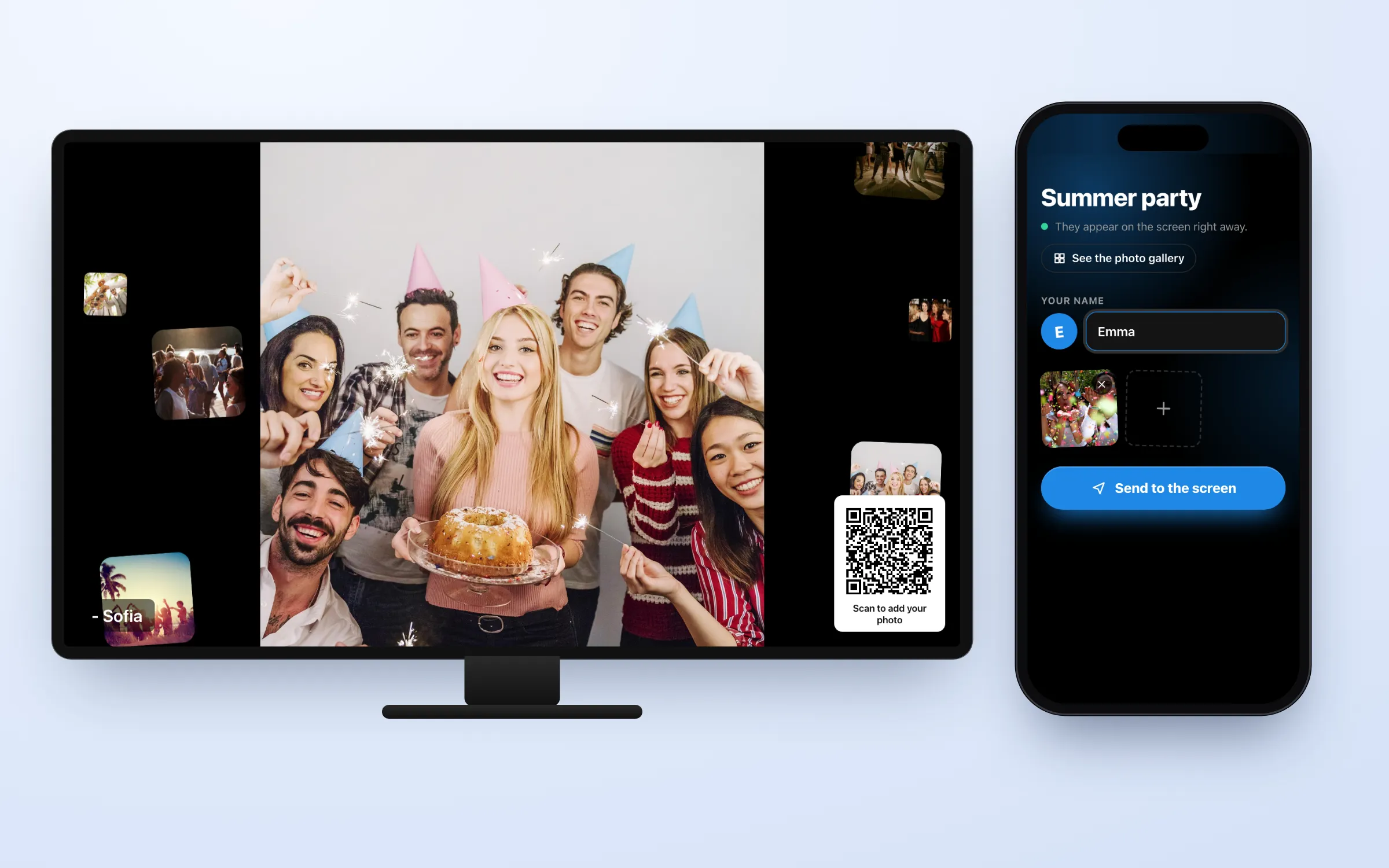
Turn a screen into a live photo wall for a wedding, party or company event. Guests scan the QR code on the screen, type their name and send photos from their phone, with no app to install. The screen shows each new photo at once, then keeps going through all of them. Afterwards you download every photo from the gallery. Available on the Pro and Ultimate plans.
Get Started
Set up the photo wall
Add a photo wall to a slide
- Open the playlist and the slide where you want the photo wall
- Click Apps, and click Photo wall under More apps (or type it in Search apps)
- In the Settings tab, give the wall a title, like “Summer party 2026”, and choose how many seconds each photo is shown
- In the Style tab, choose the colors, the photo size and where the QR code goes. The preview shows how the screen will look
- Click Create photo wall. The Links tab opens with the gallery and upload links
- Click Close, then Publish
The photo wall fills the whole slide. Until the first photo arrives, the screen shows the title and the QR code.
Change the colors and the QR code
- In the Style tab, choose the Background and Highlight colors
- Under Photo size, choose Show the whole photo or Fill the screen (photos may be cropped)
- With the whole photo shown, Float other photos down the sides fills the empty space beside it with small photos from the wall
- Choose the QR code position, and type your own Text under the QR code, or keep “Scan to add your photo”
Change the photo wall settings
- Open the playlist and click the photo wall on the slide to select it
- Click Photo wall settings in the panel on the right
- Change what you need, and click Save changes
- Click Publish
Screens and guests’ phones pick up the change right away.
Close the photo wall after the event
- Open the photo wall settings and turn off Accept new photos
- Click Save changes, then Publish
The QR code leaves the screen and the photos keep showing. Guests who open the upload page are told the wall is closed. Turn it on again to take more photos.
Remove the photo wall from a slide
- Open the playlist and click the photo wall on the slide to select it
- Copy the Photo gallery link from the panel on the right and keep it
- Click Delete or press Backspace on your keyboard
- Click Publish
The photos stay in the gallery, and you reach it with the link you kept.
For your guests
How guests send photos
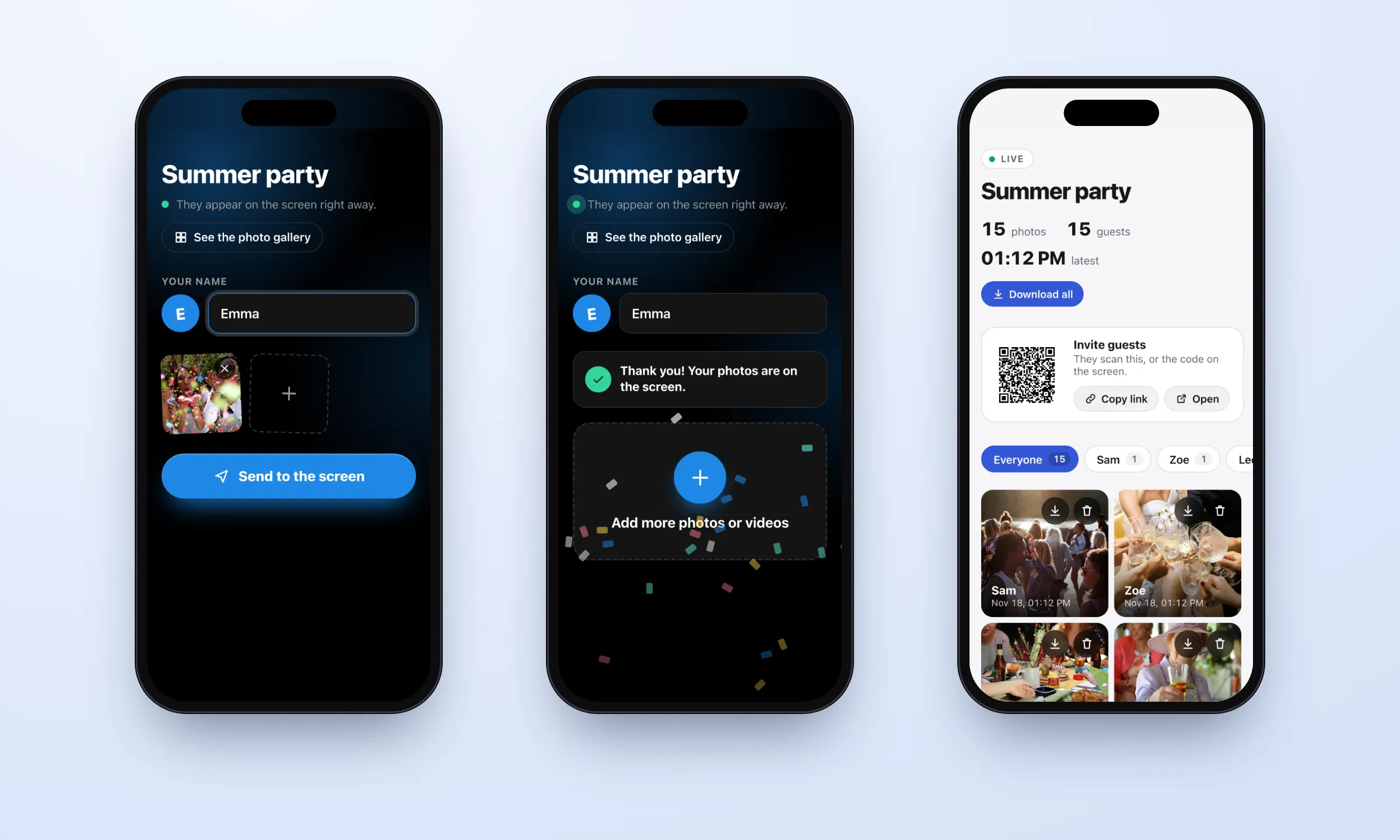
- They scan the QR code on the screen with their phone camera
- They type their name. It shows with their photos on the screen
- They tap Choose photos or videos and pick one or more
- They tap Send to the screen, and their photos show on the screen right away
Guests who can’t scan the screen can open the Upload link instead: send it to them, or put it in an invitation.
Let guests send videos
- In the Settings tab, turn on Allow videos
- Choose the Longest video (minutes)
- Turn on Play videos with sound if the screen should play their sound
Videos play on the screen to their end, then the photos carry on.
Your photos
Open the photo gallery
- Click the photo wall on the slide to select it. The Photo gallery link is in the panel on the right, or in the Links tab of the settings
- Click Open the gallery, or copy the link to open it on another device
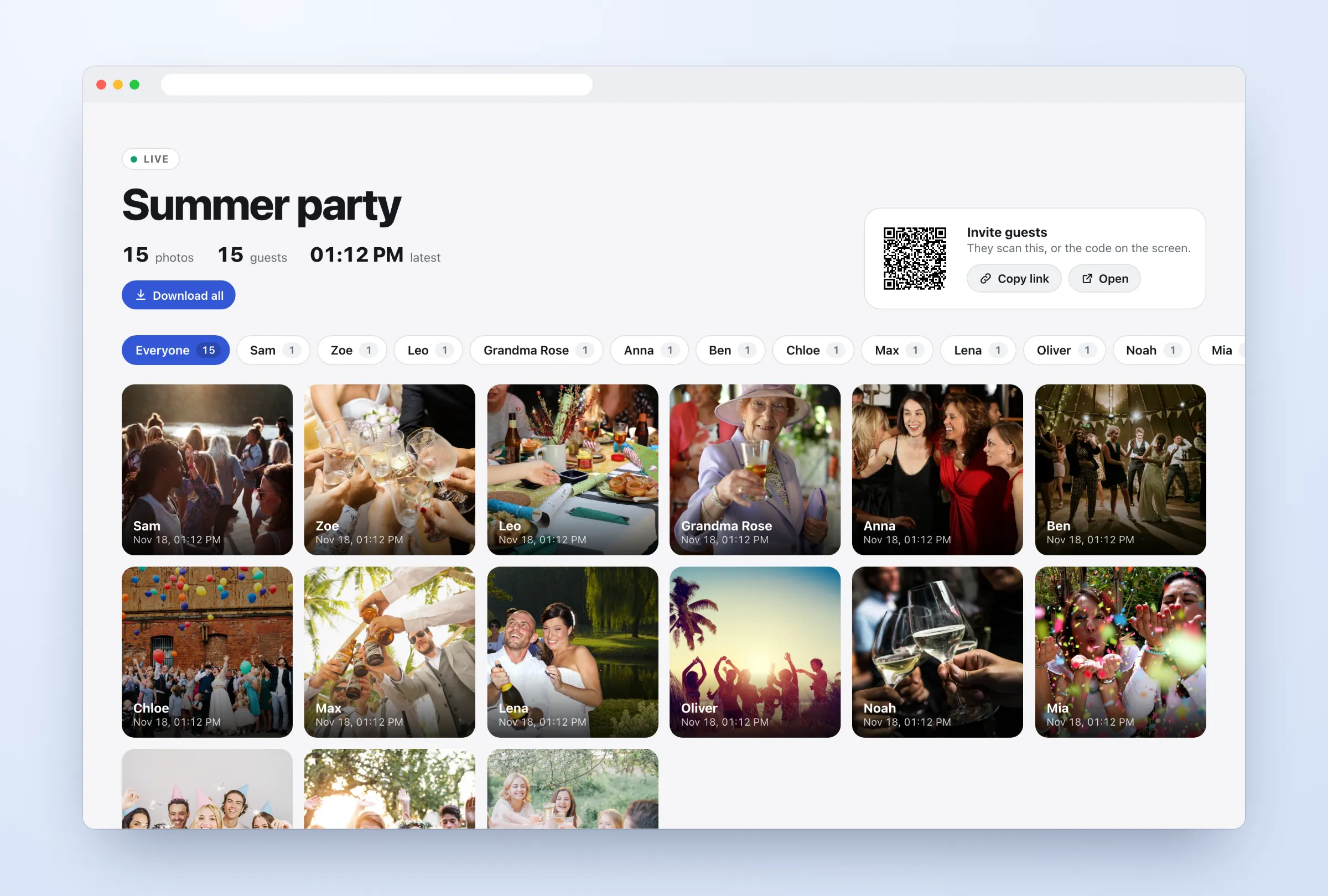
The gallery shows every photo that was sent, newest first, with who sent it and when. Filter by guest with the buttons above the photos.
Download the photos
- In the gallery, click Download all to get every photo in one file
- Or click the download button on a single photo
Delete a photo
- In the gallery, click the bin button on the photo, and confirm
The photo leaves the screen and the gallery at once. Anyone with the gallery link can delete photos, so only share it with people you trust.
Options
Click the photo wall on the slide and click Photo wall settings to change these.
Settings
| Option | What it does |
|---|---|
| Title | Shown on the guests’ upload page, and on the screen until the first photo arrives |
| Seconds each photo is shown | From 3 to 120 seconds |
| Show the sender’s name with each photo | The name the guest typed, in the corner of the screen |
| Allow videos | Guests can also send videos, up to the Longest video you choose (at most 10 minutes). Play videos with sound turns their sound on |
| Guests can open the photo gallery | A “See the photo gallery” button on the guests’ page. They see every photo and can delete any of them, like you |
| Accept new photos | Turn it off after the event: the QR code leaves the screen and the photos keep showing |
Style
| Option | What it does |
|---|---|
| Language | The language of the screen and of the guests’ phone pages |
| Photo size | Show the whole photo, or Fill the screen (photos may be cropped) |
| Float other photos down the sides | Small photos from the wall drift down the empty space beside a photo that doesn’t fill the screen |
| Background and Highlight | The colors of the screen and of the guests’ page |
| Show the QR code on the screen | Turn it off if guests get the upload link another way |
| QR code position | Top left, top right, bottom left or bottom right |
| Text under the QR code | Up to 80 characters. Empty shows “Scan to add your photo” |
Links
| Option | What it does |
|---|---|
| Photo gallery | Every photo that was sent, to view, download or delete. Anyone with the link can delete photos |
| Upload link | The page the QR code opens, for guests who can’t scan the screen |
FAQ
Guests
Which plans include the Photo Wall?
The Pro and Ultimate plans. It’s not part of Essential.
Do guests need an app?
No. The QR code opens a web page in the phone’s browser. Guests only type their name; they don’t install anything or sign up.
Which photos can guests send?
Photos from the phone’s camera roll, including iPhone (HEIC) photos, several at a time. Large photos are made smaller, to at most 4K, before they’re sent, so they arrive quickly.
Is the place where a photo was taken shared?
No. Phones save the location in each photo and video. The photo wall removes it, so it isn’t on the screen, in the gallery or in the downloaded photos.
Screens and photos
Can I check photos before they show on the screen?
No, photos show at once. If one doesn’t belong on the screen, delete it in the gallery and it disappears from the screen right away. Keep the gallery open on your phone during the event to do this quickly.
Can several screens show the same photo wall?
Yes. Every screen playing the slide shows the same wall, and a new photo reaches them all at once.
How long are the photos kept?
Until you delete them in the gallery. A photo wall holds up to 20,000 photos and videos.
Does the photo wall work offline?
No. The screen and the guests’ phones need an internet connection, so new photos can reach the screen.