About
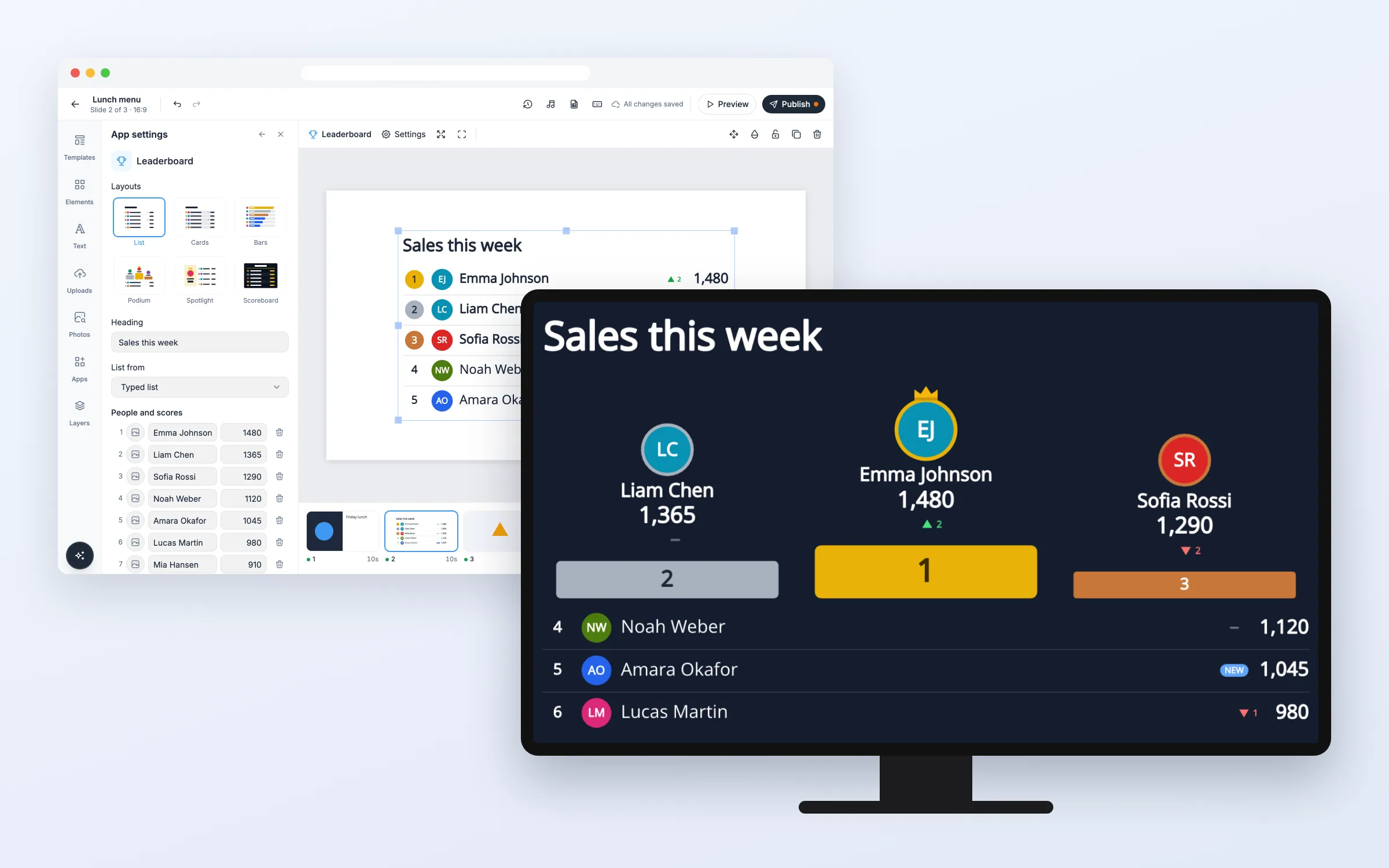
Rank your sales team, call centre agents, gym members or school classes on your screens. Type the names and scores, read them from a Google Sheet or CSV file, or let staff change them from their phone with a link or QR code. Arrows show who moved up or down, the top 3 get gold, silver and bronze, and long lists page or scroll by themselves. On every plan.
Get Started
Everything here starts in the editor: open your playlist and the slide. The editor saves by itself (“All changes saved”). When you’re done, click Publish.
Set up the leaderboard
Add a leaderboard to a slide
- Click Apps, and click Leaderboard under More apps (or type it in Search apps)
- A leaderboard with eight sample people lands on the slide, and App settings opens
- Pick a look under Layouts: List, Cards, Bars, Podium, Spotlight or Scoreboard
- Type your own Heading, for example “Sales this week”
Type the names and scores
- Under People and scores, change a name or a score and press Enter
- Click Add person for a new line, or the bin to remove someone
- Click the picture button on a line to give that person a photo from your Uploads
- To copy a whole list, click Paste a list and paste the cells from Excel or Google Sheets (the name, then the score), then click Use this list
The arrows on screens compare with the scores from when you started editing. Someone you add shows NEW.
Read the list from a Google Sheet or CSV file
- In Google Sheets, set sharing to “Anyone with the link”. Put one person on each row: a name, a score and, if you like, a link to a photo
- In App settings, set List from to Google Sheet (or CSV link)
- Paste the link into Google Sheet or CSV link
The From the sheet box shows how many people were read and who is highest. The columns are found from the header row (Name, Score, Points, Sales, Photo…); pick them yourself under Names in column, Scores in column and Photos in column if needed. Click Read now to read the sheet again at once. Arrows show who moved since the sheet last changed.
Let staff update the scores from their phone
- Click Make the update link under the list, or set List from to Update from a link
- Copy the link with Copy, or let staff scan the QR code in the panel
On the update page, staff change scores with − and + or by typing, add and remove people, and tap Save. No sign-in is needed, and screens show the change within seconds, with arrows for who moved since that save. The QR code is only shown in the editor, never on the screen.
Stop the old update link
- In App settings, click Make a new link
The old link stops working at once, and pages still open on it say “This link no longer works”. Share the new link with the people who should have it.
Change what it shows
Show a long list
- Set People shown (the top ones), up to 100, and Rows on screen at once
- Under When there are more people, choose Page by page (with Seconds per page) or Scroll (with Scroll speed)
With Podium the top 3 stay in place and only the rest pages or scrolls; with Spotlight the leader stays.
Put the lowest score first
- Set Order to Lowest score first (times), for lap times, response times or mistakes
Show money or a unit
- Set Number format to Currency and pick the Currency, or choose Percent
- Type a Word after the score, such as pts, calls or km
Options
Click the leaderboard on the slide to change these in App settings. Some fields only show for the source or look you picked.
| Option | What it does |
|---|---|
| Layouts | List, Cards, Bars, Podium, Spotlight or Scoreboard. All but Scoreboard have no background and take a text color that reads well on your slide |
| Heading | The text above the list. Empty for none |
| List from | Typed list, Google Sheet, CSV link or Update from a link |
| People and scores | The typed list (or the update link’s list): names, scores and photos, up to 100 people |
| Google Sheet or CSV link | The sheet or file to read. It must be public |
| Names, Scores, Photos in column | Which columns hold them. Found from the header row to start with |
| Read again every (minutes) | How often the sheet is read: 2 to 1440 minutes, 5 to start with |
| Order | Highest score first or Lowest score first (times) |
| People shown (the top ones) | How many people are shown, 1 to 100, 10 to start with |
| Rows on screen at once | 1 to 20, 5 to start with |
| When there are more people | Page by page or Scroll |
| Seconds per page, Scroll speed | How fast a long list moves |
| Highlight | Top 3 (gold, silver, bronze), The leader (crown) or None |
| Arrows for who moved up or down | Green and red arrows with the number of places, a dash for no change, NEW for someone new |
| Show photos, Show the places | Turn the photos (or initials) and the place numbers on or off |
| Number format | Plain number, Currency or Percent, with Decimals 0 to 2 |
| Word after the score | Such as pts, calls or km |
| Font | Open Sans to start with, or one of your team’s fonts |
| Colors | Text colour, Accent colour, Colour when up, Colour when down; with Scoreboard also Background colour and Background opacity |
| Language on screens | Same as the screen, or one of 12 languages, for “NEW” and “No scores yet” |
FAQ
Which plans include the Leaderboard?
Every plan.
What do the arrows compare with?
With the list before the last change: a typed list since you started editing it, a Google Sheet since it last changed, and an update link since the last save. A tie shares a place, for example two people in place 2.
Who can change the scores with the update link?
Anyone who has the link, without signing in. Share it only with your team, and click Make a new link if it reaches the wrong people. Photos can only be chosen in the editor, not from the update page.
What if the sheet can't be read or the screen goes offline?
The screen keeps showing the last list for up to 7 days and catches up when it can read again.
Do my screens need an update?
No. Screens show the leaderboard like other web apps, on the players you already have.