About
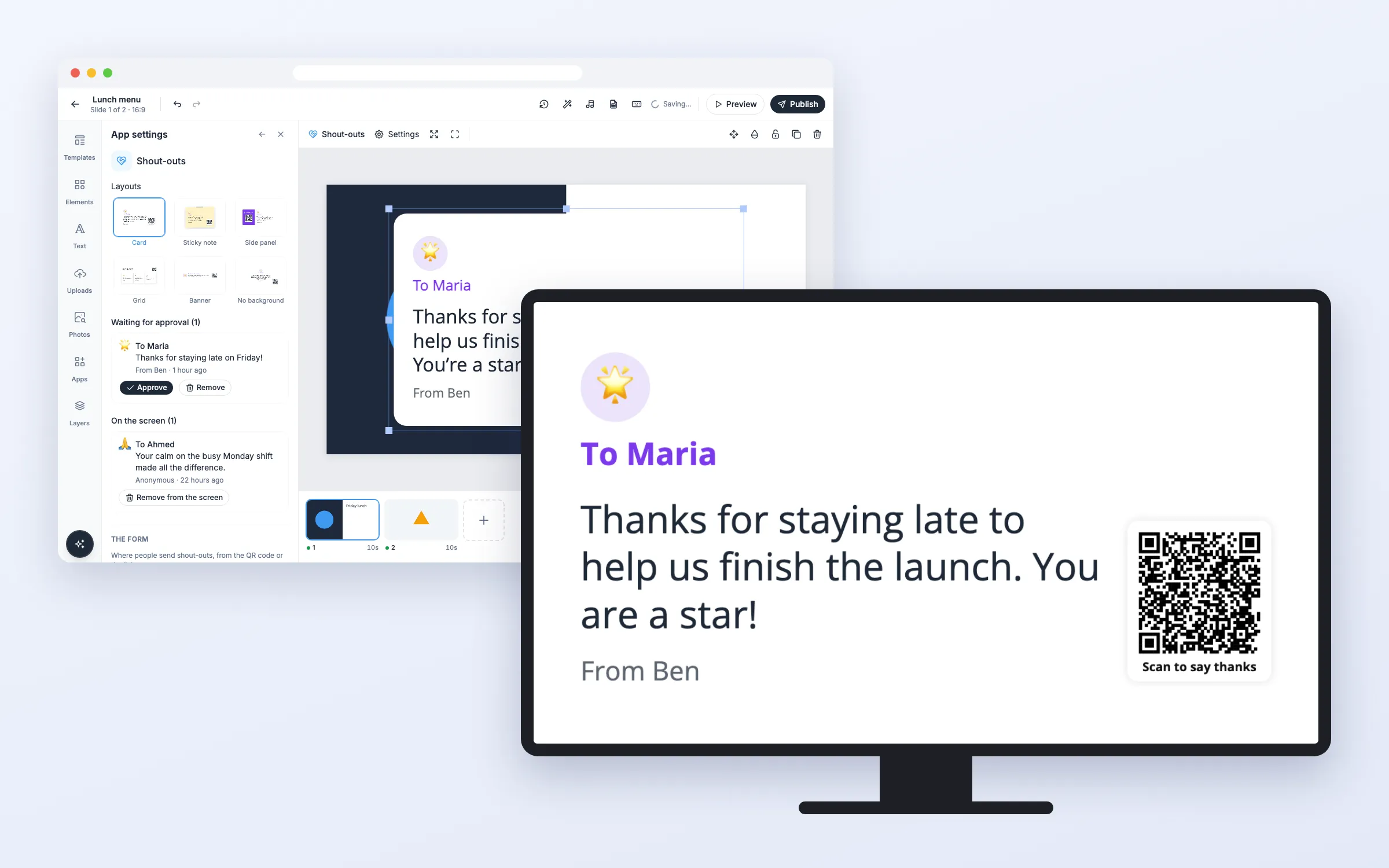
Let people thank a colleague on your screens. They scan the QR code on the screen, or open the form’s link, and write who it is for, a short message, an emoji if they like, and their name or nothing at all. Nothing shows until someone in your team approves it. Approved shout-outs take turns on the screen as cards, newest first. On every plan.
Get Started
Everything here starts in the editor: open your playlist and the slide. When you’re done, click Publish.
Set up the wall
Add Shout-outs to a slide
- Click Apps, and click Shout-outs under More apps (or type “shout” in Search apps)
- Pick a layout: Card, Sticky note, Side panel, Grid, Banner or No background
- Click Create wall
The wall goes on the slide and the pop-up shows the form’s link. Click Copy to share it with your team, for example in your chat or an e-mail. The same form opens from the QR code on the screen.
Approve shout-outs
- Click the wall on the slide. App settings opens on the left
- Under Waiting for approval, read each shout-out and click Approve, or Approve all
An approved shout-out shows on your screens within a second, as the first card. New shout-outs appear in the list by themselves while App settings is open.
Remove a shout-out
- To turn one down, click Remove under Waiting for approval and confirm
- To take one off the screens, click Remove from the screen under On the screen and confirm
It leaves every screen at once and is deleted for good.
Change the look
- In App settings, pick another layout under Layouts. The wall keeps its place and takes the new layout’s shape
- Change Seconds per shout-out, Days on the screen, the font and the colors below
For your colleagues
How to send a shout-out
- Scan the QR code on the screen with your phone camera, or open the link your team shared
- Write who it is for and a short message, and pick an emoji if you like
- Write your name, or leave it empty to send it anonymously
- Tap Send shout-out
No app and no sign-in. The form says it shows on the screen once it has been approved.
Options
Click the wall on the slide to change these in App settings.
Approval
| Option | What it does |
|---|---|
| Waiting for approval | New shout-outs, newest first, with Approve and Remove, and Approve all |
| On the screen | Approved shout-outs, with Remove from the screen |
The form
| Option | What it does |
|---|---|
| The form’s link | The link and QR code to the form, with Copy and a button to open it |
| Heading of the form | Up to 80 characters. Empty shows “Say thanks to a colleague” |
| Ask for the sender’s name | On: the name must be filled in. Off: it may be left empty, and the shout-out is anonymous |
| Language of the form | The language of the form on the phone, from 12 languages |
Look
| Option | What it does |
|---|---|
| Layouts | Card, Sticky note, Side panel, Grid (several at once), Banner or No background |
| Heading | For Side panel and Grid. Empty shows “Shout-outs” |
| Seconds per shout-out | How long each one stays before the next, 4 to 120. Grid turns a page of them |
| Days on the screen | Shout-outs approved more than this many days ago are no longer shown, 1 to 365 |
| Show the QR code, Words under the QR code | The QR code to the form. Empty words show “Scan to say thanks” |
| Font, Text colour, Accent colour, Card colour | Your own font and colors |
| Language on the screen | The words on the screen, such as “To” and “From”, from 12 languages |
FAQ
Which plans include Shout-outs?
Every plan.
Who can approve shout-outs?
Anyone in your team who can edit the playlist. They approve in the editor, signed in to Play.
Can someone put a rude message on the screen?
No. Nothing shows before someone approves it. The form also refuses links, HTML and the most common bad words, keeps messages short, and limits how many shout-outs one phone or one network can send in 10 minutes.
Can people send a shout-out anonymously?
Yes, unless you turn on Ask for the sender’s name. The screen then shows “From a colleague”.
How long does a shout-out stay on the screen?
As many days as Days on the screen, 30 by default. The screen shows up to the 50 newest approved shout-outs.
What if the screen loses its internet connection?
The screen keeps showing the shout-outs it has, with a small grey dot, and reconnects by itself.
Do my screens need an update?
No. Screens show the wall like other web apps, on the players you already have.