About
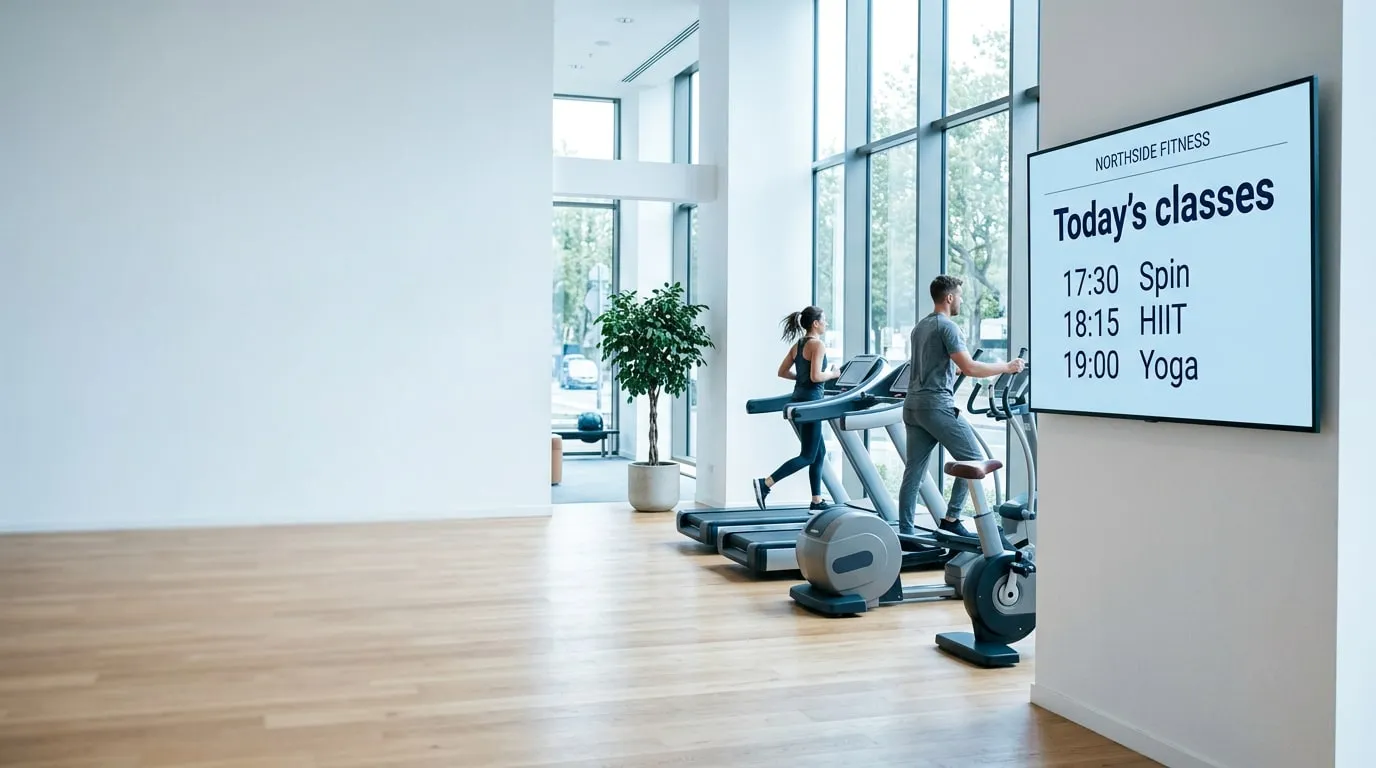
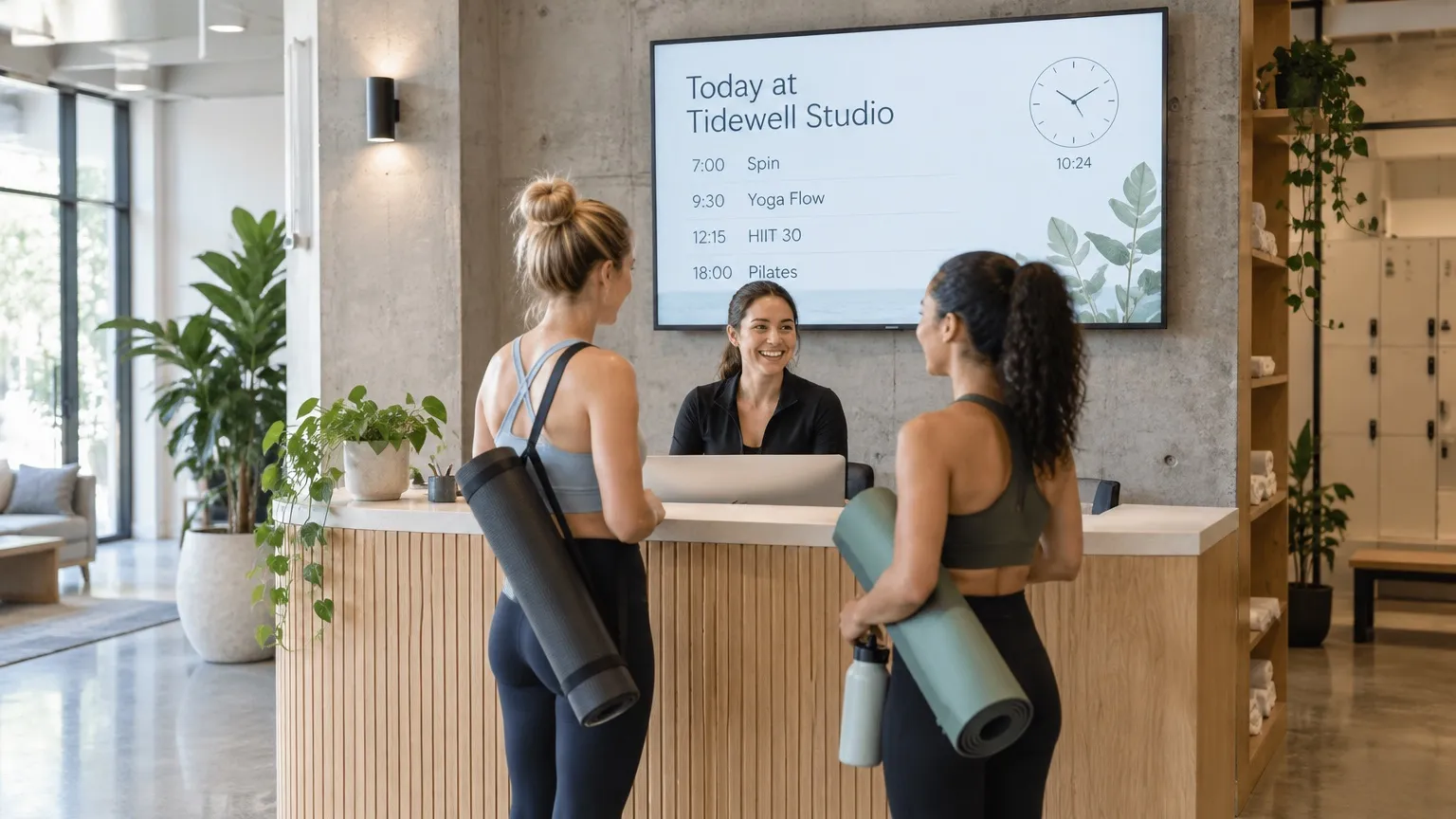
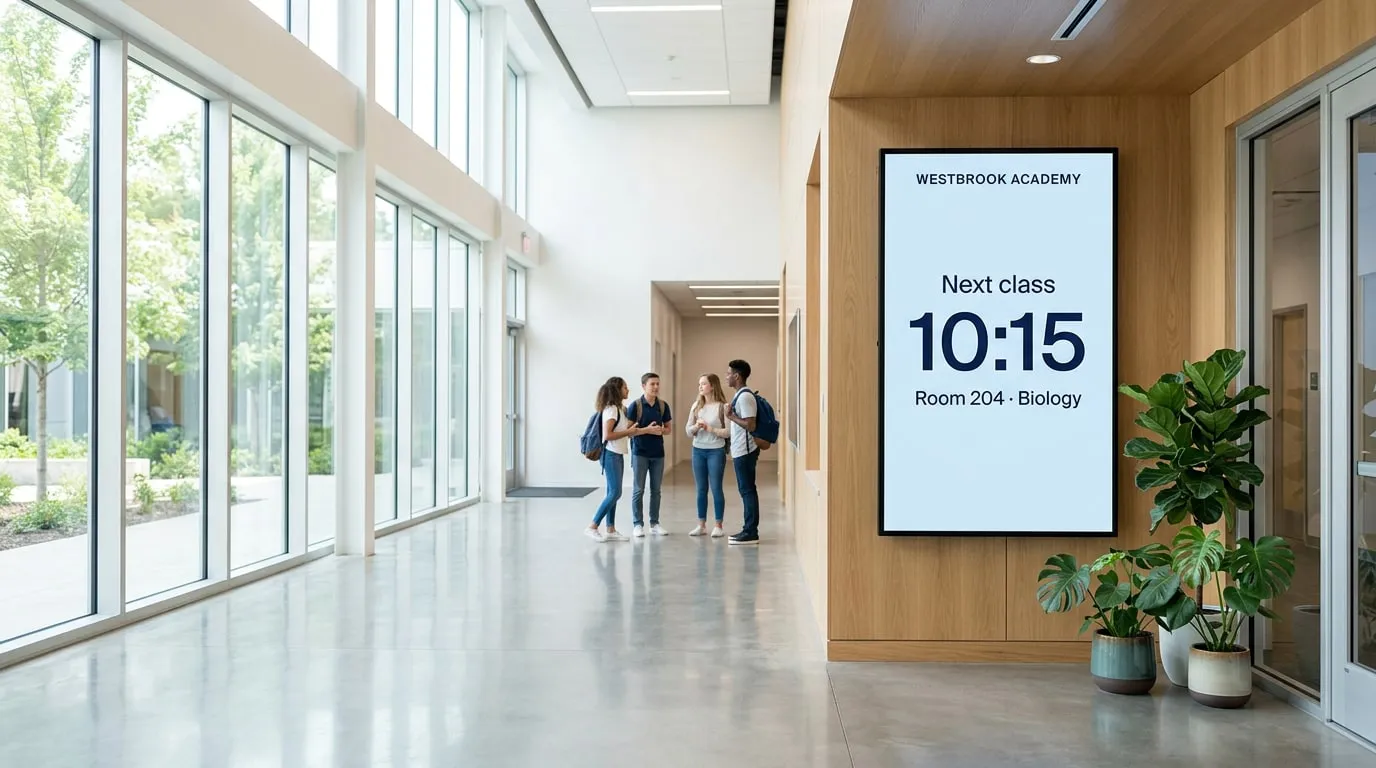
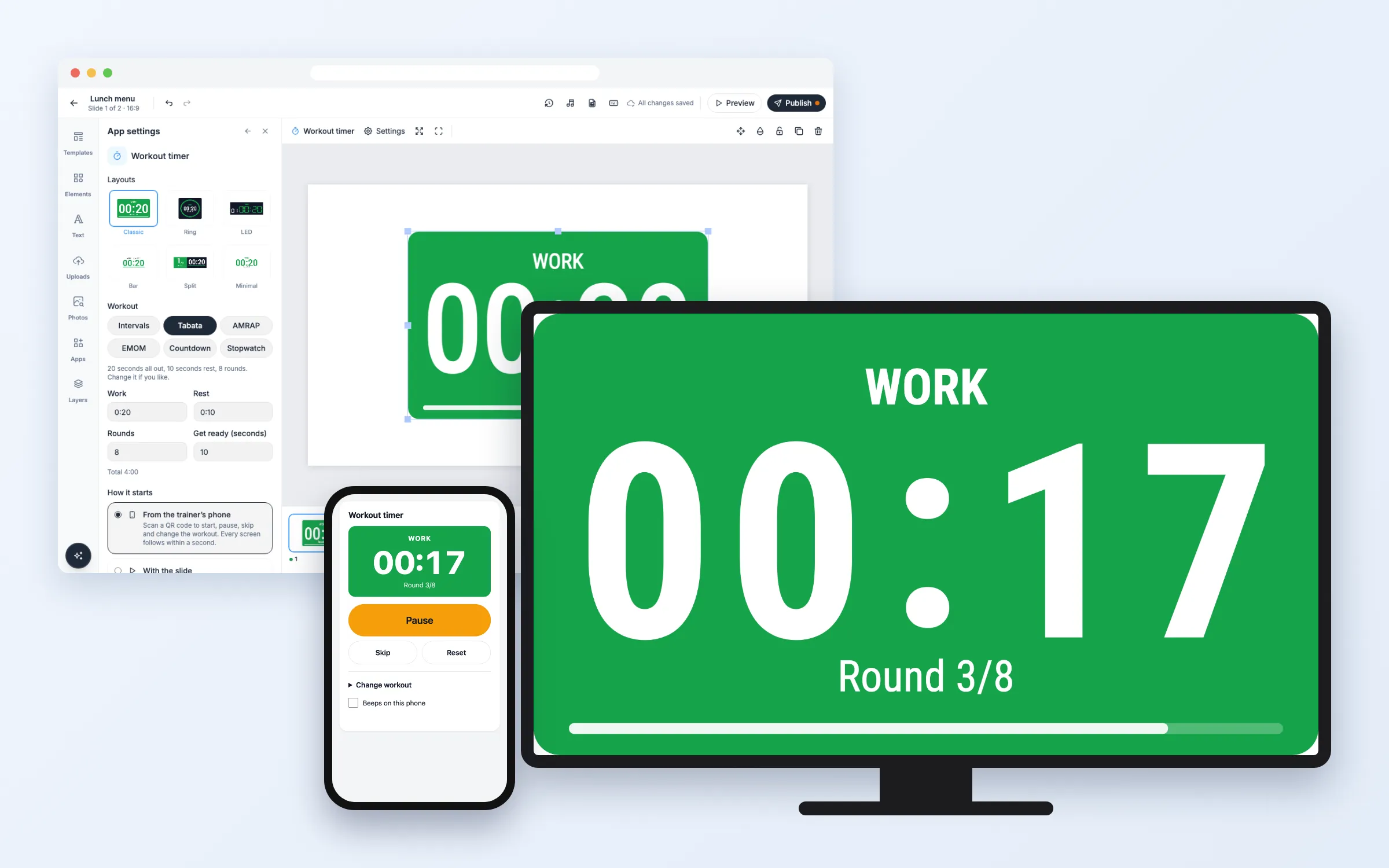
Put a big timer on the screens in your gym, studio or classroom: intervals, Tabata, AMRAP, EMOM, a countdown or a stopwatch. Huge digits, the round, and green for work, red for rest, so everyone can read it from the back of the room. The trainer starts, pauses and skips rounds from their phone. On every plan.
Get Started
Everything here starts in the editor: open your playlist and the slide. When you’re done, click Publish.
Set up the timer
Add a workout timer to a slide
- Click Apps, and click Workout timer under Time (or type “timer” in Search apps)
- Under Workout, pick Intervals, Tabata, AMRAP, EMOM, Countdown or Stopwatch, and change the times and rounds if you like
- Under Layouts, pick a look
- Under How it starts, choose From the trainer’s phone or With the slide
- Click Add timer
With the phone, the pop-up then shows the control link and its QR code. After that, every setting is in App settings on the right.
Control it from your phone
- Scan the QR code in the pop-up, or in App settings under Control from your phone, with the phone you use in class. Or click Copy and send the link to the trainer
- On the phone, tap Start. Pause and Resume stop and continue the time, Skip jumps to the next round or rest, and Reset (tap twice) goes back to the start
Every screen showing the timer follows within a second. Keep the link to yourself: anyone who has it can start and stop the timer.
Change the workout
- On the phone, tap Change workout, pick the mode, set the times and rounds, and tap Use this workout
- Or change it in App settings in the editor
A new workout waits on the screen until you tap Start.
Start it with the slide instead
- In App settings, under How it starts, choose With the slide
The workout starts by itself each time the slide shows, with nothing to control. Make the slide as long as the workout.
Make a new control link
- In App settings, under Control from your phone, click Make a new link
The old link stops working at once. Use this when a trainer leaves or the link was shared too widely.
Options
Click the timer on the slide to change these in App settings.
Workout
| Option | What it does |
|---|---|
| Intervals | Work and rest, round after round. Set Work, Rest, Rounds and Get ready |
| Tabata | 20 seconds of work, 10 seconds of rest, 8 rounds. You can change all of it |
| AMRAP | As many rounds as possible: one countdown of the Length you set |
| EMOM | Every minute on the minute: a new round starts Every minute (or the time you set), for the number of Rounds |
| Countdown | Counts down from the Length you set |
| Stopwatch | Counts up from zero. Set a Time cap to stop it, or 0:00 to run until you stop it |
| Get ready | Seconds of countdown before the first round, in amber |
Look
| Option | What it does |
|---|---|
| Layouts | Classic (the whole board in the round’s color), Ring, LED (a gym clock’s digits), Bar, Split and Minimal. Bar and Minimal have no background |
| Show Work / Rest, Show the round, Show the progress | Turn the words, the round counter and the progress bar or ring on or off |
| Flash when a round starts or ends | The timer lights up for a moment at every change |
| Beep at round changes | Three short beeps before each change and a tone when work or rest starts |
| Word for work, Word for rest | Your own words instead of “Work” and “Rest” |
| Font | Any font of the editor, or one you uploaded |
| Text, Work, Rest, Get ready and Board colours | Your own colors |
| Language of the board | The language of the words on the screen, from 12 languages |
How it starts
| Option | What it does |
|---|---|
| From the trainer’s phone | Start, pause, skip, reset and change the workout from the control link |
| With the slide | Starts by itself each time the slide shows |
| Control from your phone | The control link and its QR code, Copy, Open the control page and Make a new link |
FAQ
Which plans include the Workout Timer?
Every plan.
Will my screen beep?
Players on Windows, Mac, Linux and Android beep through the screen’s speakers, if the screen’s sound is on. Other players and the preview in your browser can’t play sound in an app like this, so the timer flashes at every change instead. You can also turn on Beeps on this phone on the control page and connect the phone to the gym’s speaker.
Do several screens show the same time?
Yes. Every screen works out the time from the same start, so all screens in the room show the same second, also after a short loss of connection.
What if the screen loses its internet connection?
The timer keeps counting, and a small dot shows in the corner. A start or pause from the phone reaches the screen when it is back online.
Who can control the timer?
Only people with the control link. It isn’t on the screen or in the slide. Make a new link in App settings to stop an old one.
Do my screens need an update?
No. Screens show the timer like other web apps, on the players you already have.