About
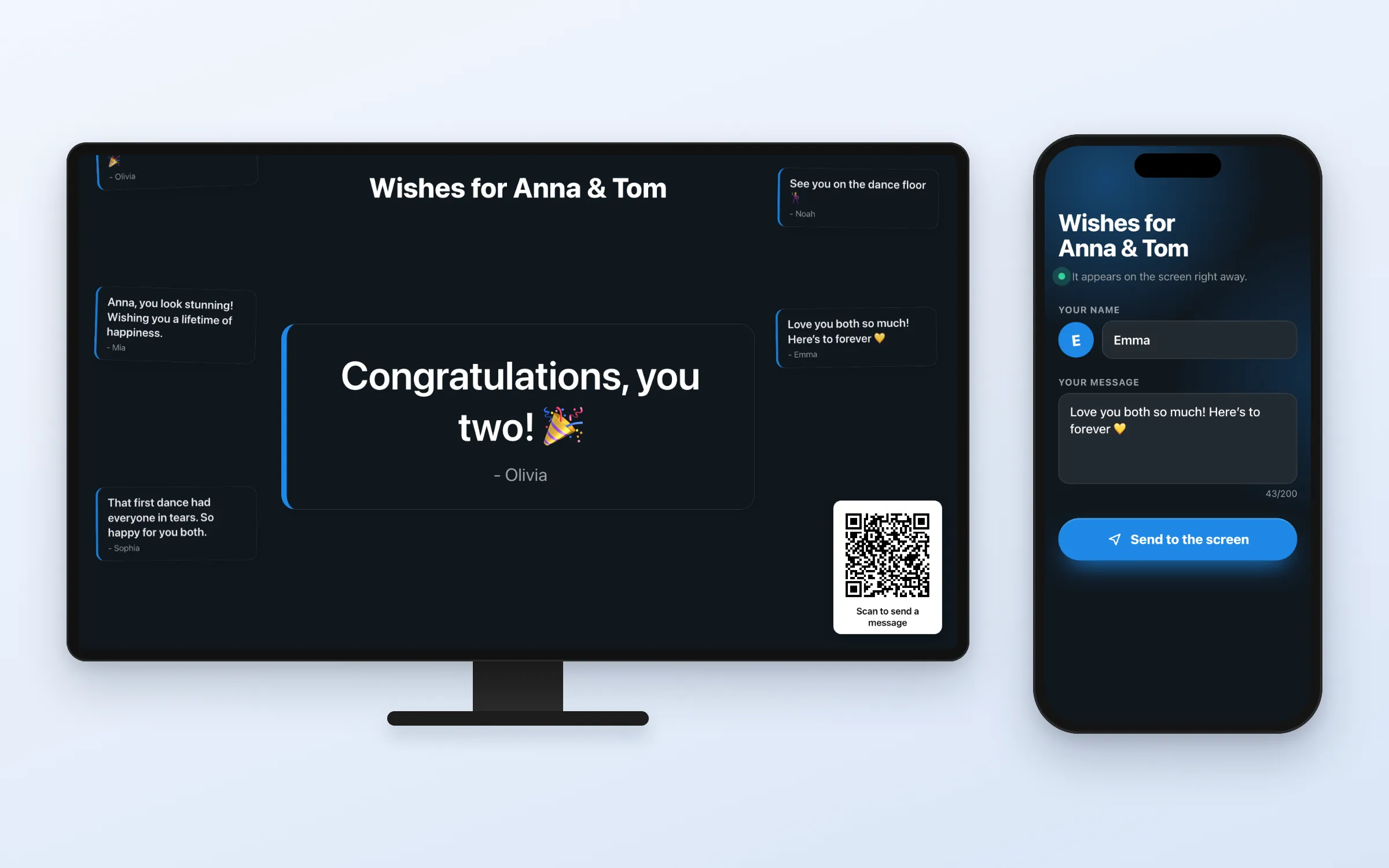
Put your guests’ words on the screen at a wedding, party or company event. Guests scan the QR code, type their name and a short message on their phone, with no app to install, and the screen shows it at once. Approve messages first if you like. Available on the Pro and Ultimate plans.
Get Started
Setting up happens in the editor: open your playlist and the slide for the text wall. When you’re done, click Publish.
Set up the text wall
Add a text wall to a slide
- Click Apps, and click Live Text Wall under More apps (or type it in Search apps)
- In the Settings tab, type a Question or invitation, like “Leave a message for Anna & Tom”, and pick a Layout
- In the Style tab, choose the language, the colors, a background picture if you like, and where the QR code goes. The preview shows how it will look
- Click Create Live Text Wall. The Links tab opens with the owner page and send links
- Click Close, then Publish
The text wall fills the whole slide. Until the first message arrives, the screen shows the question, the QR code and “No messages yet. Be the first!”.
Choose the layout
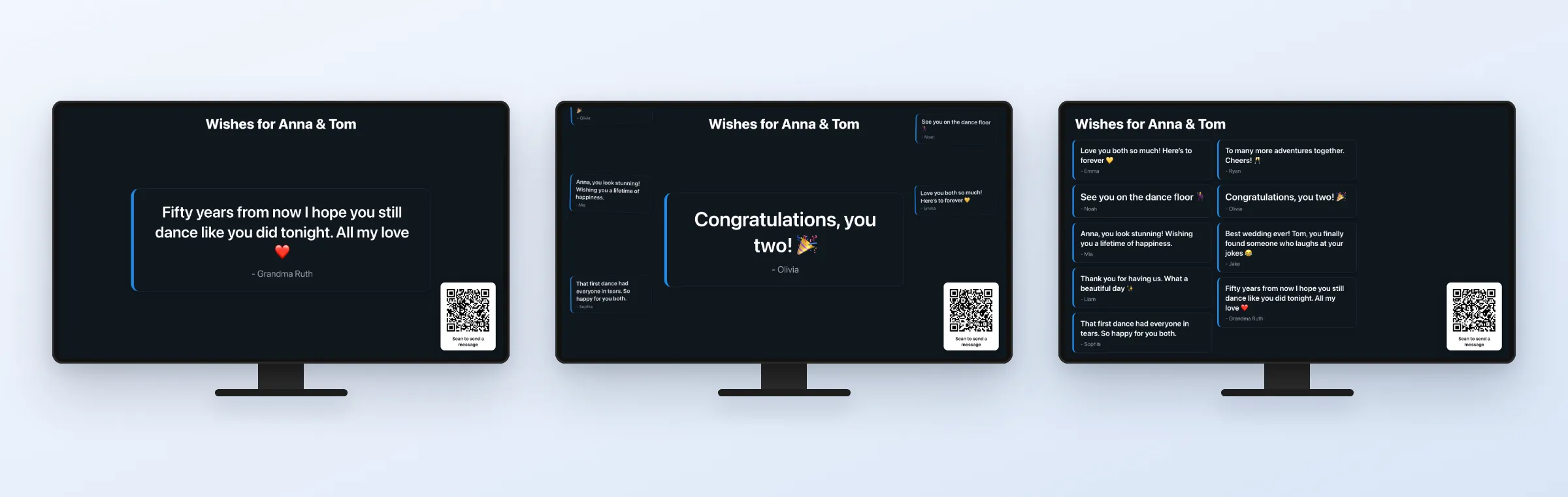
- Click the text wall on the slide, and under Layout in App settings pick one of three:
- One at a time: one large message after another
- One at a time, others falling: one large message, with the others drifting down both sides
- Wall of cards: every message on the screen as a card; a new one pops in at the top
- For the first two, set Seconds each message is shown
Change the colors, picture and QR code
- In the Style tab, choose the Background and Highlight colors
- Under Background picture, click Choose a picture to put a picture from your library behind the messages, and use Dim the picture so the text stays easy to read
- Choose the QR code position, and type your own Text under the QR code, or keep “Scan to send a message”
- The colors and the picture are also used on the guests’ phone page
Change the text wall settings
- Click the text wall on the slide to select it
- Change what you need in App settings on the right. Changes are saved as you make them
- Click Publish
Screens and guests’ phones pick up the change right away.
Close the text wall after the event
- Click the text wall on the slide, and turn off Accept new messages in App settings
- Click Publish
The QR code leaves the screen and the messages keep showing. Guests who open the send page are told the wall is closed for new messages. Turn it on again to take more.
Remove the text wall from a slide
- Click the text wall on the slide to select it
- Copy the Owner page link from the panel on the right and keep it
- Click Delete or press Backspace on your keyboard
- Click Publish
The messages stay on the owner page, and you reach it with the link you kept.
For your guests
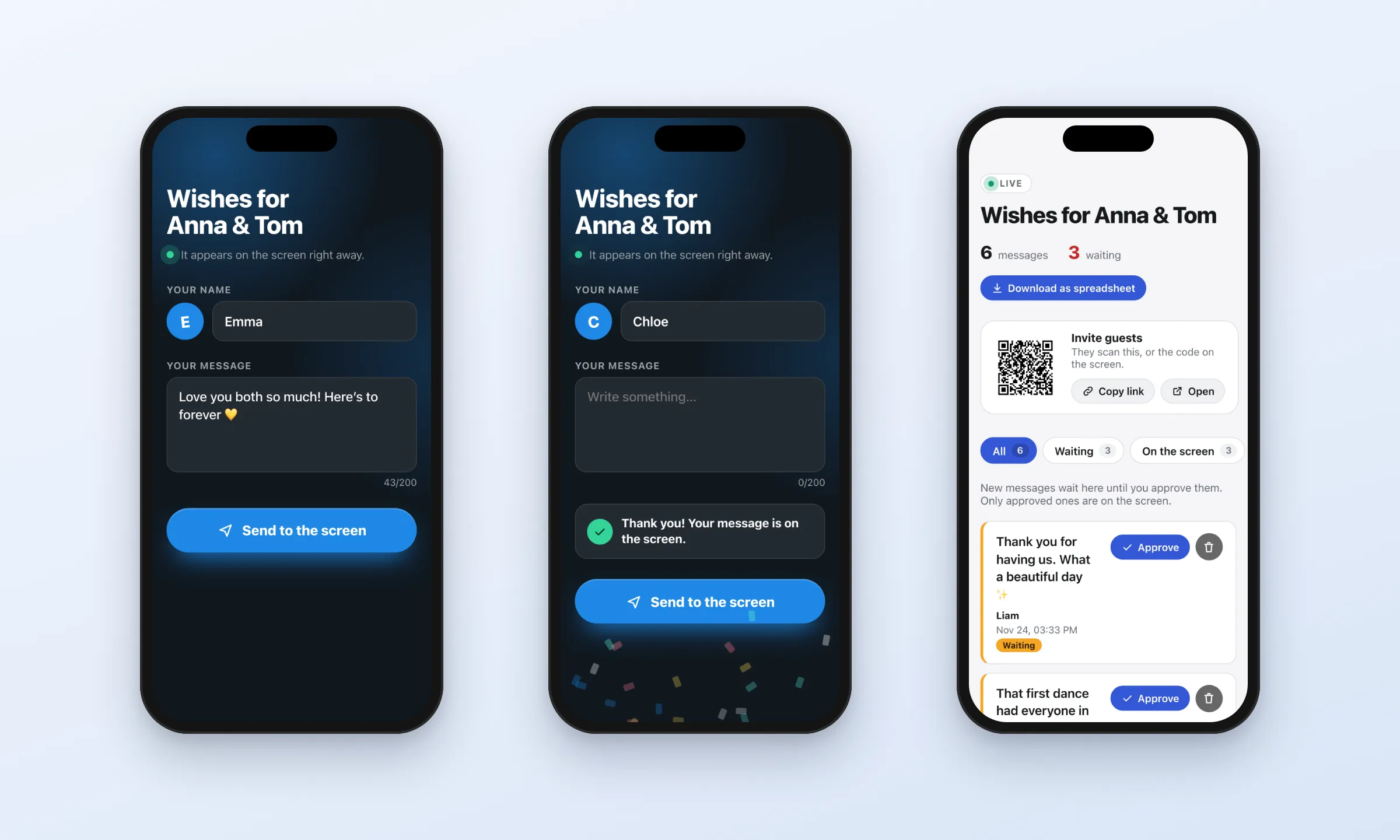
How guests send messages
- They scan the QR code on the screen with their phone camera
- They type their name. It shows with their message on the screen
- They write their message, up to 200 characters. Emoji work too
- They tap Send to the screen, and their message shows on the screen right away, or once you approve it
Guests who can’t scan the screen can open the Send link instead: send it to them, or put it in an invitation.
Let guests leave out their name
- In the Settings tab, turn off Guests must give their name
Guests can then send a message without a name. To hide the names on the screen for everyone, turn off Show the sender’s name with each message.
Your messages
Open the owner page
- Click the text wall on the slide to select it. The Owner page link is in the panel on the right, or in the Links tab of the settings
- Click Open the owner page, or copy the link to open it on your phone
The owner page shows every message that was sent, with who sent it and when, and how many are waiting. Filter them with All, Waiting and On the screen. The owner page is in English only.
Approve messages before they show
- In the Settings tab, turn on Approve messages first
- New messages now wait on the owner page. Click Approve on a message to put it on the screen
Guests are told their message appears once it is approved. If you turn the setting off again, the messages that were waiting show on the screen.
Delete a message
- On the owner page, click the bin button on the message, and confirm
The message leaves the screen at once and can’t be brought back. Anyone with the owner page link can approve and delete messages, so only share it with people you trust.
Download the messages
- On the owner page, click Download as spreadsheet
You get every message, with its sender and time, in one file that opens in Excel or Google Sheets. A nice keepsake for the couple after a wedding.
Options
Click the text wall on the slide to change these in App settings.
Settings
| Option | What it does |
|---|---|
| Question or invitation | Up to 100 characters, at the top of the screen and on the guests’ page. Empty shows no title |
| Layout | One at a time, One at a time, others falling or Wall of cards |
| Seconds each message is shown | From 3 to 120 seconds (not for Wall of cards) |
| Show the sender’s name with each message | The name the guest typed, under the message |
| Guests must give their name | Off: guests can send messages without a name |
| Approve messages first | Messages wait on the owner page until you approve them. Off: they show on the screen right away |
| Accept new messages | Turn it off after the event: the QR code leaves the screen and the messages keep showing |
Style
| Option | What it does |
|---|---|
| Language | The language of the screen and of the guests’ phone pages |
| Background and Highlight | The colors of the screen and of the guests’ page |
| Background picture | A picture from your library behind the messages, on the screen and on the guests’ page. Dim the picture blends it towards the background color |
| Show the QR code on the screen | Turn it off if guests get the send link another way |
| QR code position | Top left, top right, bottom left or bottom right |
| Text under the QR code | Up to 80 characters. Empty shows “Scan to send a message” |
Links
| Option | What it does |
|---|---|
| Owner page | Every message that was sent, to approve, delete or download. Anyone with the link can do this |
| Send link | The page the QR code opens, for guests who can’t scan the screen |
FAQ
Guests
Do guests need an app?
No. The QR code opens a web page in the phone’s browser. Guests type their name and message; they don’t install anything or sign up.
How long can a message be?
Up to 200 characters, about two or three sentences, and a name of up to 40 characters. The page counts the characters as they type.
How many messages can one guest send?
As many as they like, up to 20 from one phone in 10 minutes. That stops one phone from filling the wall.
Screens and messages
Which plans include the Live Text Wall?
The Pro and Ultimate plans. It’s not part of Essential.
Can I check messages before they show on the screen?
Yes. Turn on Approve messages first, and each message waits on the owner page until you click Approve. Without it, messages show at once, and you can still delete any of them on the owner page.
Can several screens show the same text wall?
Yes. Every screen playing the slide shows the same wall, and a new message reaches them all at once.
How many messages does a text wall hold?
Up to 5,000. They are kept until you delete them on the owner page; delete some to make room when a wall is full.
What's the difference from Shout-outs?
The Live Text Wall is for events: anyone with the QR code writes a message, and it shows at once or after you approve it on the owner page. Shout-outs is a thank-you wall for the workplace: people thank a colleague, and by default someone in your team approves each shout-out before it shows.
Does the text wall work offline?
No. The screen and the guests’ phones need an internet connection, so new messages can reach the screen.