About
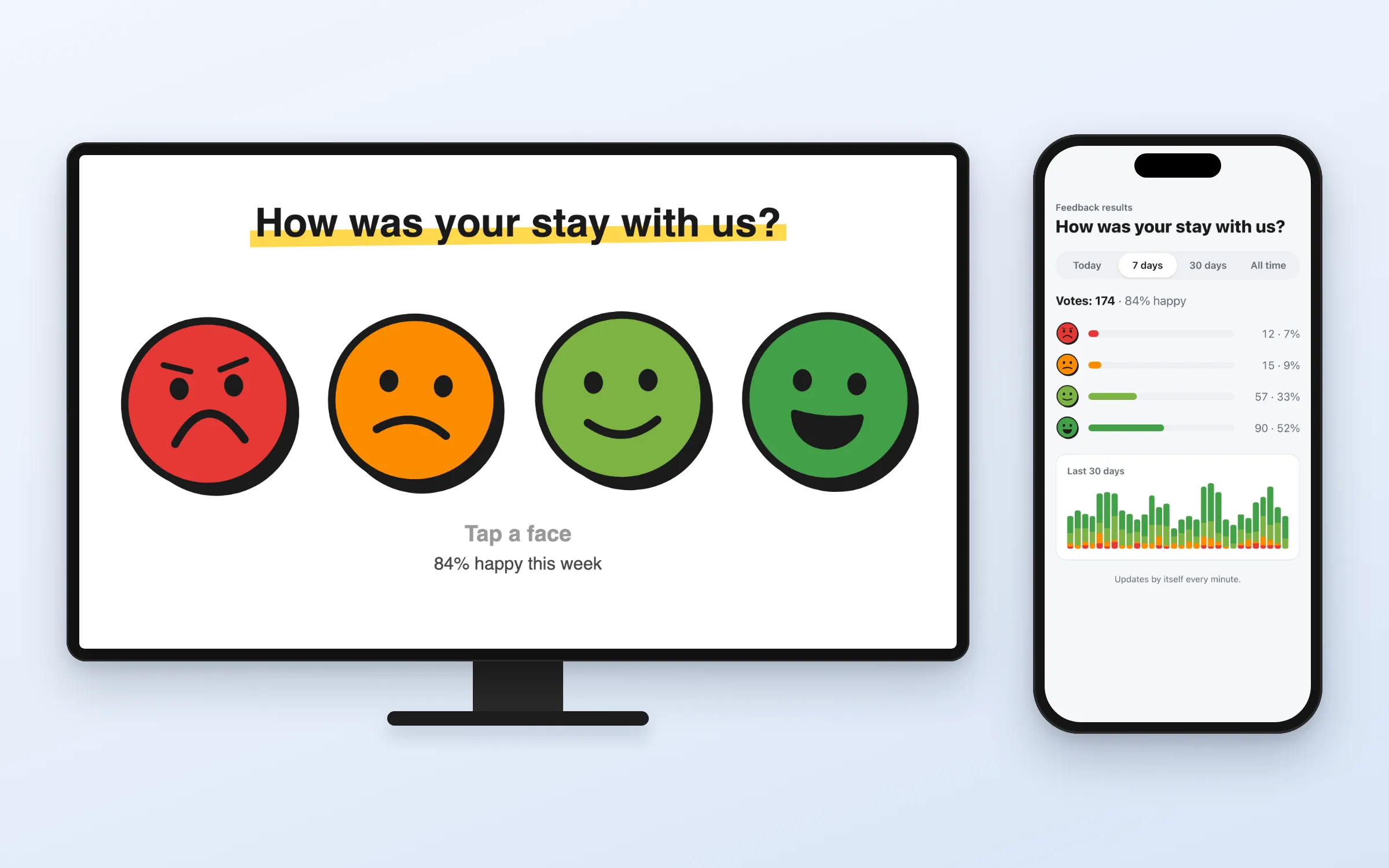
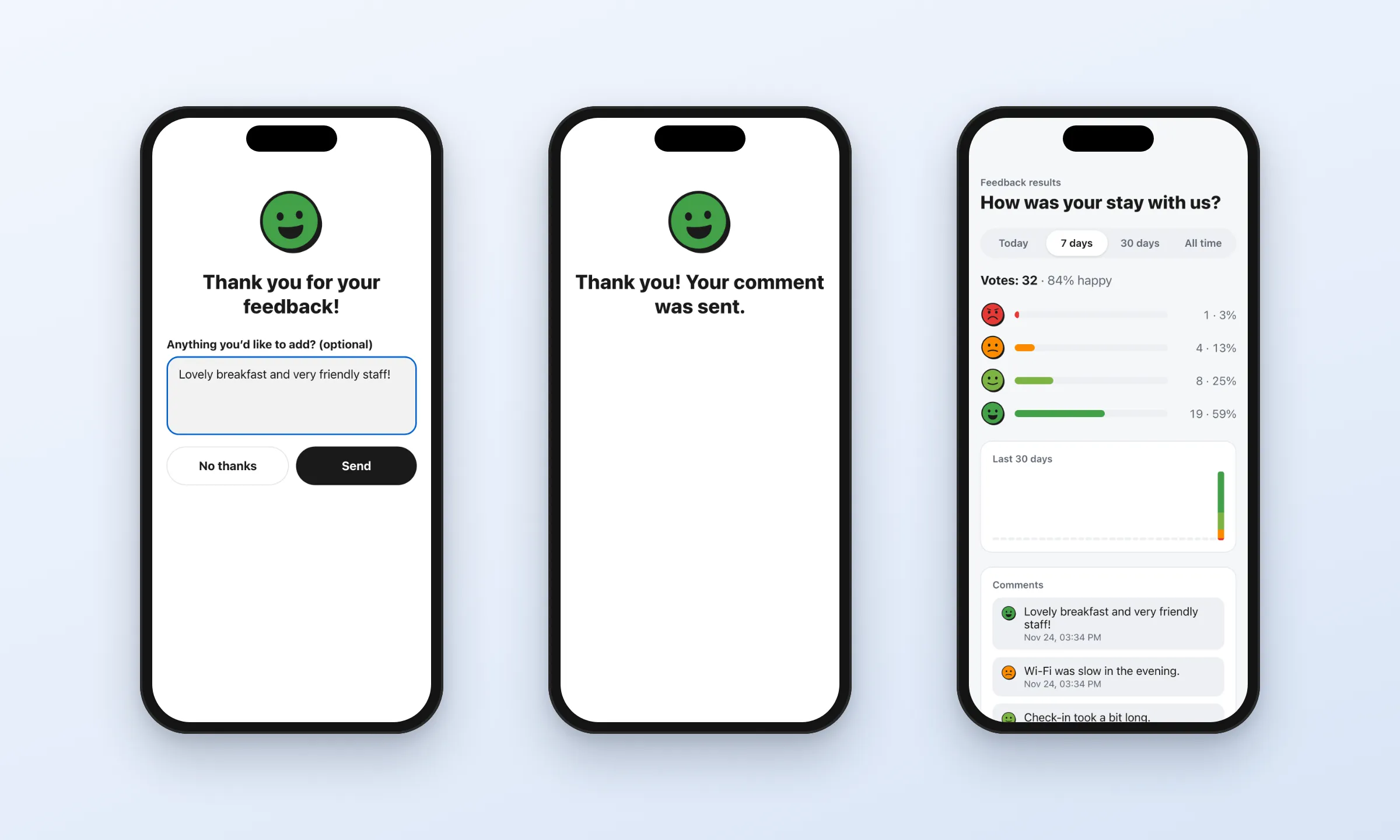
Ask a question like “How was your visit today?” with three to five faces, from very unhappy to very happy. People tap a face on a touch screen, or scan the QR code and tap one on their phone, where they can add a comment. You see the votes, the happy share and the comments in Play. Available on every plan.
Get Started
Setting up happens in the editor: open your playlist and the slide for the feedback. When you’re done, click Publish.
Set up the feedback
Add smiley feedback to a slide
- Click Apps, and click Smiley feedback under More apps (or type it in Search apps)
- In the Settings tab, type your Question, or leave it empty for “How was your visit today?”
- Under How people give feedback, pick Touch the screen or Phone (QR code), and choose the Number of faces
- In the Layout tab, pick a Layout and the colors. The preview shows how it will look
- Click Create smiley feedback, then Publish
The feedback fills the whole slide.
Touch the screen or vote by phone
- Touch the screen is for touch screens and kiosks: people tap a face on the screen, the face lights up and the screen says “Thank you!”. Turn on Optimize for touchscreen in the screen’s settings, so every tap reaches the faces
- Phone (QR code) works on any screen: people scan the QR code and tap a face on their phone. After that they can add a comment, or tap No thanks
Choose the faces and their layout
- Under Number of faces, pick 3 (sad, neutral, happy), 4 (no neutral face, so people have to lean one way) or 5 (all five steps)
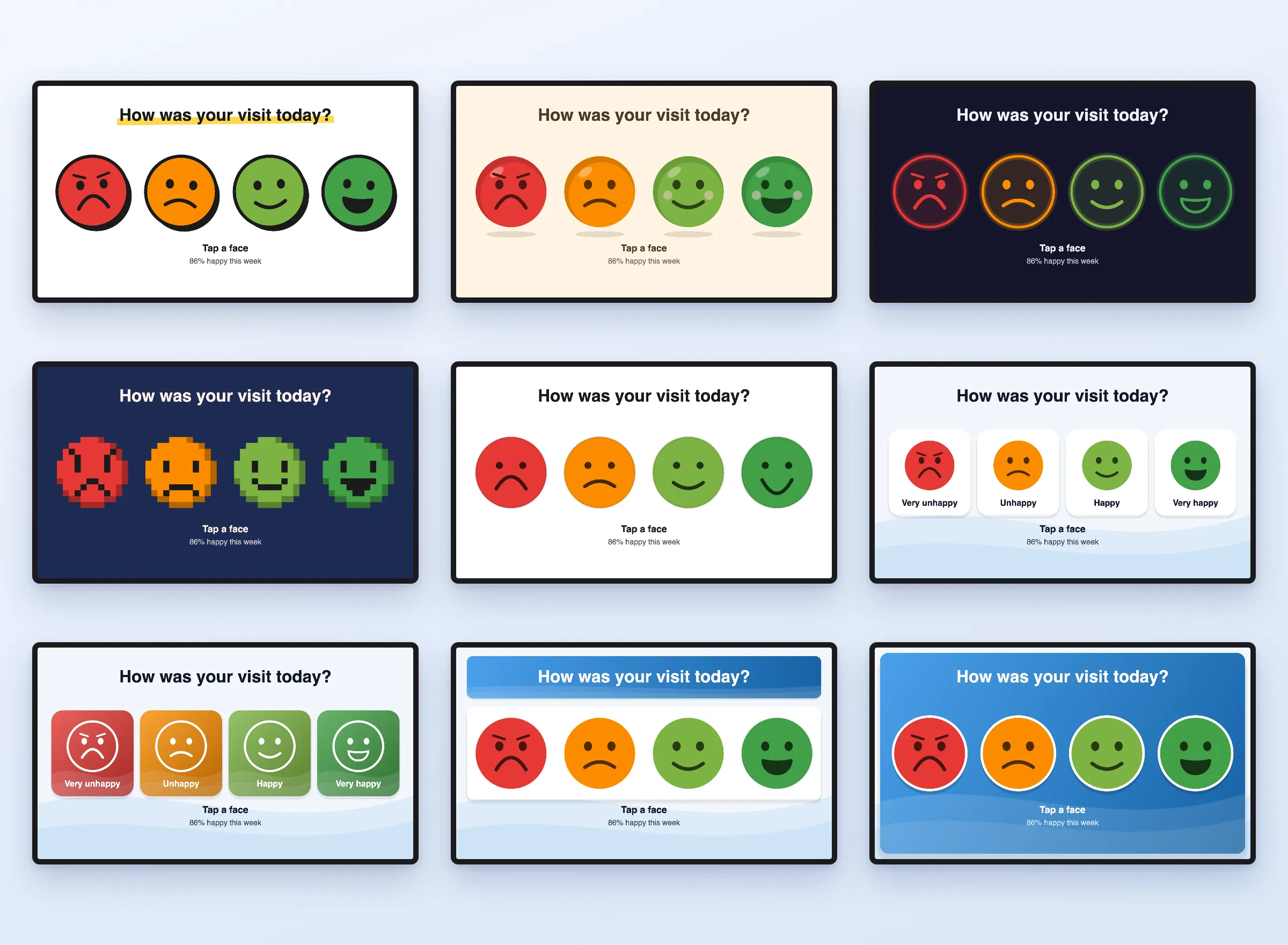
- In the Layout tab, pick a Layout: Sticker, Soft, Neon, Pixel or Classic, or one of the bold ones with large cards: Bold cards, Bold tiles, Bold banner or Bold spotlight. Each layout sets the background and text colors made for it; change them after if you like. The bold layouts also have an Accent color
- Choose a Font, and the Language of the screen and the phones
You can change the number of faces later: the votes so far are kept.
Show the results on the screen
- Click the feedback on the slide
- In App settings, under Settings, turn on Show results on the screen
The screen then shows the share of happy votes over the last 7 days under the faces, for example “94% happy this week”.
Change the question or the layout
- Click the feedback on the slide to select it
- Change what you need in App settings: Layout and the colors come after the results, the question and the other settings are under Settings. Changes are saved as you make them
- Click Publish
Stop taking feedback
- Click the feedback on the slide, and turn off Taking feedback under Settings in App settings
- Click Publish
The faces stay on the screen, greyed out, and the QR code goes. The results are kept. Turn it on again to take more feedback.
Your results
See the results
- Click the feedback on the slide: Results is at the top of App settings
- Or open Analytics in the menu and the Smiley feedback tab: it lists all your smiley feedback with this week’s votes. Click one to see its results
Pick Today, 7 days, 30 days or All time to see the number of votes, the share of happy votes and the votes per face. Below them are the votes per day over the last 30 days and, with Phone (QR code), the newest comments.
Share the results with someone
- Click the feedback on the slide. In App settings, under Results link, click Make a results link
- Click Copy link and send it
Anyone with the link sees the results and comments without signing in, and can’t change anything. The page updates by itself every minute. Click New link to stop the old link working, or Turn off link to stop sharing.
Download the votes
- Click the feedback on the slide. Under Results in App settings, click Download CSV
You get every vote in one file that opens in Excel or Google Sheets: its time, its face and score from 1 to 5, whether it came from the screen or a phone, and its comment.
Reset the results
- Click the feedback on the slide. Under Results in App settings, click Reset results, and confirm
All votes and comments so far are deleted, for example before a new season. This can’t be undone, so download them first if you want to keep them.
Options
Click the feedback on the slide to change these in App settings: everything is in one view, with the results at the top.
Settings
| Option | What it does |
|---|---|
| Question | Up to 140 characters. Empty shows “How was your visit today?” in the screen’s language |
| Text that asks for a tap | The line shown with the faces, on the screen and on phones. Empty shows “Tap a face” in the screen’s language |
| How people give feedback | Touch the screen: people tap a face on the screen. Phone (QR code): they scan the code and tap a face on their phone, and may add a comment |
| Number of faces | 3: sad, neutral, happy. 4: no neutral face. 5: all five steps |
| Show results on the screen | The share of happy votes over the last 7 days, under the faces |
| Taking feedback | Off: the faces stay, greyed out, and the results are kept |
| Animations | Off: the faces stand still, for a screen that struggles to keep up. A tap still fills the screen with the face’s color |
Layout
| Option | What it does |
|---|---|
| Layout | Sticker, Soft, Neon, Pixel, Classic, Bold cards, Bold tiles, Bold banner or Bold spotlight, with the colors made for it |
| Background, Text and Accent | The colors of the screen and of the phone page. Accent is for the bold layouts only |
| Font | The font of the question and the words on the screen |
| Text under the QR code | With Phone (QR code) only. Up to 60 characters. Empty shows “Scan to give feedback” |
| Language | The language of the screen and the phones |
FAQ
Votes
What counts as happy?
The happy share is the votes for the Happy and Very happy faces out of all votes in the period. “This week” on the screen means the last 7 days.
Can one person vote again and again?
Not by phone: a phone can vote once every 10 minutes, so a returning customer counts again later. The QR code on the screen changes every 15 minutes, so a photo of it shared online stops working. On a touch screen, the screen waits a moment after each tap before it takes the next one.
Do people need an app?
No. The QR code opens a web page in the phone’s browser. People don’t install anything, sign up or give their name.
How long are the votes kept?
For 400 days, until you reset them. Download them as a CSV file to keep them longer.
Screens
Which plans include Smiley Feedback?
Every plan, including Essential.
Can several screens collect the same feedback?
Yes. Every screen playing the slide shows the same question, and all their votes add up in one set of results. For results per place, add a separate smiley feedback to each place’s playlist.
Taps on the faces don't register on my touch screen
Turn on Optimize for touchscreen in the screen’s settings in Play, so every tap reaches the faces, and check that the feedback is set to Touch the screen.
The faces move in jerks on my screen
Turn off Animations under Settings in App settings, and click Publish. The faces then stand still, which is easier for an older or slower player. A tap still fills the screen with the face’s color.
Does smiley feedback work offline?
No. The screen and the phones need an internet connection, so the votes can be counted.