About
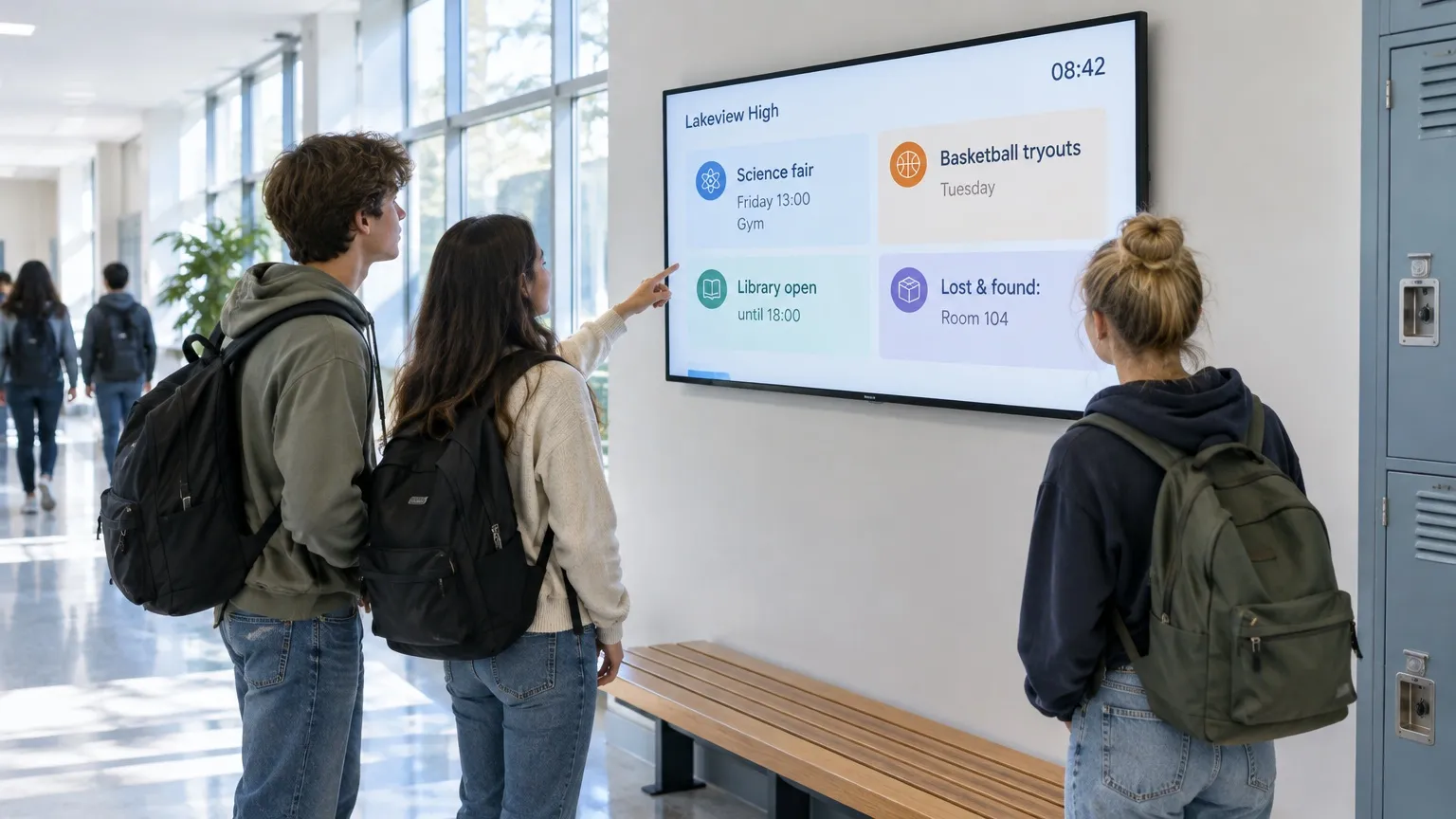
Show a Word document from OneDrive or SharePoint on your screens: news for your team, announcements, a handbook, a menu or a notice board. Pick the document once and its pages show as sharp pictures, scrolling at reading pace on landscape screens and page by page on portrait ones, on every player. When you save changes in Word, your screens follow by themselves. It works with personal Microsoft accounts and with work or school accounts.
Get Started
Open your playlist and the slide in the editor, click Apps, and click Word under Microsoft. When you’re done, click Publish.
Show a document
Pick a document
- The first time, click Sign in with Microsoft and sign in with your personal, work or school account. See Microsoft sign-in
- Find the document under My files, Recent or by searching, and click it. The picker shows Word documents: .docx, .doc, .rtf and .odt
- Click Show this document
The document’s pages become pictures that every player can show, including older ones, and the slide in your playlist gets as long as it takes to show the whole document once. The document doesn’t have to be shared or published.
You sign in once for your whole team: next time, anyone in the team just picks a document.
A document someone shared with you, or in SharePoint
- Open Shared with me or SharePoint in the picker
- Click Allow: Microsoft asks you once more, so Play may also read files shared with you and SharePoint sites you can open
- Find the document and click Show this document
Play can only read files, never change them, and only files you can open yourself. Personal accounts have no SharePoint.
Choose how the document is shown
- Show: Automatic scrolls on landscape screens, where a whole page would be too small to read, and shows page by page on portrait screens. Or choose Full width, scrolling or Page by page yourself
- Pages: all pages, or only one page
- Scroll speed (slow, normal or fast) when scrolling, or Seconds per page when showing page by page
The panel says how long showing the whole document takes, and Set the slide length to that makes the slide that long.
Change the document
Edit the document in Word as usual and save it. Your screens show the changes within about 10 minutes, without opening the editor. Click the document’s name in App settings to open it in Word, or click Choose another document to pick a different one.
Good to know
- Videos and moving pictures in the document show as still pictures
- Up to 100 pages are shown
- A very large document (over 25 MB as a PDF) can’t be shown: make its pictures smaller, or split it into two documents
- Documents with macros (.docm) and templates (.dotx) aren’t offered. Save a copy as .docx in Word and pick the copy
- A document protected by a sensitivity label or a password can’t be shown. Pick a copy without the protection
- If Microsoft can’t turn a document into pages for your account, the panel says so. Then save a copy as .docx (in Word: File → Save a copy) and pick the copy
- Word is on our own portal only
Your Microsoft account
Sign in to Microsoft again
If Microsoft stops accepting the sign-in, for example because the password changed or access for Play was removed, your screens keep showing the last pages. The person who signed in gets one email about it, and the panel shows Sign in again. Click it and sign in with the same account, and screens update by themselves. See Microsoft sign-in.
Options
Select the Word element on the slide to see these in App settings.
| Option | What it does |
|---|---|
| Document | The document’s name, its number of pages and when Play last checked it for changes. Click the name to open it in Word |
| Choose another document | Pick a different document |
| Show | Automatic, Full width, scrolling, or Page by page |
| Pages | All pages, or only one |
| Scroll speed | How fast the document scrolls: slow, normal or fast |
| Seconds per page | How long each page shows, when showing page by page |
FAQ
Microsoft says my IT admin must approve Play
Many companies let only their IT admin approve apps that read Microsoft 365 files. The editor then shows a link to send to your IT admin; they approve Play once for everyone in your company. See Microsoft sign-in.
Can I upload the document instead?
Yes. Save the document as PDF, upload it to your Library and show it as a PDF file. It then doesn’t follow your changes in Word.