About
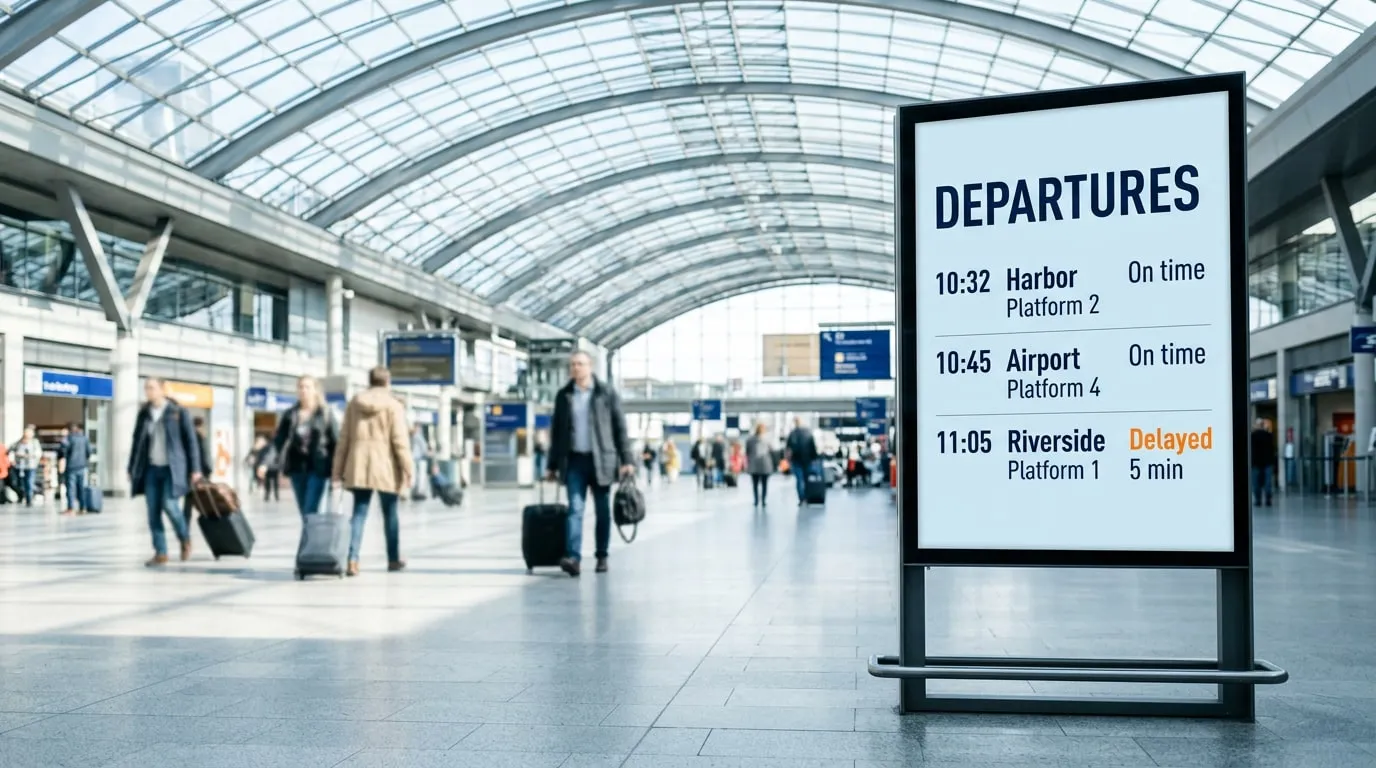
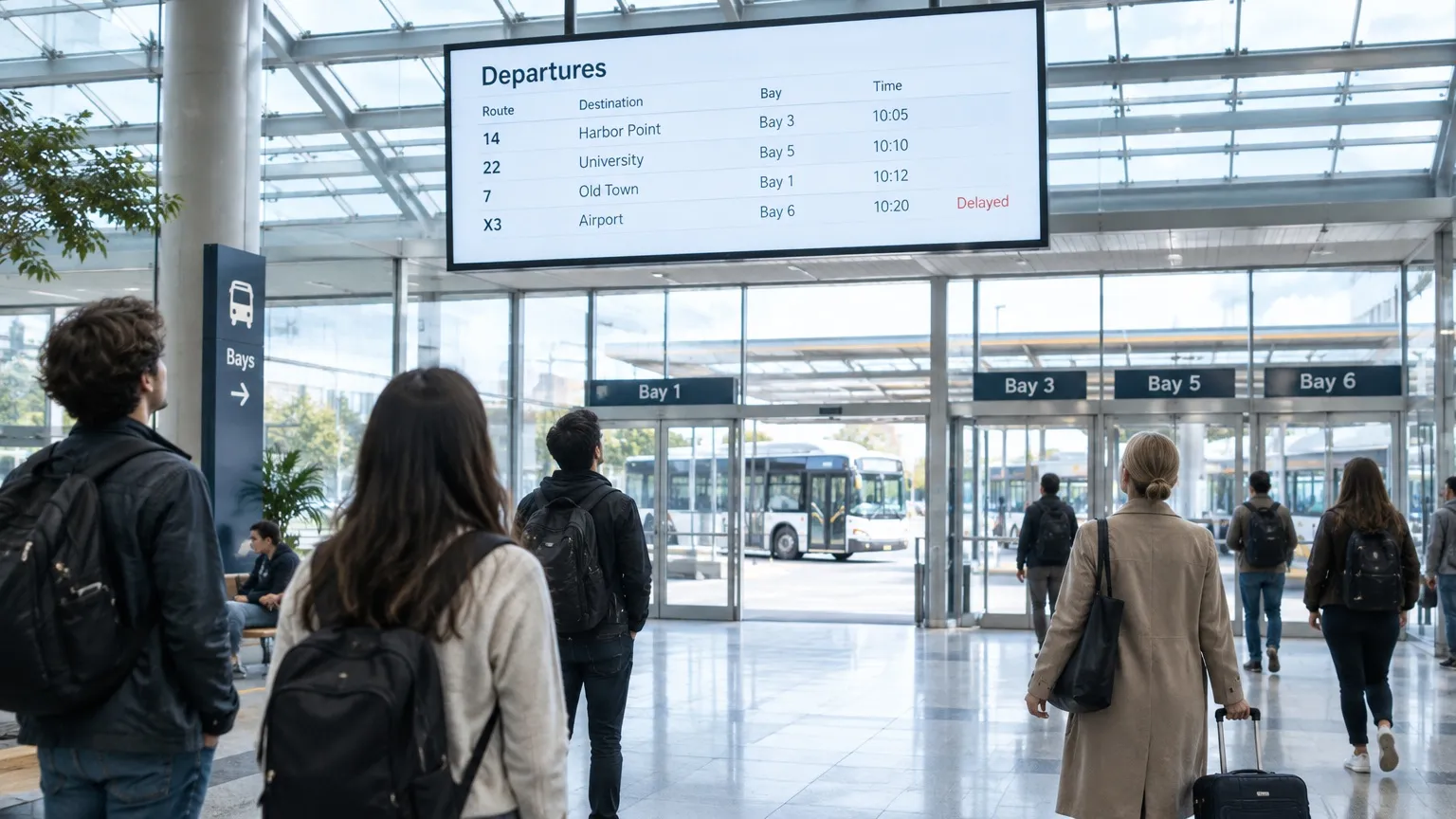
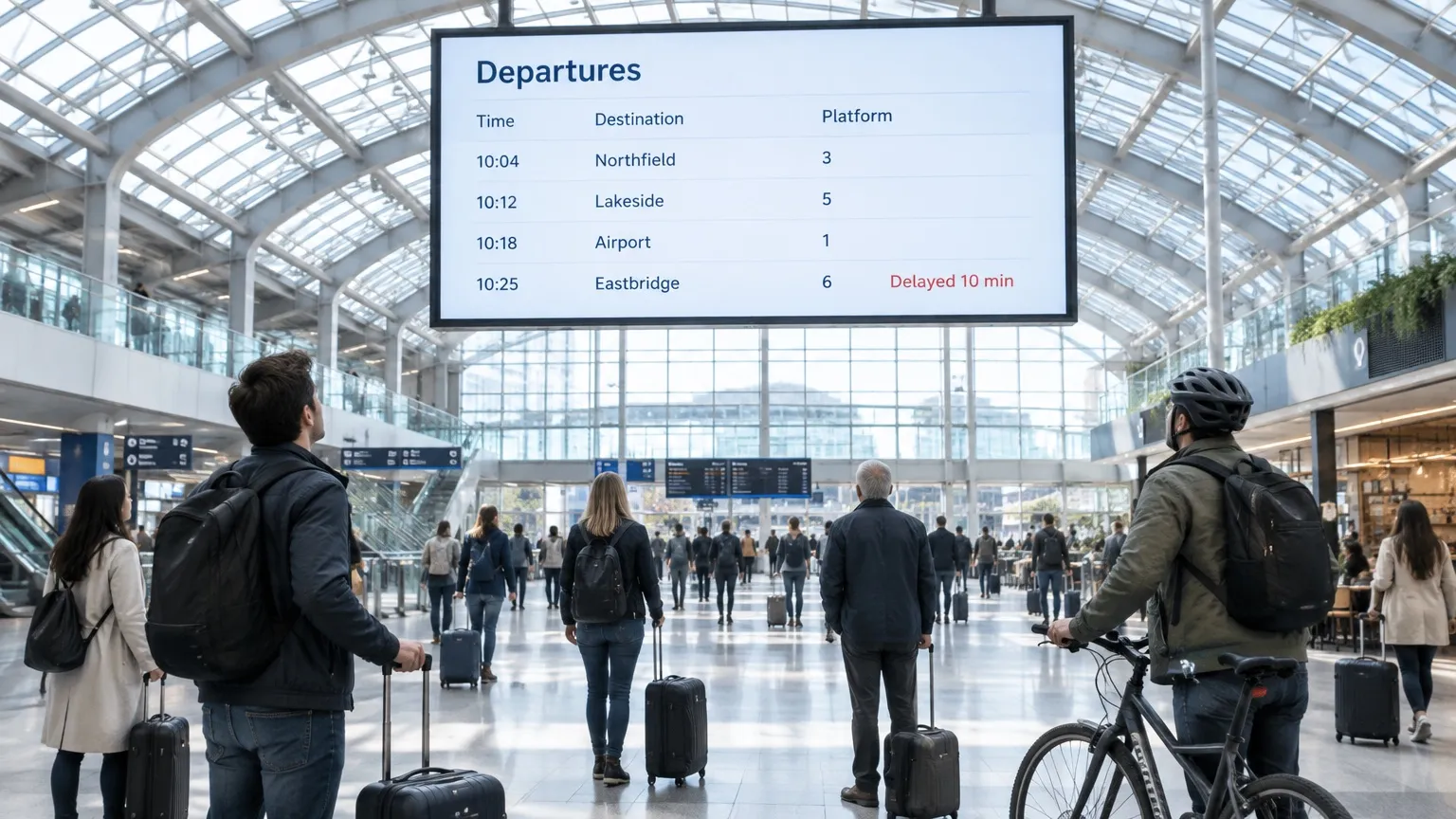
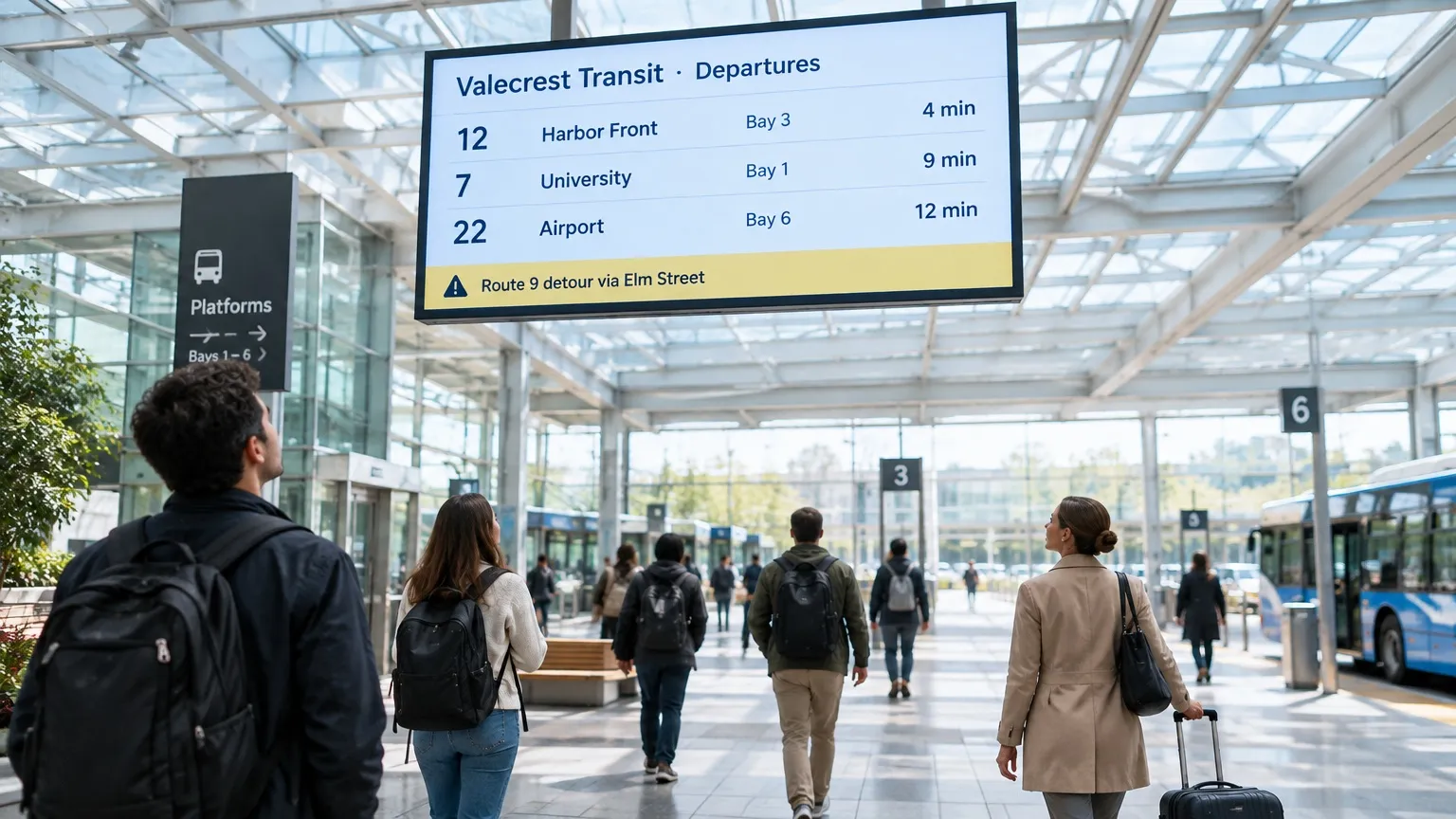
Show the next buses, trains, subways, light rail and ferries from a stop near you, as a classic departure board, a list, cards or one large next departure. Find the stop by its name, an address or your location. Where the transit agency publishes live times, the board shows them, with delays and cancellations. For now, stops in the United States. On every plan.
Get Started
Everything here starts in the editor: open your playlist and the slide. The editor saves by itself (“All changes saved”). When you’re done, click Publish.
Set up the board
Add departures to a slide
- Click Apps, and click Public transport under Feeds and text (or type “transport” in Search apps)
- A board is added in the middle of the slide, and App settings opens. Until you pick a stop, it shows an example
- Under Stop, type a station, address or place in Station, address or place, and pick it from the list
- Pick your stop from Stops near …. Each stop shows its kinds of transport, its lines and how far away it is
- Pick one of the nine Layouts
Find a stop near you
- Under Stop, click Use my location, and let your browser share your location
- Pick your stop from Stops near you
Picking a station shows the departures from all its platforms together.
Show only some kinds of transport
- Under Kinds of transport, click Bus, Light rail, Subway, Train or Ferry
Only the kinds you picked are shown. With none picked, every kind is shown.
Change the stop
- Click the board on the slide, then search under Stop again and pick the new stop
The layout and your other settings stay as they are.
Options
Click the board on the slide to change these in App settings.
| Option | What it does |
|---|---|
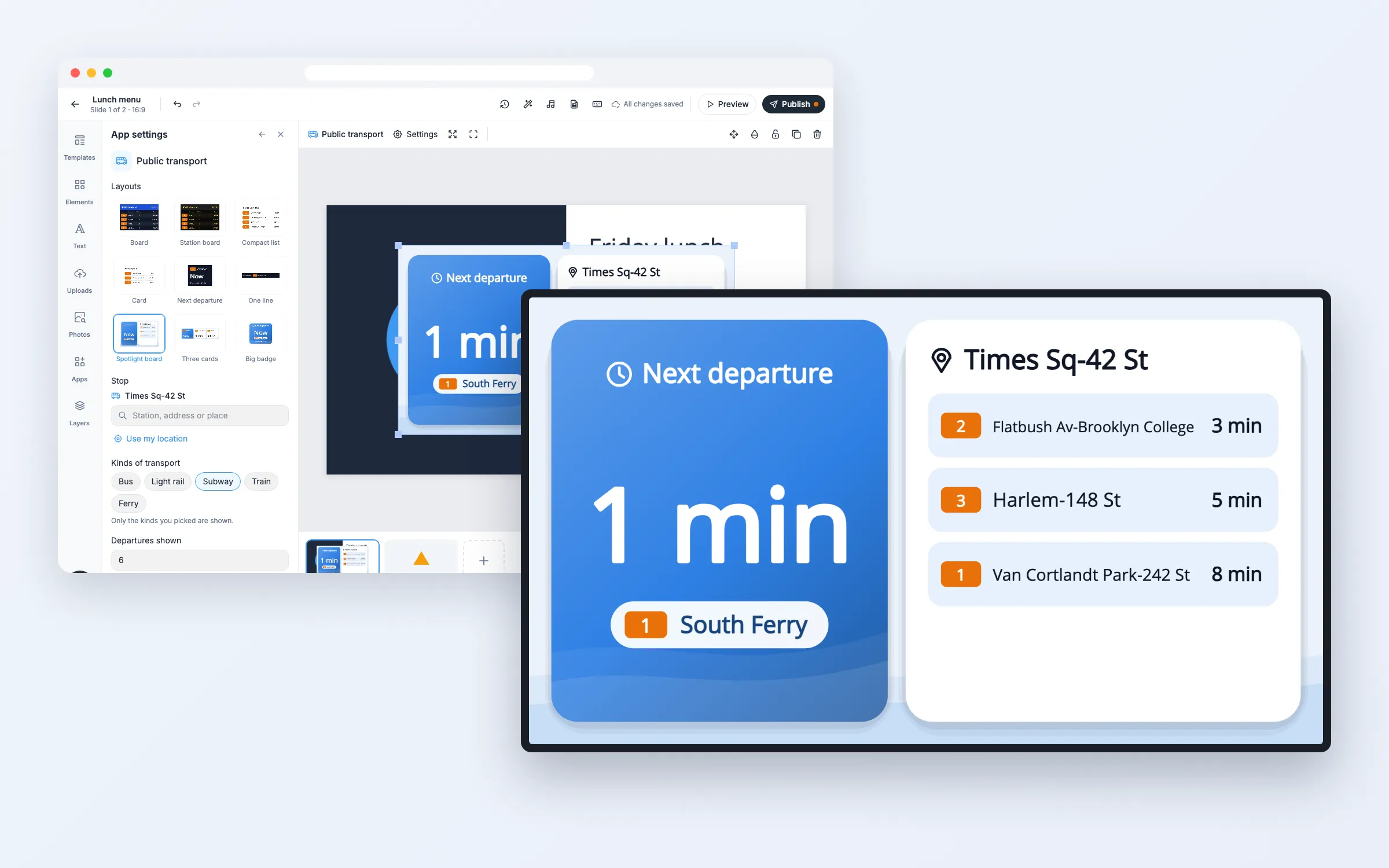
| Layouts | Board (the classic departure board, with the stop’s name and the clock in a header), Station board (yellow on black, as on station platforms), Compact list, Card (the next three departures), Next departure (only the next one, on a small square), One line (as many departures as fit in a bar), Spotlight board (the next departure large on a blue card, the ones after it on a white card with the stop’s name), Three cards (the next three side by side, the first one blue) or Big badge (the next departure large on a blue square). Card, Next departure, One line, Three cards and Big badge are made to sit beside other content on a slide: picking one also gives the box its shape, keeping its middle where it was |
| Stop | The stop or station whose departures are shown |
| Kinds of transport | Bus, Light rail, Subway, Train and Ferry. None picked shows every kind |
| Departures shown | 1 to 20, 6 to start with. Card and Three cards show at most three, One line as many as fit. Not for Next departure and Big badge, which show one |
| Time shown as | Minutes, then the time (counts down the minutes for the next 10 minutes and shows the time of day after that), Minutes or Time of day |
| Show the stop’s name | On to start with |
| Show the clock | The time in the header of the Board layout. On to start with |
| Show the platform | The platform, bay or track, where the agency gives one. On to start with |
| Lines in their own colours | Each line in the colour the agency gives it. On to start with |
| Style | Dark, Light, Station (yellow on black) or Blue cards set all the colors at once. Changing a color yourself makes it Custom |
| Colors | Text colour, Background colour, and Header colour for Board (its header) and the Spotlight board, Three cards and Big badge (their blue card) |
| Background opacity | From see-through to solid |
| Rounded corners | From square to round |
| Font | Open Sans to start with, or one of your team’s fonts |
| Language | Same as the screen, or one of 12 languages, for the words on the board (“Next departure”, “min”, “Canceled”) |
FAQ
Which plans include Public Transport?
Every plan.
Which countries and agencies are covered?
For now, the United States: the timetables of the public transport agencies across the country, from city buses and subways to commuter rail and ferries, updated every night. If your stop isn’t found, the agency doesn’t share its timetable as open data yet.
Are the times live?
Where the agency publishes live times, yes: the board shows the expected time and refreshes every 30 seconds, with delays in amber and canceled trips in red. For agencies without live times, it shows the timetable.
What if the screen goes offline?
It keeps showing the departures it last received for up to 3 hours, counting down and leaving out the ones that have left. After that the board stays empty until the screen is back online.
Do my screens need an update?
No. Screens show the board like other web apps, on the players you already have.