About
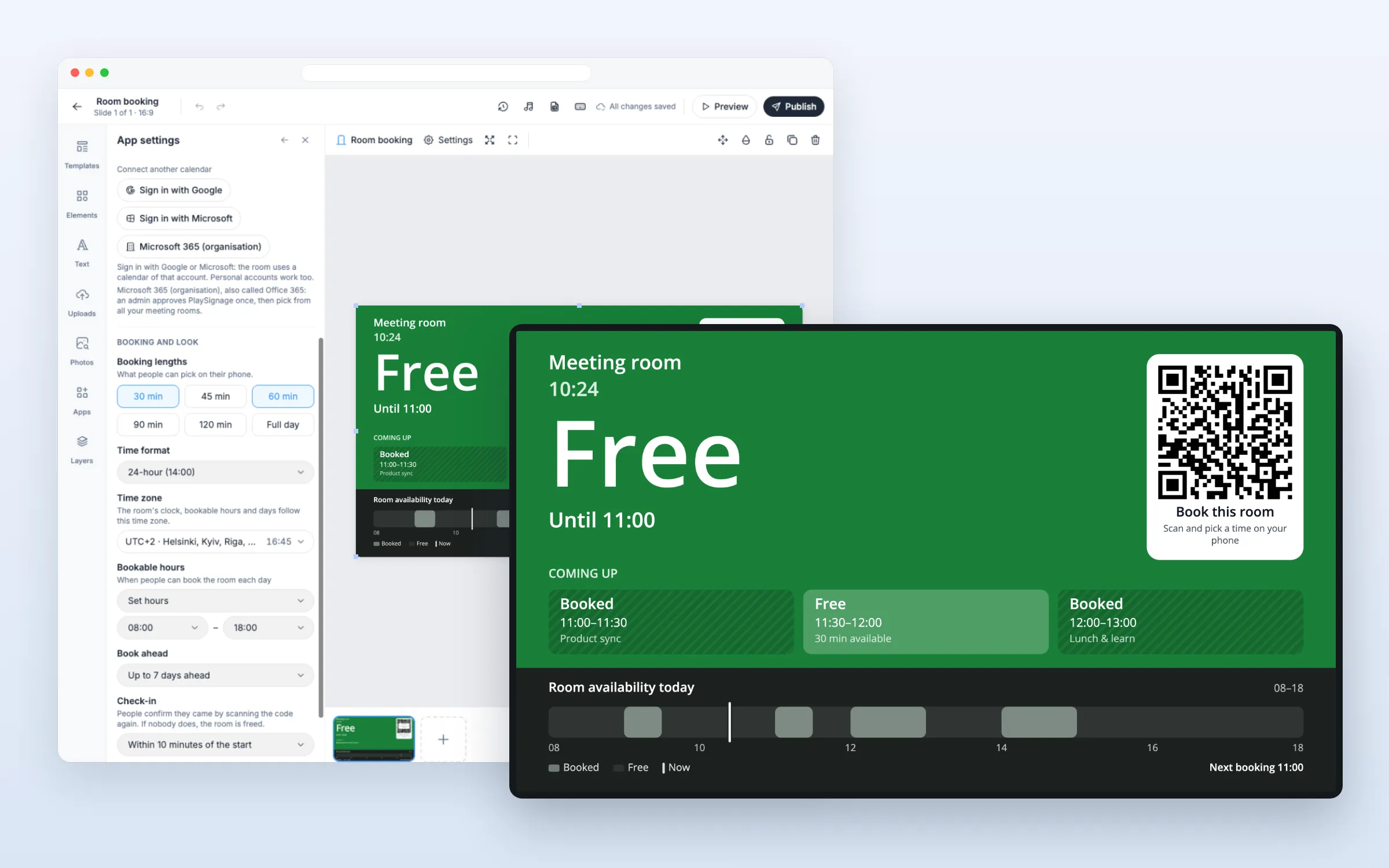
Put a screen next to a meeting room door and show whether the room is free, starting soon or busy, with the meetings coming up. People scan the QR code on the screen to book the room from their phone, without an account or an app. Bookings go straight into the room’s calendar in Microsoft 365 (organisation), Outlook or Google Calendar.
Get Started
Everything here starts in the editor: go to Playlists, open your playlist and choose the slide. When you’re done, click Publish.
Set up the room
Add Room booking to a slide
- Click Apps, then Room booking under Time
- In the Room step, connect the room’s calendar (see below), give the room a Room name and, if you like, Details such as “4th floor · 8 seats”. Click Next
- In the Booking and look step, choose what people can book and how the screen looks. The preview shows your room as its screen will show it
- Click Add to slide
Room booking fills the whole slide: the screen is the room’s own sign.
Connect the room's calendar with Google or Microsoft
- Under Connect a calendar, click Sign in with Google or Sign in with Microsoft. Work, school and personal accounts all work
- Sign in in the window that opens, and allow PlaySignage to see and edit your calendars
- Under Room’s calendar, pick the calendar the room should use, or click Create a calendar “…” to make a new one in that account, named after the room
The account is connected for your whole team. Click Connect another calendar to add more.
Connect all your Microsoft 365 meeting rooms
Use this when your rooms are room mailboxes in Microsoft 365 (Office 365). A Microsoft 365 admin approves PlaySignage once, and then everyone in your team can pick from all your meeting rooms.
- Click Microsoft 365 (organisation)
- Sign in with an admin account of your organisation, then click Accept on Microsoft’s approval page. If you aren’t an admin, ask your IT team to do this step
- Pick the room under Pick a room. If no rooms are listed, type the room’s email address under Room’s email address
PlaySignage can then see your meeting rooms and add bookings to their calendars, and nothing else. See Set up rooms in Microsoft 365 if you don’t have room mailboxes yet.
Change the room or its settings
- Click the room booking on the slide. Its settings show in App settings, under Room and Booking and look
- Change what you need: the slide shows it straight away. Show examples shows the screen in each state with sample meetings
- Click Publish
Book from a phone
Book the room
- Scan the QR code on the screen with a phone camera
- Pick How long and a start time. With Book ahead turned on, you can also pick another day
- Type Your name and tap the Book button
The booking shows on the screen and in the room’s calendar right away. The phone pages and the screen are in English for now.
Cancel a booking or end a meeting early
- Scan the code again with the phone you booked with. It opens Your bookings
- Tap Cancel booking, or during the meeting End meeting now, so others can use the room
Only the phone that made the booking can change it.
Check in to a booking
When Check-in is on, the screen shows Check in when a booking starts. Scan the code with the phone that booked it within the time you set. If nobody checks in, the booking is cancelled and the room is free again for others.
Check-in is only for bookings made by scanning the room’s QR code. Meetings added to the room’s calendar in Google Calendar or Outlook show as busy on the screen and don’t need a check-in: they stay booked even when nobody comes.
For your IT team
Set up rooms in Microsoft 365
Each meeting room is a room mailbox in Microsoft 365. Room mailboxes don’t need a license.
- In the Microsoft 365 admin center, go to Resources → Rooms & equipment and click Add resource
- Choose Room, give it a name, an email address and the number of seats, and save
- New rooms can take up to a day to show under Pick a room. Until then, type the room’s email address under Room’s email address: booking works straight away
Give yourself access to a room's calendar
A room’s calendar belongs to no one, so even an admin can’t see the bookings in it until they give themselves access. Do this once for each room.
- In the Exchange admin center, go to Recipients → Resources and click the room
- Open the Delegation tab, and under Read and manage (Full Access) click Edit
- Click Add members, tick your name and click Save
It can take up to an hour before the access works. Until then, Outlook shows an error when you open the room.
See the bookings of Microsoft 365 rooms
If you connected the room with Sign in with Google or Sign in with Microsoft, the bookings are in the calendar you picked: open it in Google Calendar or Outlook. For rooms connected through Microsoft 365 (organisation), they are in the room’s own calendar:
- To see when the room is busy: in Outlook, go to Calendar → Add calendar → Add from directory, type the room’s full email address, click Use this address, then Add. Searching by the room’s name may find nothing
- To see the bookings with their names: first give yourself access to the room. Then in Outlook on the web, click your picture, then Open another mailbox, and type the room’s full email address: searching by its name may not find it
Options
Room
| Option | What it does |
|---|---|
| Room name | The name on the screen, such as “Meeting room” or “Oslo” |
| Details | A short line under the name, such as “4th floor · 8 seats” |
| Room’s calendar | The calendar the screen shows and the bookings go into |
Booking and look
| Option | What it does |
|---|---|
| Booking lengths | The lengths people can pick on their phone: from 30 minutes to 2 hours, and Full day |
| Bookable hours | All day (24 h), or Set hours with the time the room Opens and Closes each day |
| Book ahead | Today only, or up to a number of days ahead |
| Check-in | No check-in, or the number of minutes after the start within which people must check in |
| Layout | Landscape or Portrait, for how the screen hangs |
| Time format | 24-hour (14:00) or 12-hour (2:00 PM) |
| Time zone | Where the room is: the clock on the screen, the Bookable hours and the days follow it. It starts as your computer’s; search for a city or a UTC offset to change it. If your screens are set to another time zone, a note under it says so |
| Meetings on the screen | Show meeting names, or Only busy or free to hide the meeting names and who booked |
FAQ
Who can book the room?
Anyone standing in front of the screen. The QR code changes all the time, so a photo of it doesn’t work for long. A phone and a network can only make a few bookings at a time, which stops people from booking all the rooms at once.
How is this different from the Calendar plugin?
The Calendar plugin shows calendars on a screen and never changes them. Room booking is for one meeting room: it shows the room’s status and lets people book it from their phone, so it adds events to the room’s calendar.
It says “Microsoft hasn't given PlaySignage access yet”
After your admin approves PlaySignage, Microsoft can take a few minutes before the approval works. Wait a minute and try again. If it still says this after 15 minutes, ask your admin to check that PlaySignage is listed with its permissions under Enterprise applications in the Microsoft Entra admin center.
It says no rooms were found
Your organisation has no room mailboxes yet, or new ones haven’t appeared in Microsoft’s list of rooms yet. Type the room’s email address instead, or see Set up rooms in Microsoft 365.
It asks me to sign in with an account of my organisation
You signed in with an account of another organisation than the one that approved PlaySignage. Sign in again with your work account.
It says the account can't add events to that calendar
The account can only read that calendar. Pick a calendar the account owns, or click Create a calendar “…”.
It says the sign-in has run out
The sign-in to Google or Microsoft was removed or has run out. Click the room booking on the slide, then Sign in again under Room in App settings.
The sign-in window doesn't open
Your browser blocked it. Allow pop-ups for the editor, then try again.
Are private meetings shown?
Meetings marked private show as busy, without a name. To hide every meeting name and who booked, set Meetings on the screen to Only busy or free.
What happens when I disconnect an account?
When you press Disconnect next to an account, every room that uses it stops showing its meetings, and its screen says Calendar not connected. Play deletes the sign-in, and for a Google account also ends its access at Google. The events and calendars in your account stay where they are. To bring the rooms back, sign in again with the same account: they work again with all their settings.
What does Room booking keep, and for how long?
A copy of each room’s meetings, so the screen keeps working when the calendar is briefly unavailable. It’s deleted a day after the room was last used. A room nothing has used for 90 days is deleted, and an account no room has used for 90 days is disconnected. Bookings made from phones are deleted 7 days after they end. More in Google user data in our privacy policy.