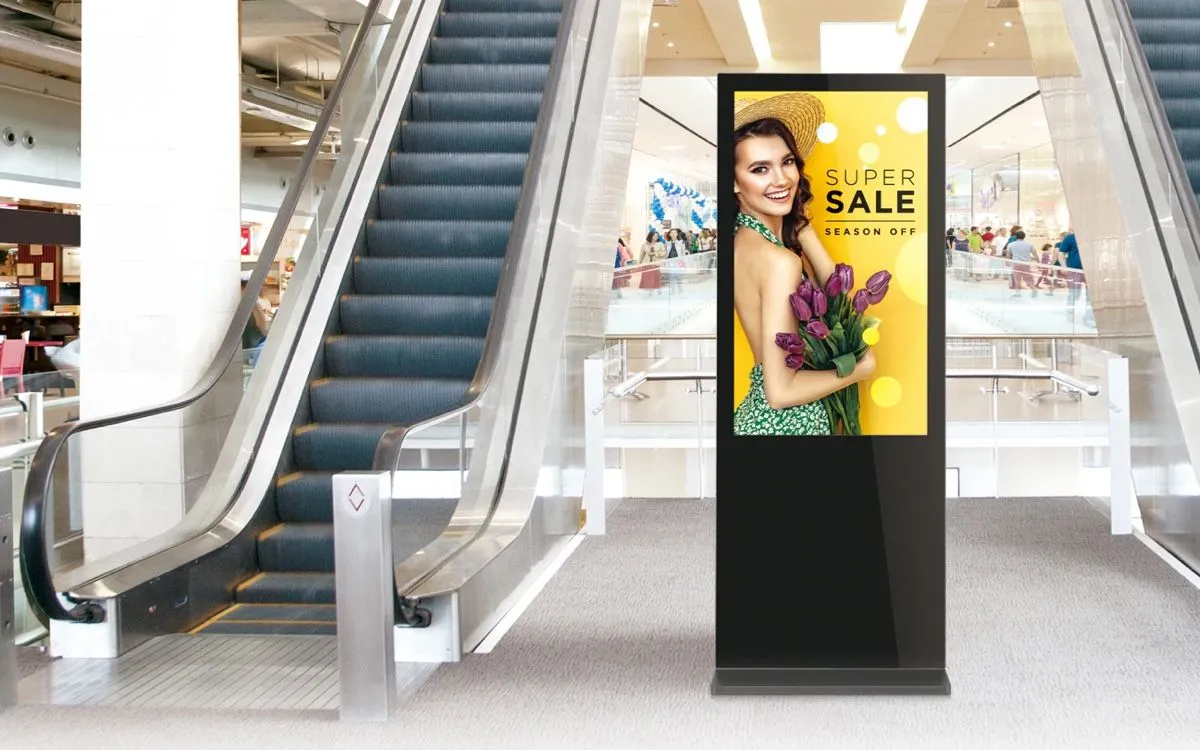
Digital signage is designed to run continuously—24 hours a day, 7 days a week, 365 days a year. The software at the heart of Play Digital Signage is engineered to make this a reality, incorporating fault-tolerant features like content caching and crash recovery. However, keeping a digital signage deployment reliable over the long term requires more than just good software.
In this article, we explore the practical steps users can take to ensure that their digital signage setup stays online and effective at all times. We’ll examine hardware selection, device setup, operating system tweaks, network configuration, and much more. Whether you’re deploying one screen or a thousand, these best practices will help you maintain uptime and performance.
1. Choosing the Right Hardware: Media Player or Smart TV
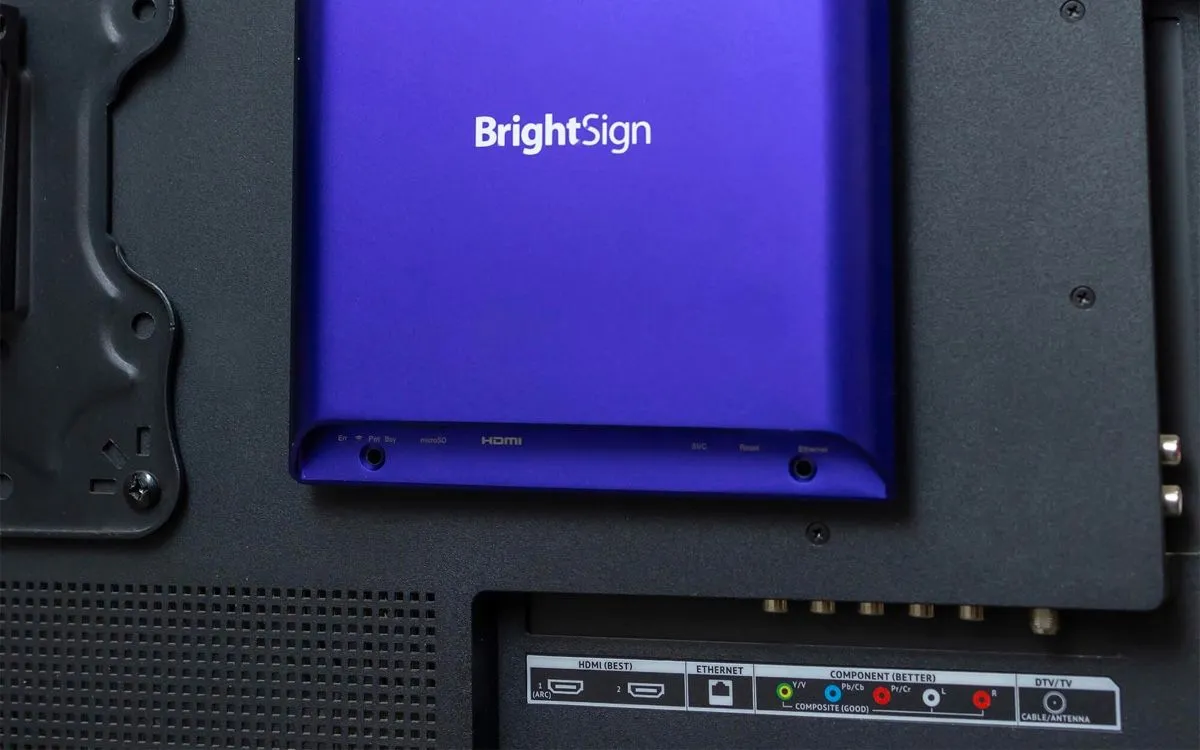
“Content is king”—but your media player is its castle. The type of content you plan to show should determine the media player or Smart TV you choose.
Entry-Level Content
If your content is limited to static images and basic video without transitions or animations, a budget device like the $30 Amazon Fire TV Stick may be sufficient.
Advanced Content
If your content includes:
- Element animations
- 4K video
- Transitions
- Web-based plugins (e.g., Power BI dashboards or complex websites)
…then a high-performance media player is essential. Underpowered devices will lag, crash, or overheat.
Smart TVs
Most Smart TVs are equivalent to entry-level media players and may not handle complex signage tasks reliably. Always test your planned content on a prospective Smart TV before full deployment.
Helpful Resource: Find a suitable media player
2. Best Practices for Media Player Setup
Setting up your media player properly is just as important as picking the right one. Here’s how to get started with different platforms:
Amazon Fire TV Stick
Uninstall other apps: Remove any unnecessary applications to free up resources.
Use AUTO-Launch: Enable this feature in the Play Digital Signage app.
Permissions: Grant overlay permissions as needed (Guide).
Install via Amazon App Store: Avoid using APKs to ensure automatic updates.
Power Supply: Use the provided PSU, not a TV’s USB port.
Windows PCs
Disable automatic updates: Prevent Windows from rebooting randomly (Guide).
Use Auto-Launch: Configure through the app or dashboard.
Tweak performance settings: Disable screen savers, and sleep modes, and ensure the machine reboots to the signage app.
Android Devices (Chromecast, Google TV, etc.)
Install from the Play Store: Avoid APK installations.
Grant all required permissions (Guide).
Overlay permission: Enable “Display over other apps.”
Use Android 6 or newer: Older versions are not supported.
Apple macOS
Enable Auto-Launch
Disable macOS updates
3. The Network: Your Digital Signage Lifeline
Digital signage systems are networked devices that rely on an internet connection to download content, updates, and integrations.
Cached Content vs. Real-Time Data
Locally stored content (images, videos, etc.): Can run offline after being published.
Real-time content (RSS, Facebook, Power BI, weather widgets): Requires regular connectivity.
Wi-Fi Considerations
Wi-Fi is convenient but often unstable for critical use. Signal dropouts can affect syncing.
Prefer a wired Ethernet connection for stability.
Use a Dedicated VLAN or Network
Isolating digital signage traffic improves performance and reduces interference with other business-critical operations.
4. Heat, Power, and Environmental Factors
Hardware reliability is affected by environmental factors such as temperature, power supply, and ventilation.
Avoid Overheating
Devices like Raspberry Pi and Amazon Fire TV Sticks can overheat. Use heatsinks and active cooling if necessary.
Don’t place devices inside closed cabinets without ventilation.
Stable Power
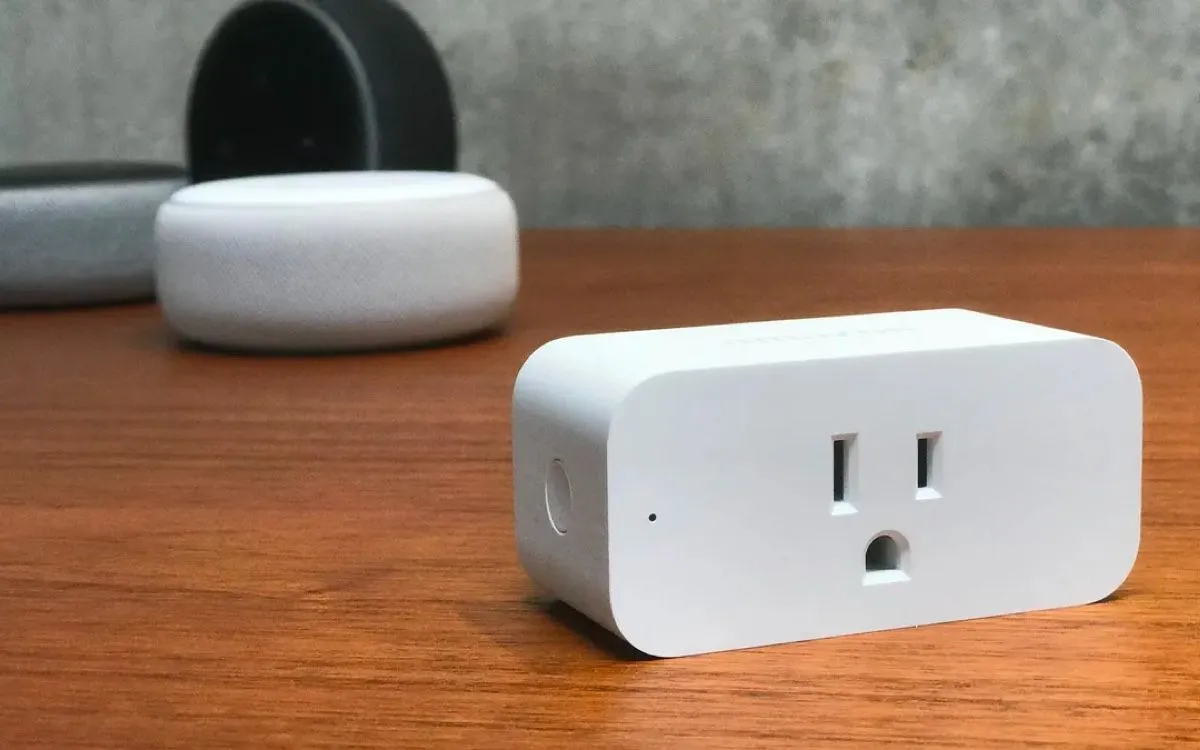
Use dedicated PSUs.
Avoid powering devices from TV USB ports, which may offer inconsistent voltage.
Surge Protection
Use surge protectors or UPS devices to protect against voltage spikes.
5. Using MDM for Large Networks
If you’re deploying dozens or hundreds of screens, Mobile Device Management (MDM) software can help:
Push updates
Enforce configurations
Lock down devices
Remotely reboot or monitor hardware
Android MDM Guide: Using MDM
6. Auto-Launch, Schedulers, and Recovery Options
Auto-Launch
All supported devices and platforms should be set to launch the signage app automatically on boot. This reduces downtime in case of power failures or restarts.
Scheduled Power On/Off
For platforms like Samsung Tizen and LG webOS, configure device schedules to turn on/off at desired times.
Samsung Tizen Guide: Power Schedules
Input Locking
Prevent accidental input switching on smart displays:
Use the Play Digital Signage web portal to disable remote control access on supported devices.
7. Troubleshooting Tips by Platform
Amazon FireOS
Ensure Auto-Launch is on
Install from the Amazon App Store
Grant overlay permissions
Avoid APKs and use the provided PSU
Amazon Signage OS
Use the provided PSU
Auto-Launch should be enabled by default
LG webOS / Samsung Tizen
Enable Auto-Launch
Set power schedules
Disable HDMI-CEC on Tizen TVs to prevent accidental input switching (Guide)
Linux / Raspberry Pi
Enable Auto-Launch
Schedule power on/off
Install heatsinks (Pi)
Use 3A or official PSU (Pi)
8. Monitoring and Alerts
Play Digital Signage supports monitoring features that notify you of player status, screen uptime, and more:
Heartbeat monitor: Detects app crashes and restarts the app automatically.
Alerts & dashboards: Set up screen notifications for maintenance.
9. Content Optimization for Performance
Heavy content can crash underpowered devices.
Tips:
Use optimized images (avoid high-res if not needed)
Limit 4K video to high-end devices
Reduce web-based widget load (like complex websites)
Avoid excessive animations on budget players
Final Thoughts
Software like Play Digital Signage provides the backbone for 24/7 reliability, but user behavior and configuration ultimately determine system stability. By selecting the right hardware, optimizing network and power, configuring devices correctly, and monitoring system health, you can deploy a rock-solid digital signage solution.
No matter your platform or scale, the goal is the same: keep your message on the screen at all times. With these best practices, you’ll be well-equipped to achieve just that.
Need Help? Visit playsignage.com/support or chat with our team for personalized setup advice.
How we write and check our articles:Editorial Policy