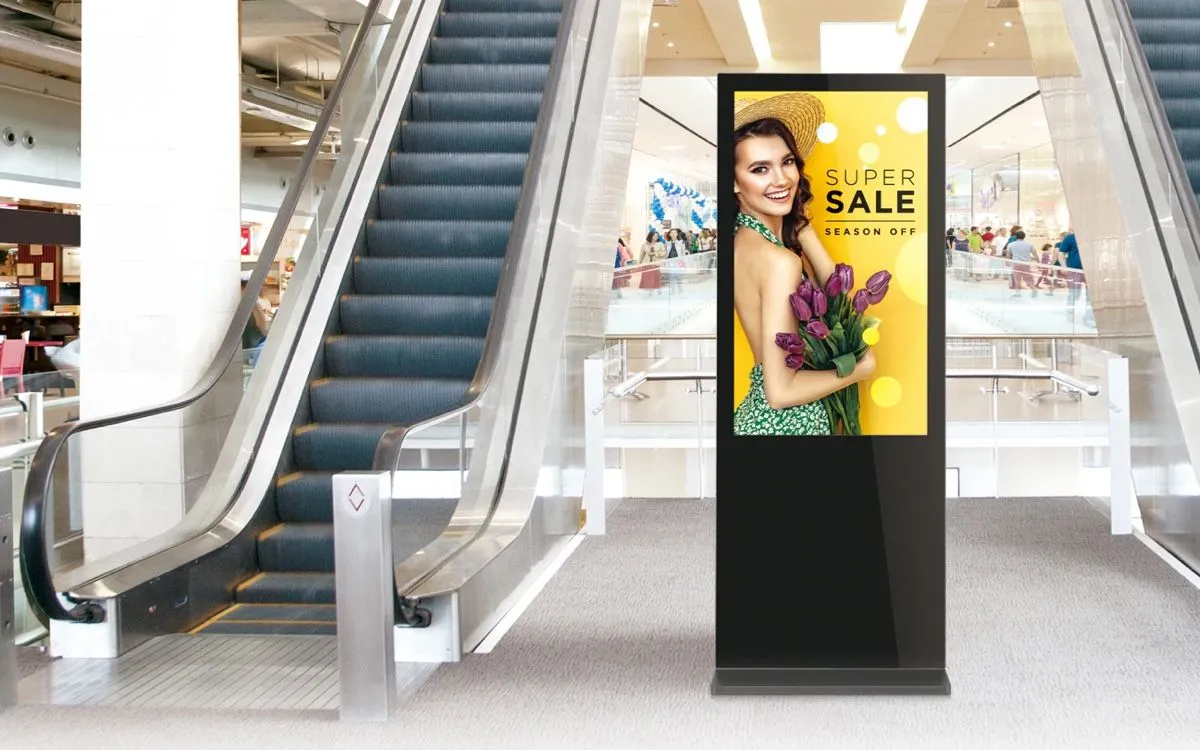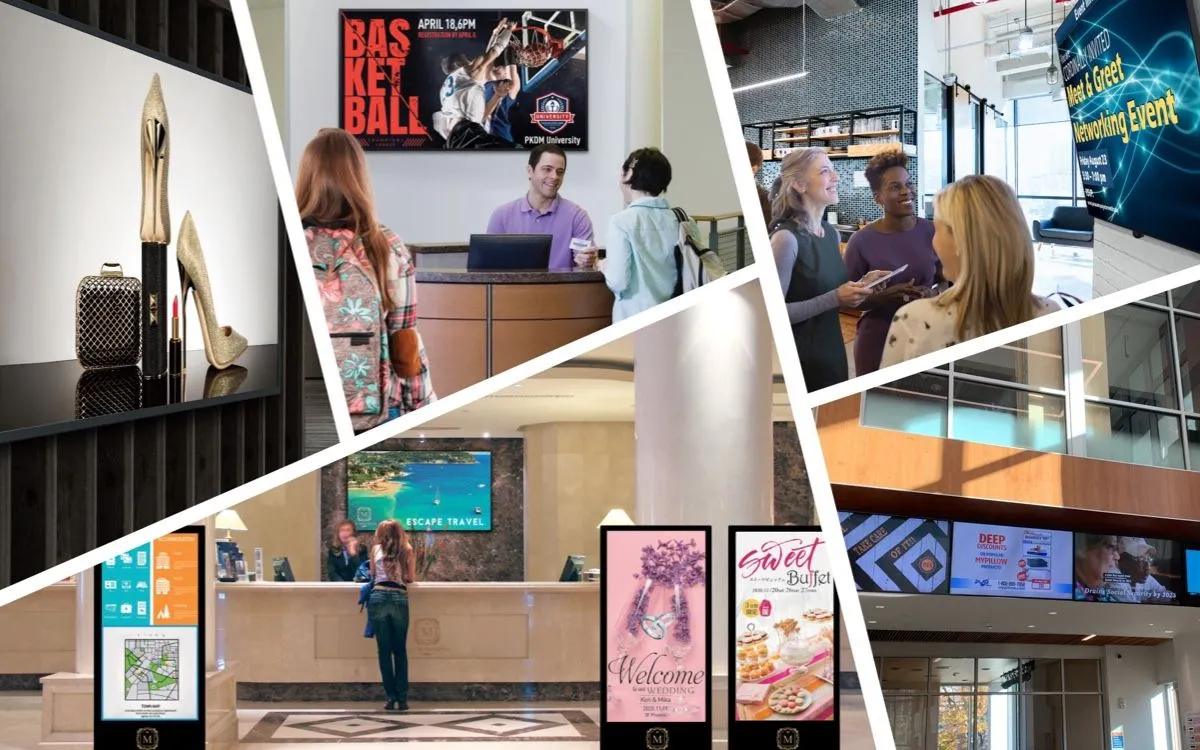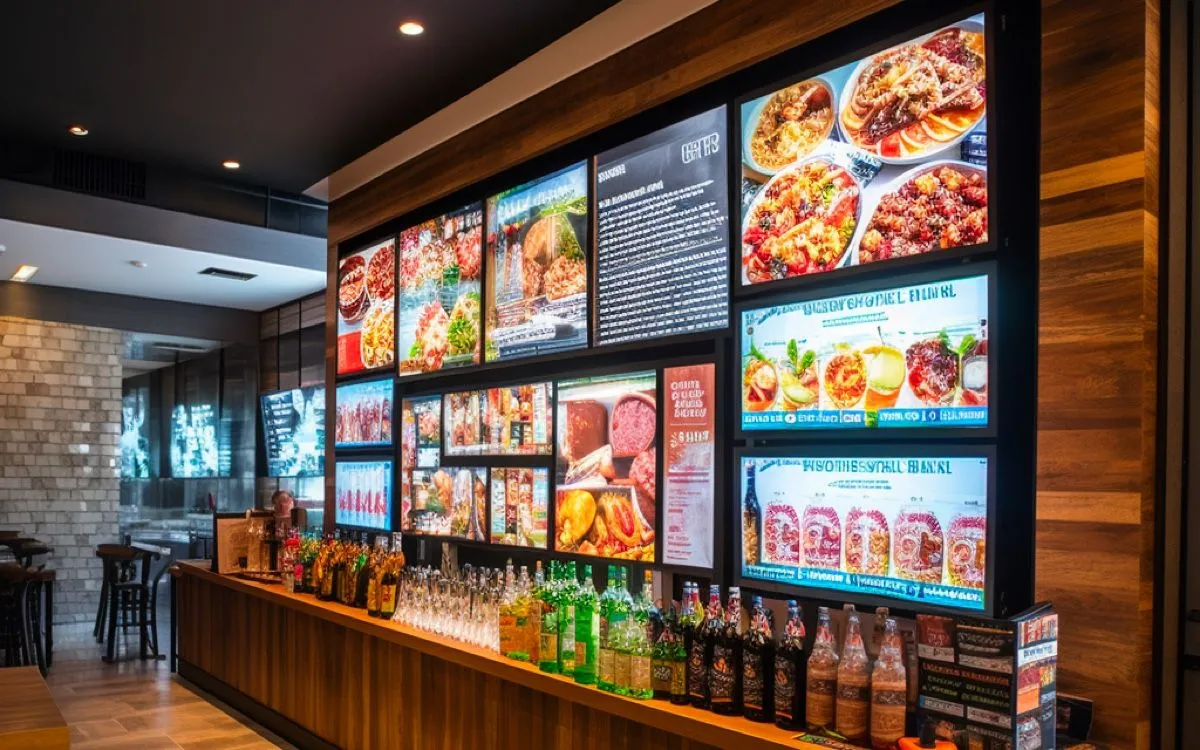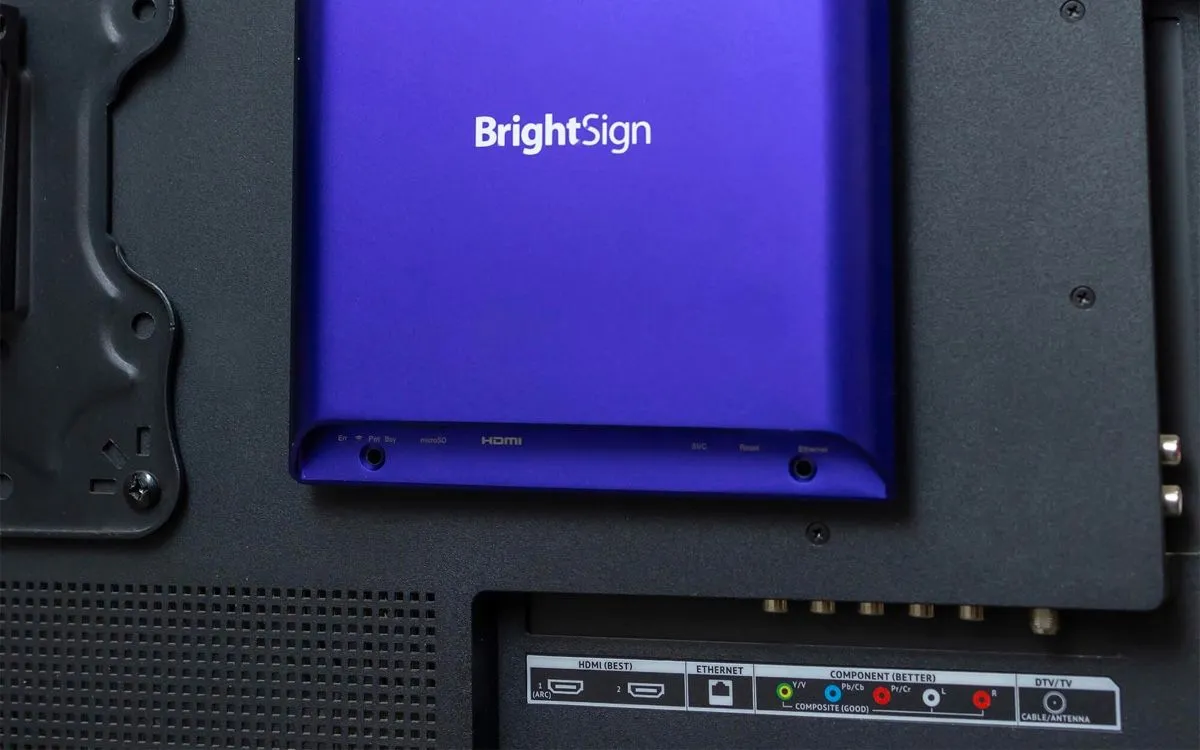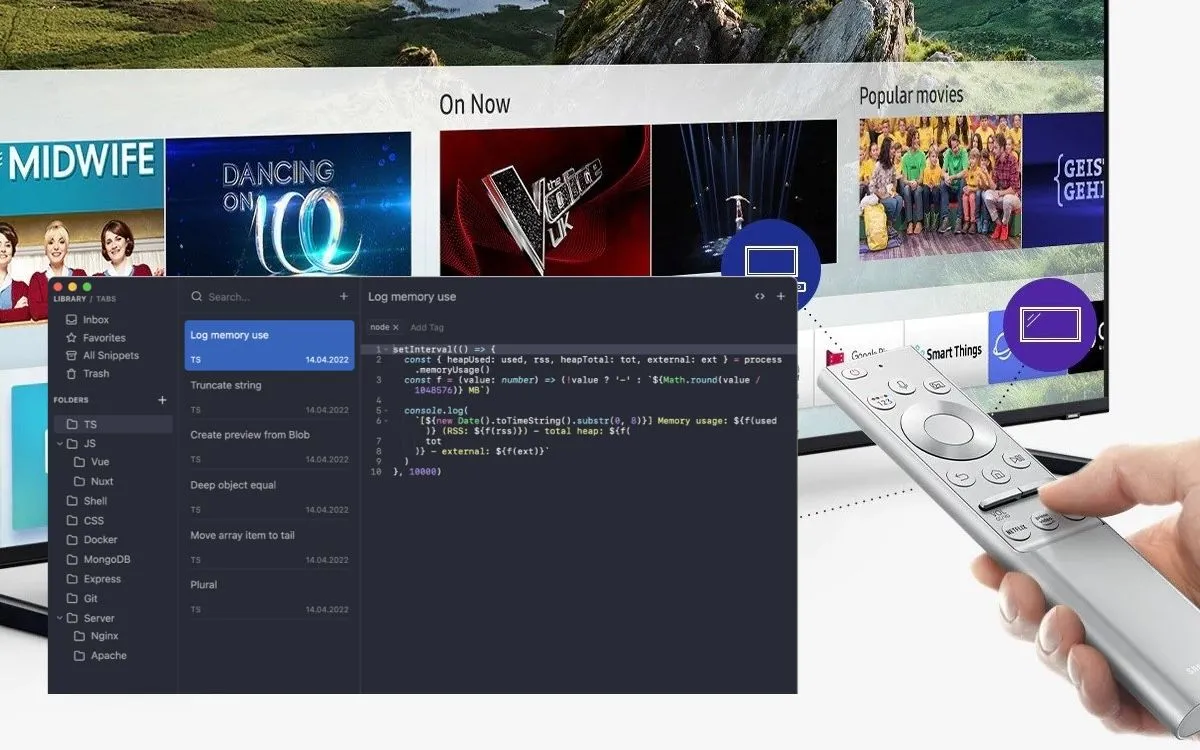
Samsung Tizen TVs can be categorized broadly into two categories: home consumer TVs and professional signage TVs.
In this article, we’ll be looking at the pros and cons of the SSSP application from both the user and developer perspectives. We’ll also be setting up tooling to incorporate the development into a command-line-based flow by using commands that are not really well documented.
When it comes to developing digital signage applications on a Tizen TV, the limitations of the consumer TV are that the operating system does not expose some crucial functionality to the applications that is needed for running digital signage, mainly:
- Consumer TV applications cannot be auto-started on boot. So if the power goes out, the app needs to be started up again manually.
- The application cannot recover from a crash, so if the application crashes or the operating system kills the application, it will need to be launched manually.
- There is no way to take a screenshot of the content that is currently playing, leaving the operator to hope that everything is running fine.
Samsung Smart Signage Platform (SSSP) and future Tizen Enterprise Platform (TEP) solve these issues and expose additional low-level APIs to application developers, for example:
- Ability to turn the TV panel on or off, saving energy and panel life
- Ability to lock the TV remote control so that generic remotes won’t be able to switch channels
- Show content from HDMI input ports in a small window, making it possible to embed any content coming from an HDMI cable (like live sports events) into signage feeds.
From the perspective of a SaaS platform for digital signage, however, there are some drawbacks of the SSSP platform that should also be considered.
- The devices have a pre-installed version of the Chromium browser that cannot be updated. This means that if you purchased a 2018 model, you are stuck with Chrome 56 (which was released in 2016), which is antiquated by now. Many websites (such as Google Calendar, Power BI, etc.) use newer JavaScript functionality that is not present in older browser versions. The same can be said for the 2024 model that was released with Chromium 108, whereas Chrome was on version 130 in 2024.
- Tizen does not offer an API to embed webviews, so the only way to embed external websites and widgets is via the iframe API. An iframe is, however, limited due to web security, so websites can block themselves from being shown in an iframe via the X-Frame-Options header. That means if the website owner has decided to block showing it (many websites do so to prevent phishing), there is no way to show that website on a professional Samsung signage display.
- Because webview is not supported, neither is website scripting. If you have a website that is behind a login page, it is not possible to execute a script to log into that website. Neither is it possible to perform any other workarounds that utilize scripts, like hiding cookie prompts.
- Not possible to show 4k images. While most of the new TV panels are 4k capable, Tizen runs the applications in full HD resolution, and only videos are 4k hardware-accelerated. This means that the only way to show a 4k image is to convert it to a still-frame video and show it as a video.
- Lacking update control. When you operate a large network of screens that need to run 24/7, you also want to ship frequent updates and features. A common risk mitigation strategy in the industry is to roll out updates gradually, so that any issues can be caught early on. However, Tizen does not provide an API to check/install updates that could be called programmatically. Having the API would make it possible for the app to check the roll-out percentage and only update if the roll-out percentage is sufficient for this device (say hash of the device serial number). The way updates work on Tizen is that it makes a request to a URL on the device startup, and if there is a newer version, it will download and install it. The argument in favor of this approach is that since the update mechanism is outside of the application code, it will always be possible to ship a bugfix and ask the customer to just turn the TV off and then on. The downside, however, is that after rolling out an update, all the screens will update the next time they are turned on (generally after a nightly reboot), and within 24 hours, all screens have updated to the latest version.
- The TVs don’t use NTP (Network Time Protocol) to automatically sync time, so if the time, date, or time zone of the device is not set correctly, it will fail to install the app due to an SSL handshake error; however, no meaningful output is shown on the TV.
- Because the TV checks for the .wgt file update and downloads it on boot, it’s not using the same request mechanism and certificate trust as is installed in the Chromium browser. Therefore, it may be that the TV can access a website fine (via browser app), however, if the certificate is newer, it’s not trusted on the OS level when the update check is made.
- No way to access device logs. If there is an issue like the above-mentioned issues on the app install, there is no way to get meaningful log output from the device. The errors are generic, and fixing the issues is often left to making educated guesses.
With that said, let’s set up the development environment with CLI tooling to develop an app for the SSSP platform. The quick start guide (https://developer.samsung.com/smarttv/develop/getting-started/quick-start-guide.html and https://developer.samsung.com/smarttv/develop/getting-started/using-sdk/tv-device.html) does not detail the steps sufficiently, especially for someone not familiar with the Tizen ecosystem development, so we’ll break it down more specifically.
- Download & install Tizen Studio. While we will be using CLI commands combined with npm scripts, I’d recommend downloading the IDE as installing dependencies via GUI is easier: https://developer.tizen.org/development/tizen-studio/download/
- Add
sdbfromtizen_studio/toolsandtizenfromtizen_studio/tools/ide/binto$PATHand make sure that both commands,sdbandtizen, work. - Install the packages. Open up the IDE and launch Package Manager from Tools -> Package Manager -> “Extensions SDK” tab and install the following packages:
- TV extensions
- Samsung Certificate Extension
- TV extensions tools
- Connecting to the TV from your development machine: on your Tizen TV enable Developer mode
- Tizen 7.0+: Press home -> Features -> Apps -> Press 12345
- Tizen 4+: Press home -> URL Launcher settings -> Developer mode
The TV will now restart in development mode. To be able to connect your development machine to the TV, you need to additionally whitelist your development machine’s IP address on the TV. After the restart, go back to the screen where you enabled the development mode and type in your computer’s IP address.
Now, to connect to the TV from the computer, click the Settings icon on the remote -> general -> network and note down the TV’s IP address.
Now on your development machine, connect to the device via sdb connect <TV_IP>, for example sdb connect 192.168.1.10.
- Generating certificates. It’s important that we have the connection with the TV working at this stage because during the last step, it will auto-fill the DUID of the development TV, so we can install apps on it with the newly generated certificate. Open Tools -> Certificate Manager. Click + to create a new one, select “Samsung”, then select “TV”, then select “Create new certificate profile”. Enter the name and password for the certificate. Now you need to log in to your Samsung account (register for one if you don’t have one). After logging in, proceed back to the certificate manager. Select “Create new distributor certificate”. Select the “Partner” level, and in the section below, the Tizen IDE should automatically prefill the DUID of the development TV. If you don’t have it pre-filled, you can get the DUID of your device: “Menu > Support > Contact Samsung > Unique Device ID”. Having the DUID for the development app is required; otherwise, the app won’t install on the device, and you’ll get a generic error.
Now that we’ve completed the setup, we can verify that the certificates are set up. Execute “tizen security-profiles list” to see that the profile shows up there, and there is 0 behind the name, indicating it’s active. Note down the security profile name, as we will be using it later in the CLI.
Create a new app File -> New -> Tizen Project. Select “Sample”, then “TV” and “Web application”, and let’s use the “AnalogWatch” example.
Now, after the project is created, you can run it in the IDE by clicking the “Run” or “Debug” button. Next steps, we’ll explore command-line tools so we can incorporate the steps into a development workflow and not rely on button presses in the IDE.
Using the command line, navigate to the Tizen Studio projects folder. We have an AnalogWatch folder there now. We will now package and run the application using CLI tools that you can incorporate into an npm script down the line:
- Package the application
tizen package -t wgt -s <security_profile_name> -- AnalogWatch. Replace the security profile name with your name. The last parameter is the folder that we want to package. This will generate an AnalogWatch.wgt file in the AnalogWatch folder. - Install the application on the TV:
tizen install -n AnalogWatch.wgt -- AnalogWatch - Now we want to run the application in debug mode. This command is not really officially documented; however, it is crucial to avoid pressing a button in the IDE every time we want to launch the application. First, open AnalogWatch/config.xml file and note down the application id from the
<tizen:application>tag; it should look like “1qC2BwyYVd.AnalogWatch”. Execute the following command:sdb shell 0 debug <package_id>. Replace<package_id>with your package ID. This will launch the app in debug mode, and it will output the port at which the remote Chrome debugger can be connected. - Connect Chrome debugger, open up “chrome://inspect/” on your browser, and click on the “Port forwarding” button. Now type in the port you saw as the output of the previous command, so given an example port 9393, it should look like this: 9393 localhost:9393. After setting up the port forwarding, you can now see the page appear below and inspect it with developer tools.
How we write and check our articles:Editorial Policy