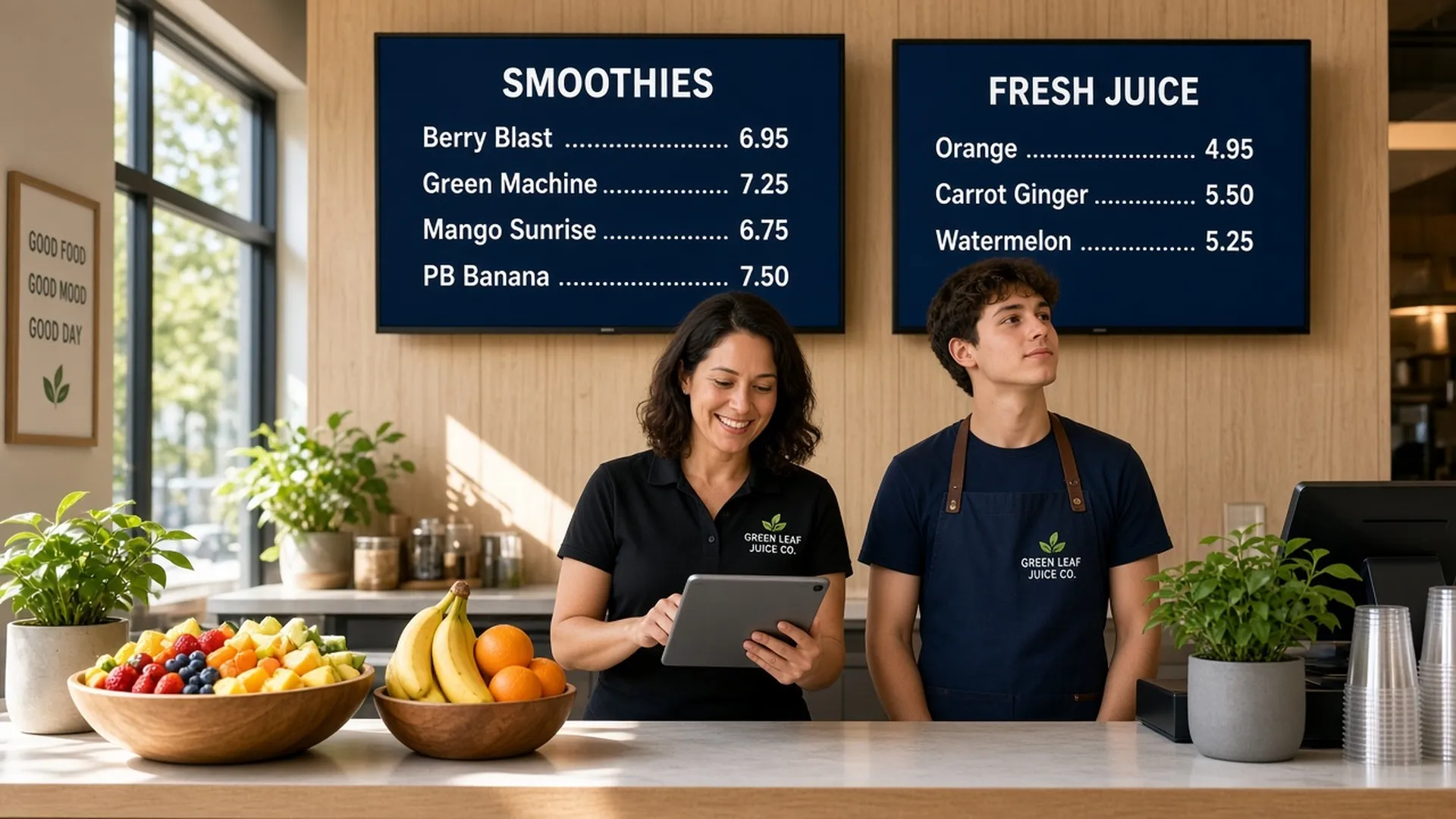
Dynamic Text is a Play Digital Signage plugin that shows live text from a Google Sheet on your screens. You edit a price, a number or a schedule in the sheet, and your screens update by themselves, without opening the playlist or publishing again. It is available on the Pro and Ultimate plans.
What problem does Dynamic Text solve?
Most text on a digital sign is typed straight into a slide. That works until something changes. A price goes up, a class moves rooms, an item sells out, or the sales number you show on the office wall is already out of date by lunch. Every one of those changes means someone has to log in, find the right slide, edit the text and publish again.
Dynamic Text moves the words out of the slide and into a Google Sheet. The design stays in Play, where you set the font, colors and layout once. The content lives in the sheet, where the people who actually know the numbers can change them. After you publish the slide one time, the screens keep up with the sheet on their own.
How does Dynamic Text work?
You connect a Google Sheet to a text element on a slide. Play reads the sheet, shows the part you chose, and checks for changes on a refresh interval. The default is every 5 minutes.
There are three ways to show your data:
- Single cell: one value on one line. Good for a headline number, a price or a status word like “Open” or “Sold out”.
- Whole sheet: every row of the chosen tab, shown as a Grid or a Menu.
- Custom range: a block of cells, for example A2:B8, up to 50 rows.
The Whole sheet option has two styles:
- Grid shows rows and columns, like a table. Empty columns are hidden.
- Menu shows two columns you choose, for example Item and Price. The left column is left-aligned, the right column is right-aligned, and dotted leaders fill the space between them. Fully empty rows are skipped.
The Menu style is the one most restaurants will want, because it looks like a printed menu board without any manual spacing.
How do you set up Dynamic Text?
First, share your sheet:
- Open your sheet in Google Sheets and click Share.
- Under General access, choose Anyone with the link. Viewer is enough.
Private sheets can’t be used. The sheet must be shared with Anyone with the link.
Then add the plugin to a slide:
- Open the playlist and the slide where you want the text.
- Click Plugins and choose Dynamic Text.
- Step 1, Connect your data: paste the link to your Google Sheet and press Enter or click Load. When it works, you see Connected with the number of rows and columns.
- Choose the sheet tab and how often to refresh. Tick Use first row as column names if row 1 holds labels.
- Step 2, Choose what to display: Single cell, Whole sheet or Custom range.
- Step 3: pick the details. For a single cell, click the cell in the preview of your sheet. For a range, type it or click the first and last cell.
- Click Save. The text appears on the slide.
- Style it in the settings on the right, check it with Preview, then click Publish.
From then on, when you edit the sheet, your screens update on the refresh interval you chose.
To change the sheet or what is shown later, click the Dynamic Text element, click Modify Dynamic Text Plugin in the settings on the right, make your change, click Save and publish again.
Which settings can you change?
Click the Dynamic Text on the slide to see these options in the settings on the right.
| Option | What it does |
|---|---|
| Refresh | How often screens get the latest data: None, every 5 minutes (default), every 15 minutes, every hour, every 6 hours or once a day |
| Sheet tab | Which tab of the spreadsheet to use |
| Use first row as column names | Pick columns by name, like Product or Price, instead of Column A and Column B |
| Display | Single cell, Whole sheet (Grid or Menu) or Custom range |
| Font | Any font in the editor, including Google Fonts, with bold, italic and underline |
| Text color | Pick a color, or use the eyedropper |
| Alignment | Left, center or right, plus justify in Grid |
| Size and spacing | Font size, line height for Whole sheet, column spacing for Grid and Custom range |
| Rotate and Stroke | Rotate the text, or add an outline with its own color and width |
| Fit box to text | Resizes the box to its content |
With Refresh set to None, the text doesn’t refresh while the slide shows, but it can update when the playlist reloads or the player restarts. The settings show when the data was last updated, which is handy when you want to confirm a change went through.
Where does Dynamic Text work best?
The short answer is any list your team already keeps in Google Sheets. Here are the setups we expect to see most often in the US.
Restaurants and cafes
Use Whole sheet in the Menu style for a drink or food board. Put items in column A and prices in column B. When the cost of oat milk goes up and the manager changes “Oat Latte 5.25” to “Oat Latte 5.50” in the sheet, every screen showing that slide picks it up at the next refresh. Prices show exactly as they are formatted in the sheet, so keep your dollar signs and decimals consistent there. More ideas for food service are on our digital menu boards and restaurants pages.
Retail stores
Show stock and availability, like a “Sold out” status on a popular item, or a short list of today’s featured prices. A single cell works well for one status word near a display. See more on digital signage for retail.
Offices and call centers
Put one number in large type on the wall: “Sales today”, “Tickets open” or “Calls waiting”. If that number already lives in a Google Sheet, Dynamic Text can show it from a single cell. See more on digital signage for offices.
Schools, colleges and campuses
Show class times, room bookings or office hours as a Grid. Front office staff can update the sheet from their desk without touching the signage. See more on digital signage for education.
Warehouses, plants and job sites
A “Days without incident” counter is one of the most common safety displays. Keep it in one cell and show it large. See more on digital signage for warehouses.
What should you know before you start?
A few limits are worth knowing up front, so the screen looks right the first time.
- Google Sheets only. Dynamic Text doesn’t work with Excel, CSV or other sources.
- Text only. Colors, images and conditional formatting from the sheet are not shown. You style the text with the options in the editor.
- Formatting comes from the sheet. Numbers, currencies and dates are shown exactly as they are formatted in your sheet.
- No variables. Dynamic Text shows the cell text as it is. It doesn’t fill in the date, time, screen name or other variables.
- Single cells stay on one line. A long value is cut off with “…” instead of wrapping.
- Long sheets shrink. A long whole sheet makes the text smaller to fit the box, which can make it hard to read. Keep sheets for screens short, or show a custom range instead.
A good habit is to keep a dedicated tab just for the screen, with only the rows you want shown, rather than pointing the plugin at a large working sheet.
What do the error messages mean?
| Message | What it means | What to do |
|---|---|---|
| Invalid Google Sheets URL | The link isn’t a Google Sheets link | Copy the link from the address bar of your sheet in Google Sheets and paste it again |
| Google did not return the spreadsheet | The sheet doesn’t exist or isn’t shared | Check the link, and share the sheet with Anyone with the link |
| The sheet has columns A to F | Your range goes beyond the cells in the sheet | Choose a range inside the columns the message names |
How is Dynamic Text different from the Google Sheets plugin?
Play also has a Google Sheets plugin, which shows live data from Google Sheets, like sales figures or schedules, on your screens. Dynamic Text is built around text. It lets you pick a single cell, a whole tab or a range, and then style the result like any text element in the editor, with your own fonts, colors, alignment, rotation and outline. If you want a menu board or a big KPI that matches the rest of your slide design, Dynamic Text is the better fit. All plugins are on the plugins page.
How do you get started?
Dynamic Text is included in the Pro and Ultimate plans. It isn’t part of Essential. If you are new to Play, your first screen is free with no credit card required, and the free screen includes every Pro feature, so you can try Dynamic Text on a real screen before you pay anything.
- Create a Google Sheet with the text you want to show, and share it with Anyone with the link.
- Add Dynamic Text to a slide, connect the sheet and pick what to show.
- Style it, preview it and publish.
- Change a value in the sheet and watch the screen update.
If you get stuck, our live chat is staffed by real people 24/7, for free and paid customers alike. The full step-by-step guide is in the Dynamic Text help article.
FAQ
Which plans include Dynamic Text?
The Pro and Ultimate plans. It’s not part of Essential.
Do I have to publish again when I change the sheet?
No. After you publish once, your screens pick up changes to the sheet on the refresh interval you chose, every 5 minutes by default.
Can I use Excel, CSV or another source?
No. Dynamic Text works with Google Sheets only.
Can I use a private sheet?
No. The sheet must be shared with Anyone with the link. Viewer access is enough.
Are colors and conditional formatting from the sheet shown?
No. Dynamic Text shows the text only. You style it with the options in the editor.
Why is my text cut off or tiny?
A single cell is shown on one line, so a long value is cut off with “…”. A long whole sheet gets smaller text to fit the box. Keep the sheet short, or show a custom range instead.
Can I show the date or the screen name with Dynamic Text?
No. Dynamic Text shows the text in the cells as it is. It doesn’t fill in the date, time, screen name or other variables.
How we write and check our articles:Editorial Policy