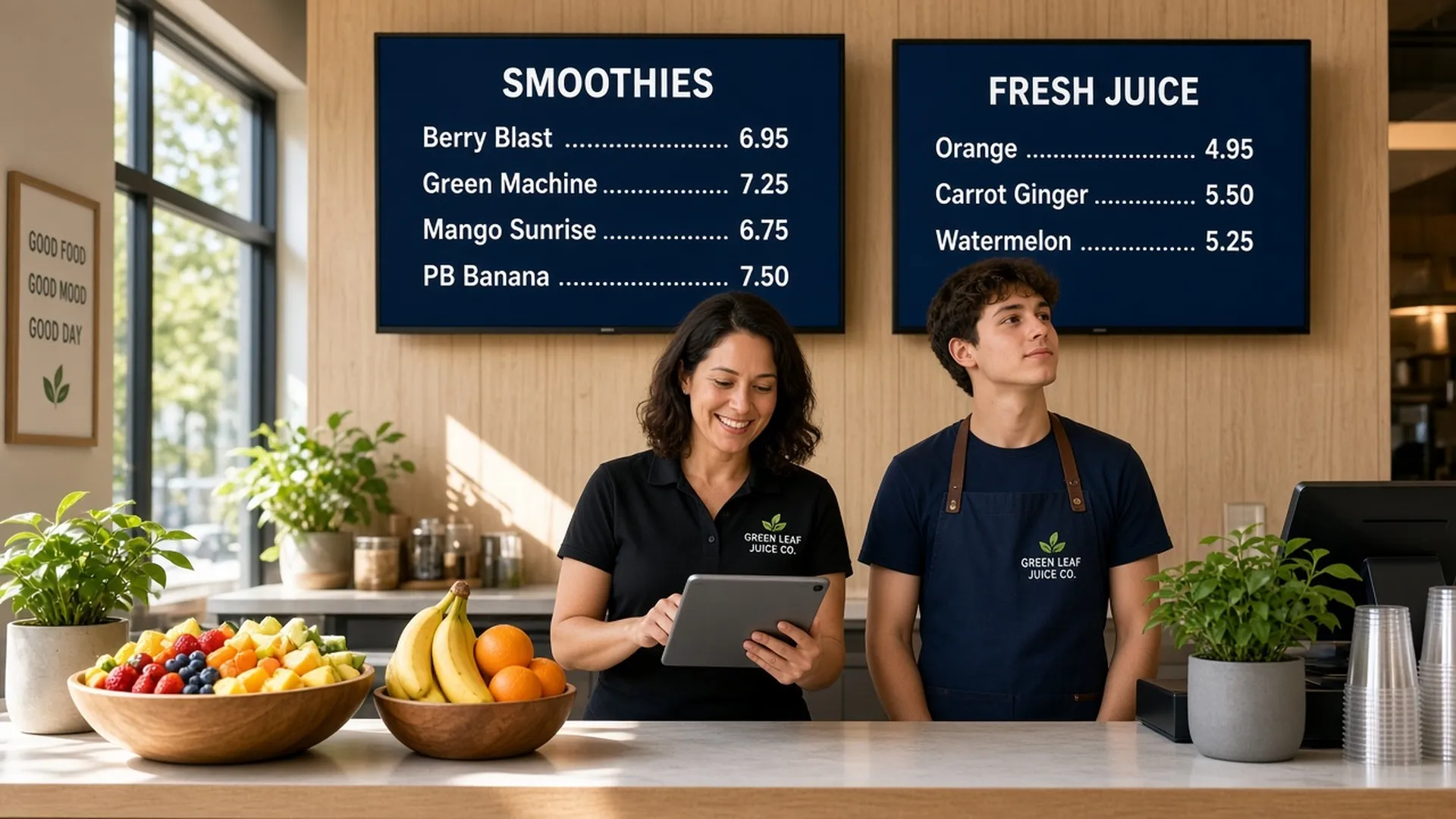
Everyone knows the meeting room dance: you walk up, peek through the glass, and still don’t know if someone booked it for the next hour. Room booking puts the answer on the screen at the door, and lets people book the room right there.
The room’s status at a glance
Add Room booking from Apps and the slide becomes the room’s own sign:
- Free, Starting soon or Busy, in a color you can read from across the hall
- The meeting that’s on now and the ones coming up, or only busy and free if meeting names should stay private
- A strip with the rest of the day, so people see when the room opens up
It comes in a landscape and a portrait layout, for however the screen hangs next to the door.
Book it from your phone
The screen shows a QR code. Scan it, pick how long and when, type your name, and the room is yours. There’s no app to install and no account to make, and the booking goes straight into the room’s calendar, so it also shows up in Outlook or Google Calendar.
The same code lets people cancel their booking or end a meeting early, so the room is free for others. With Check-in turned on, people confirm they came by scanning the code again when the meeting starts. If nobody does, the room is freed automatically: no more rooms held for meetings that never happen.
Works with the calendars you already use
Connect the room with Sign in with Google or Sign in with Microsoft, and pick the calendar the room should use, or let Play create one named after the room. Work, school and personal accounts all work.
If your rooms are room mailboxes in Microsoft 365, your IT team approves Play once, and then everyone can pick from all your meeting rooms.
You decide what people can book: the booking lengths, the hours the room can be booked each day, and how many days ahead.
Get started
Room booking is in the editor under Apps. The Room booking support page walks through setting up a room, connecting its calendar and every option.
How we write and check our articles:Editorial Policy