
Digital signage for the public sector
Digital signage for
government and public-
sector buildings
Keep residents informed in every lobby, office and service counter, from meeting notices to wait times and emergency alerts, all managed from one account.


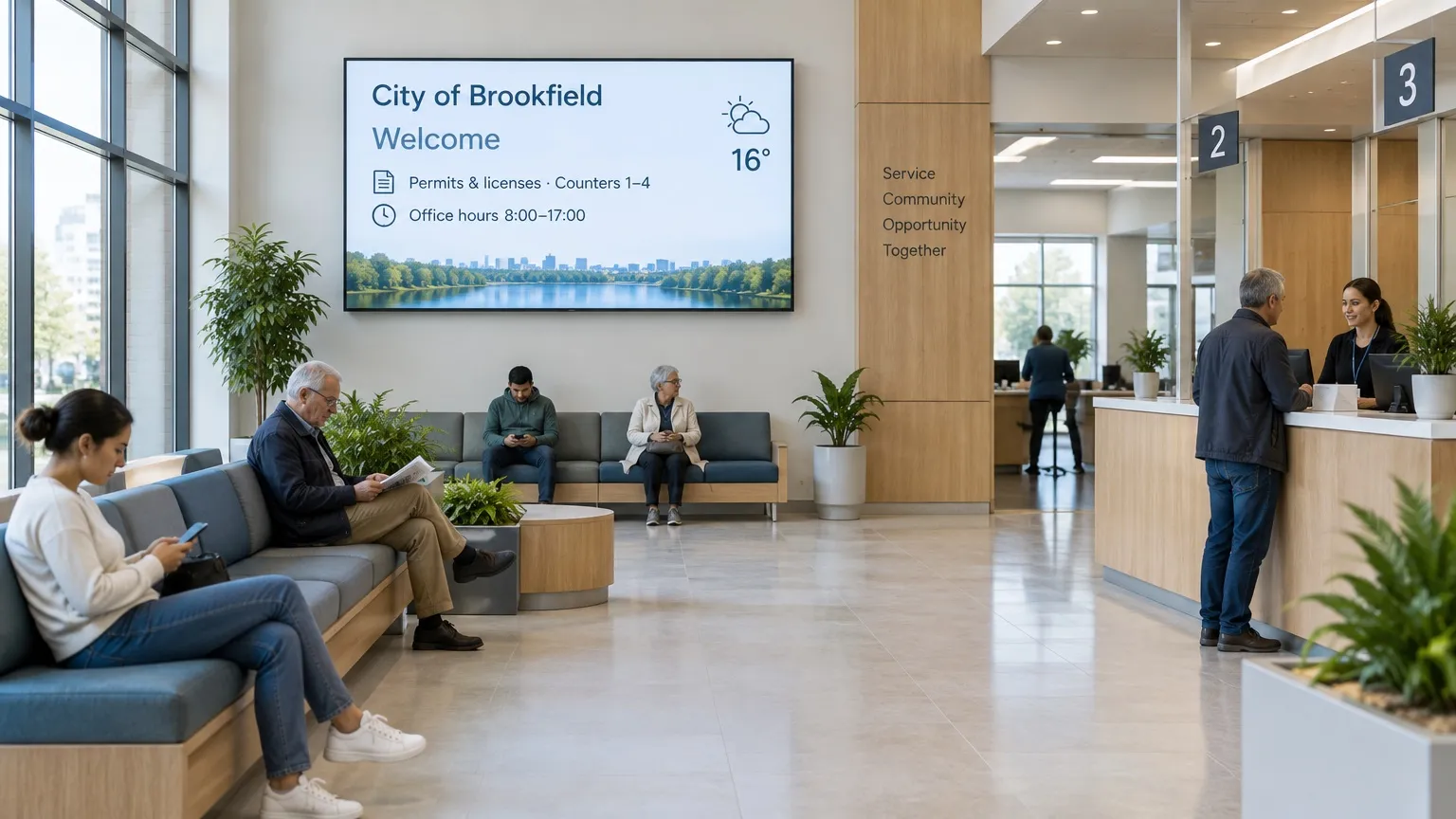
City halls & service centers
Tell residents where to go, how long they’ll wait and what’s new.
- Office hours and service counters
- Queue calls at the counter (Pro)
- Wait times from a Google Sheet (Pro)
- Closure and weather alerts (Pro)
Libraries, courts & recreation
Share programs, schedules and notices in every public space.
- Library and recreation programs
- Hearing and meeting schedules
- Community news by RSS
- Directories for every floor
Agencies & multi-building campuses
Each department runs its own screens while IT keeps sign-in and roles under control.
- A team per department (Pro)
- Single sign-on and two-factor authentication
- Audit Log of every change (Ultimate)
- Buy through a quote or a reseller
From the front door to
the service counter.
Put the right notice on the right screen in every building, so residents know where to go and what’s happening.
01 · Service counter
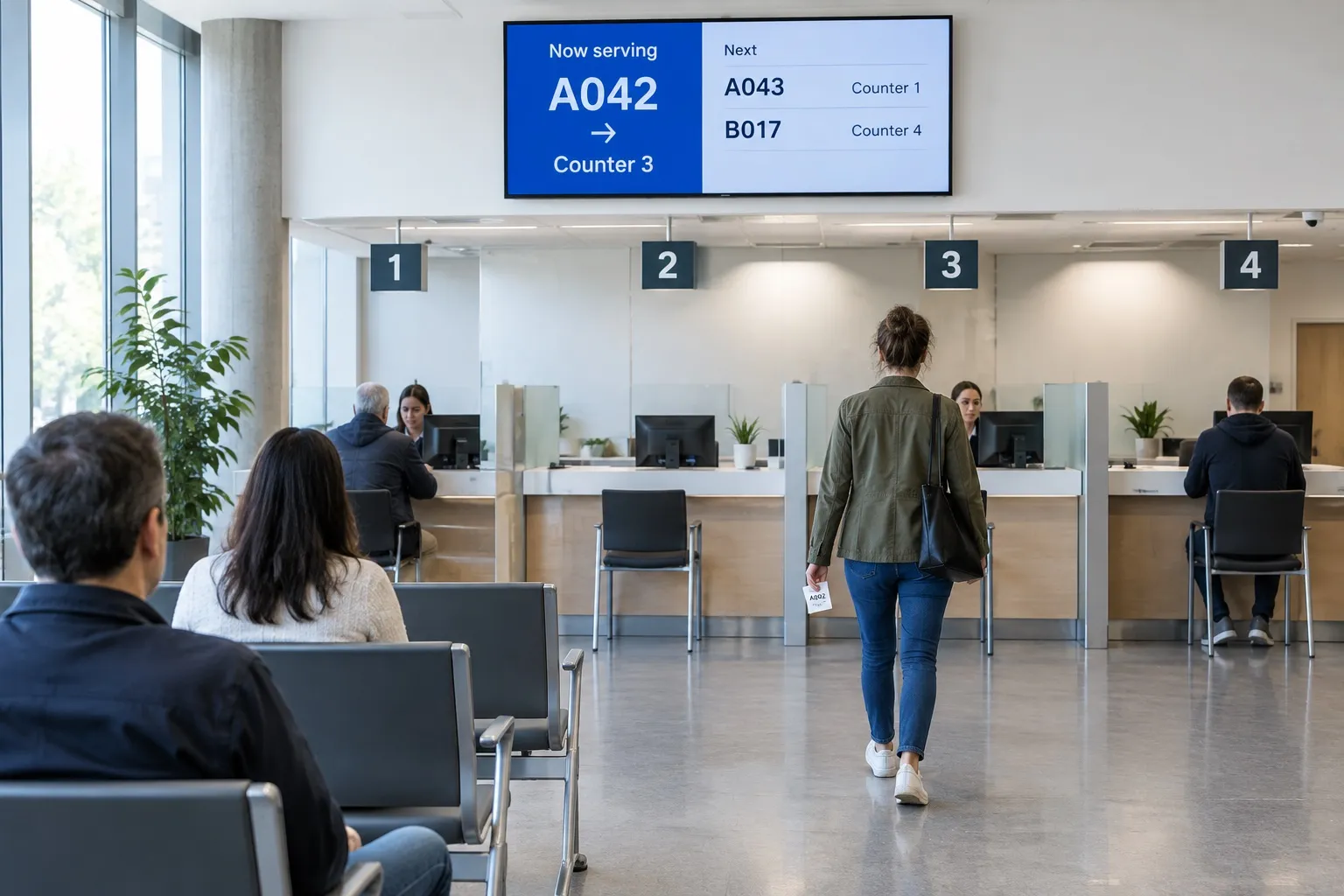
Queue calls residents can see
Queue (Pro) shows take-a-number calls and the counter to go to. It needs a continuous internet connection.
02 · Notices
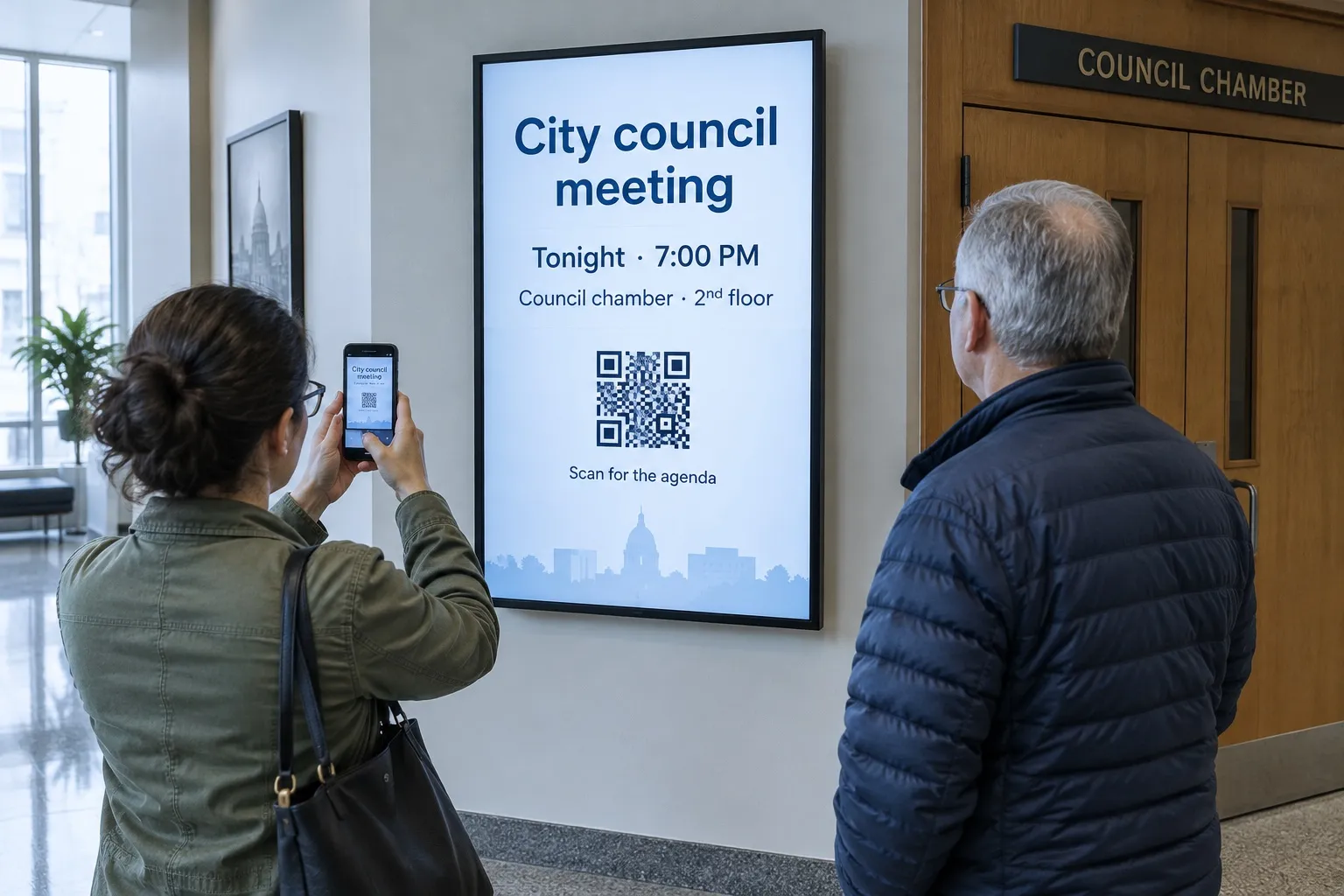
Public meetings and agendas
Schedule notices to appear and expire on their own, with a QR code for the full agenda.
03 · Library
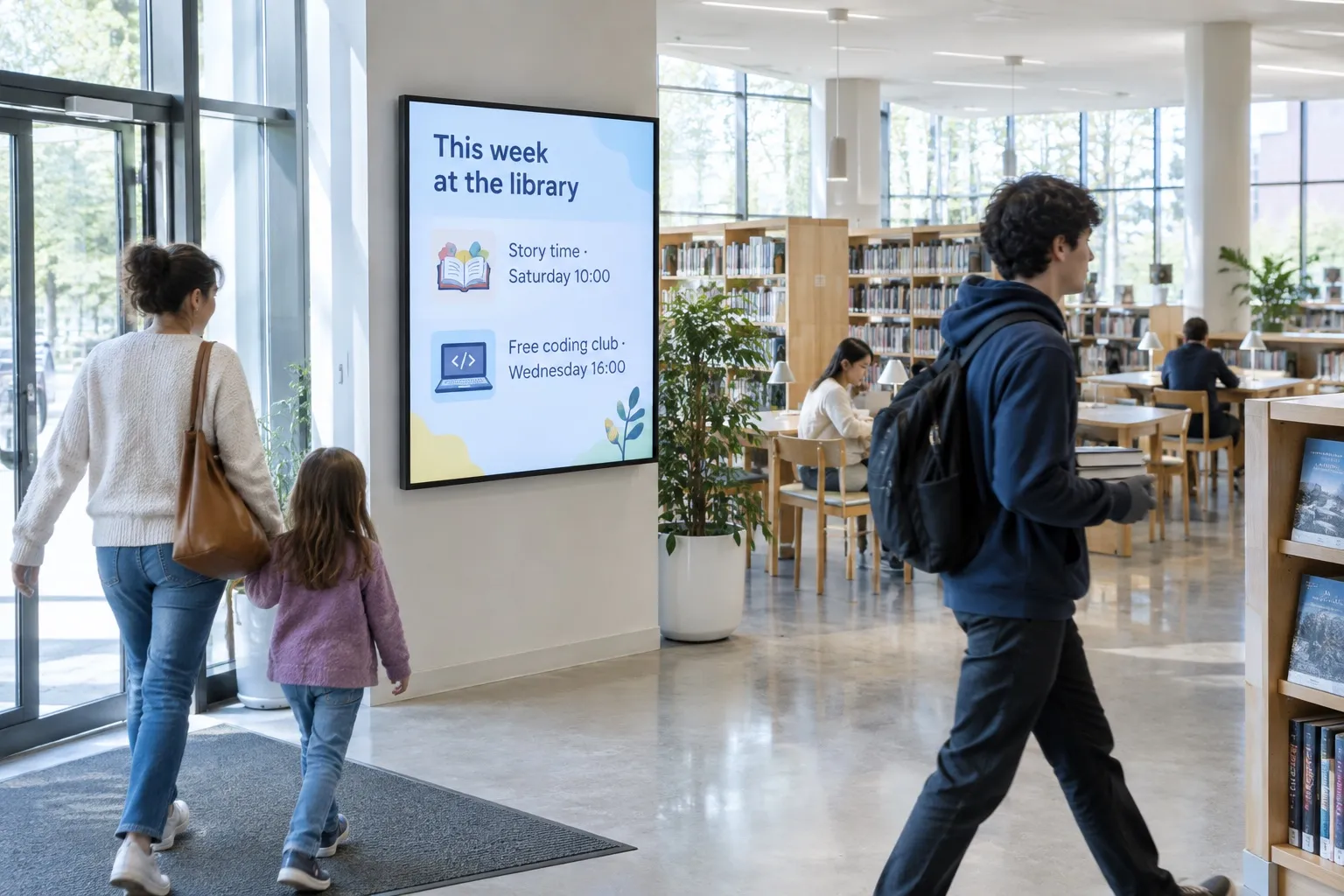
Programs and community news
Libraries and recreation centers show this week’s programs and news from RSS or your website.
04 · Alerts
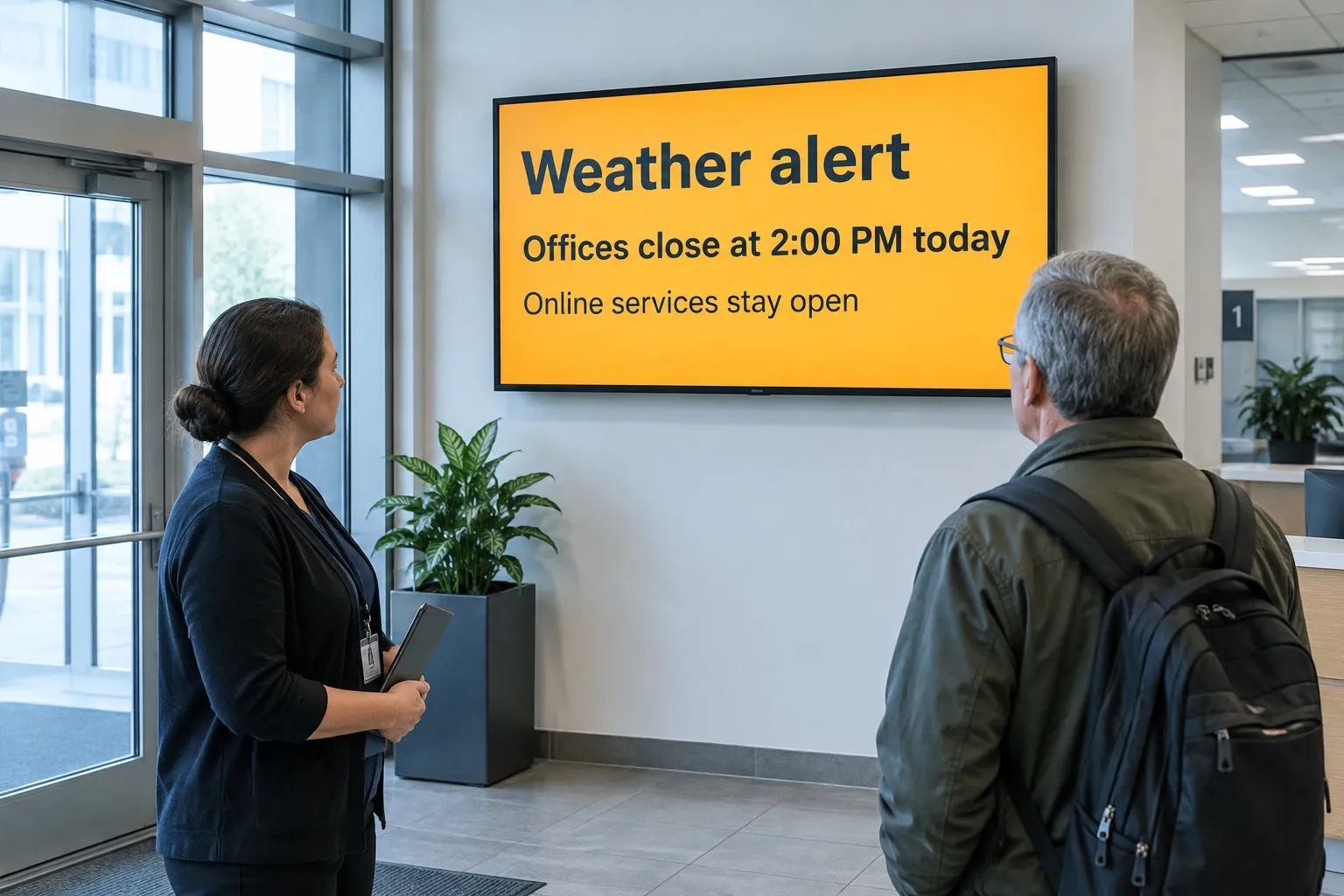
Emergency and closure alerts
The Emergency System with tags and CAP (Pro) takes over screens that are online. Screens that are offline show the alert when they reconnect.

Free live demo
See your screens come alive in one hour.
A Play expert shows you the whole platform with your own content, and answers every question on the way.
- 1 hour
- Google Meet
- Free

Wait times and figures
that update themselves
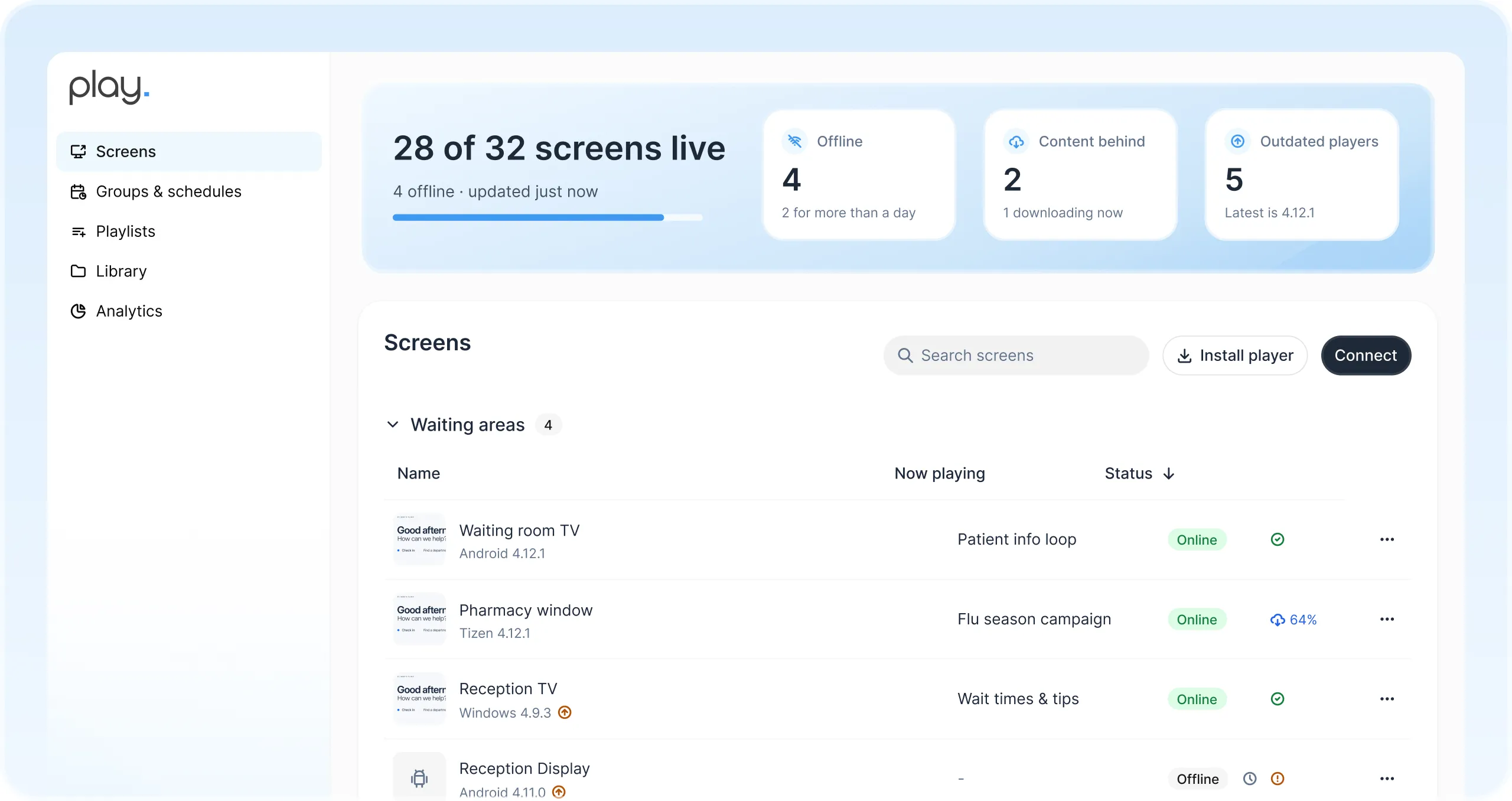
Keep wait times, permit numbers or office hours in a Google Sheet, and Dynamic Text shows them on every screen (Pro). Change the sheet and the screens follow.
One dashboard for every
building and department
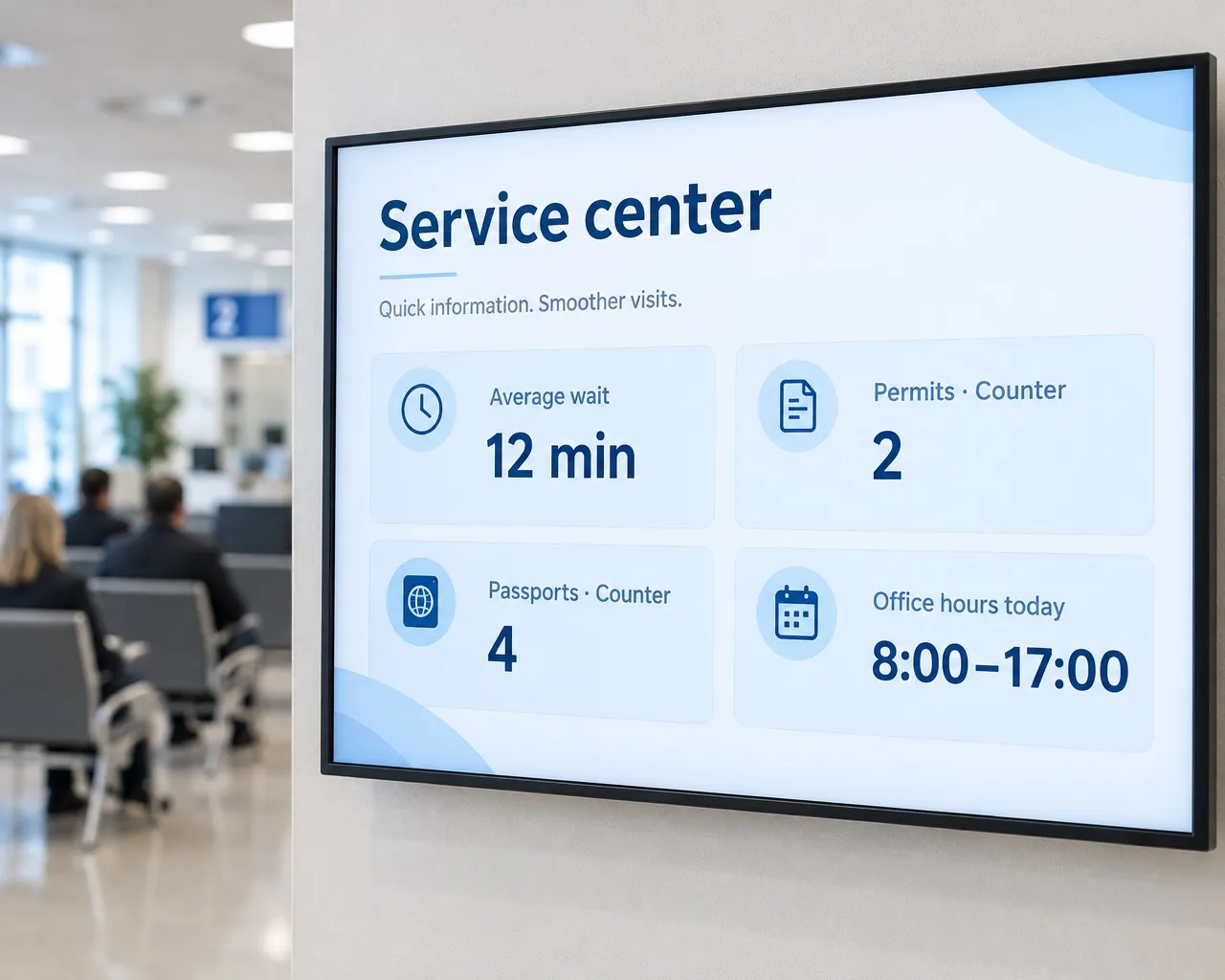
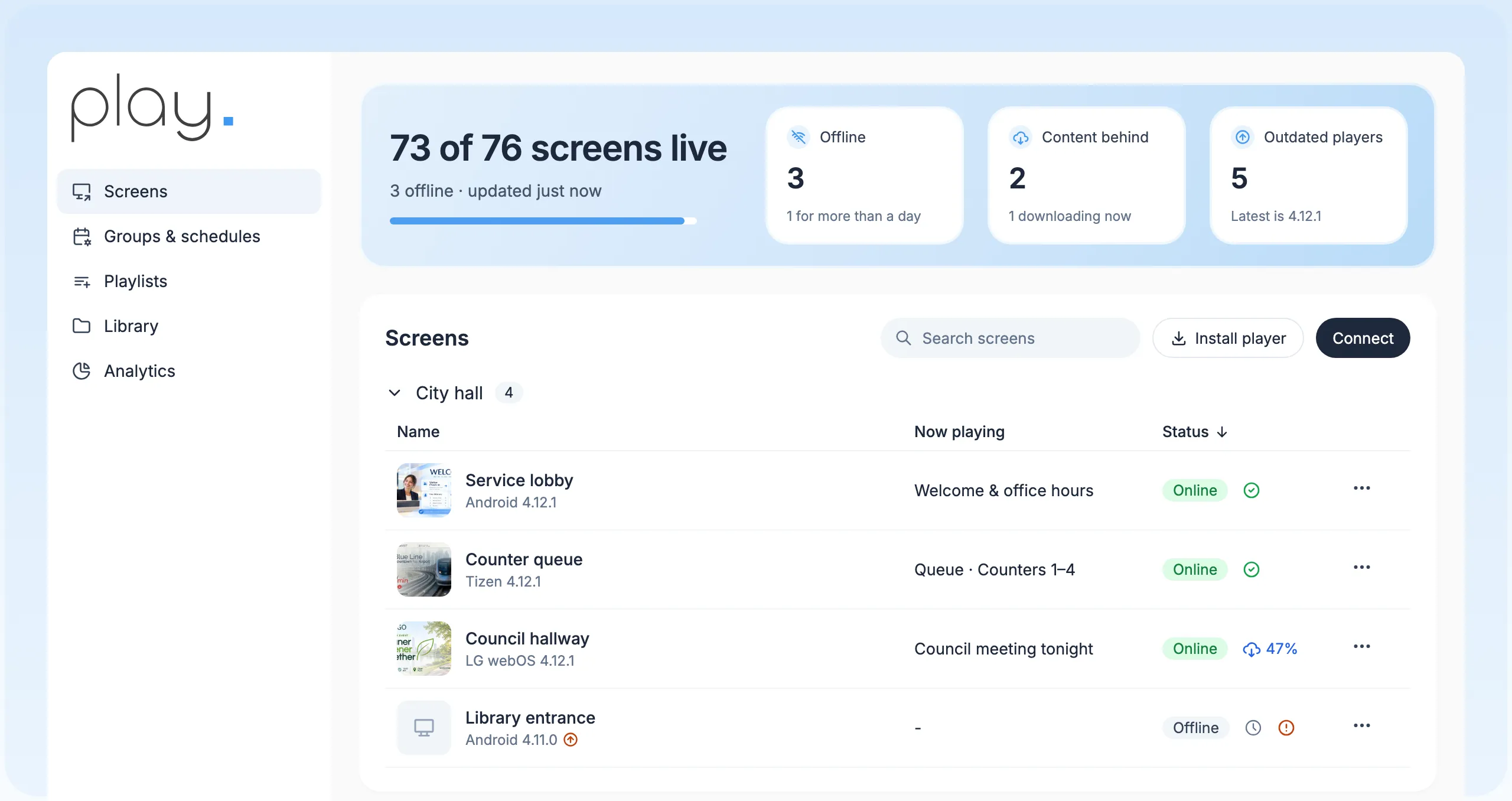
Manage every public screen from one web dashboard, and see at a glance which screens are online.
Emergency takeover
The Emergency System with tags and CAP (Pro) reaches online screens by building or zone; offline screens update when they reconnect.
Access control
Single sign-on with Okta or Microsoft Entra, and two-factor authentication.
Change history
The Audit Log on Ultimate shows who changed what, and when.
Department workspaces
Sub-teams and roles (Pro), with shared playlists for city-wide messages.
Service counters
Queue (Pro) for take-a-number calls; it needs a continuous connection.
Keeps running offline
Scheduled content keeps playing offline, and Alerts (Pro) tell you when a screen goes offline.
Hosting, privacy and
ways to buy.
Hosting in the EU and the US
Your team’s content is hosted by DigitalOcean in Europe (Amsterdam and Frankfurt) or in the United States (San Francisco).
Read our Privacy PolicyPrivacy
We process personal data of EEA, UK and Swiss customers under the GDPR and UK GDPR, as our Privacy Policy describes. Privacy requests: gdpr@playsignage.com.
See how we handle securityGroups and schedules
Group screens and schedule once, on every plan, so one change reaches a building or every site.
Quotes and resellers
Ask for a quote for larger rollouts, or buy through a Play reseller.
Get a quoteWhite label
Your logo, your domain and the SignagePlayer app, for USD 99 a month plus reseller screen prices.
About white labelBring your own screens
Play runs on Android, Windows, Google TV, Fire TV, LG webOS, Samsung Tizen, BrightSign and more. We don’t sell hardware.
Find a media player
Up and running
in an afternoon.
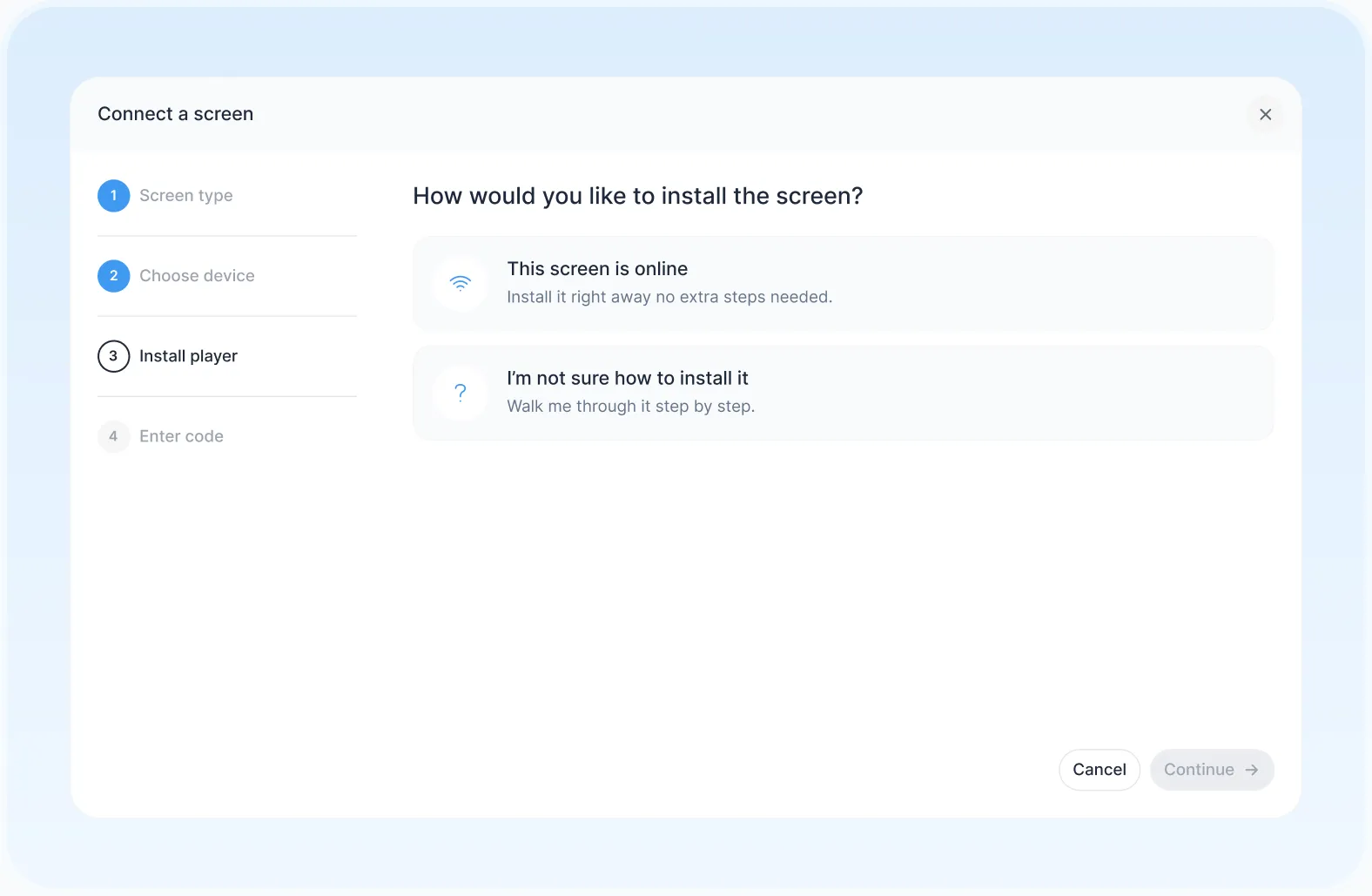
- 1
Connect a screen
Install Play on a supported player and pair it with your account.
- 2
Build and schedule
Start from a template, add your notices and set when and where each one runs.
- 3
Publish everywhere
Send it to one screen, a building or every building at once.
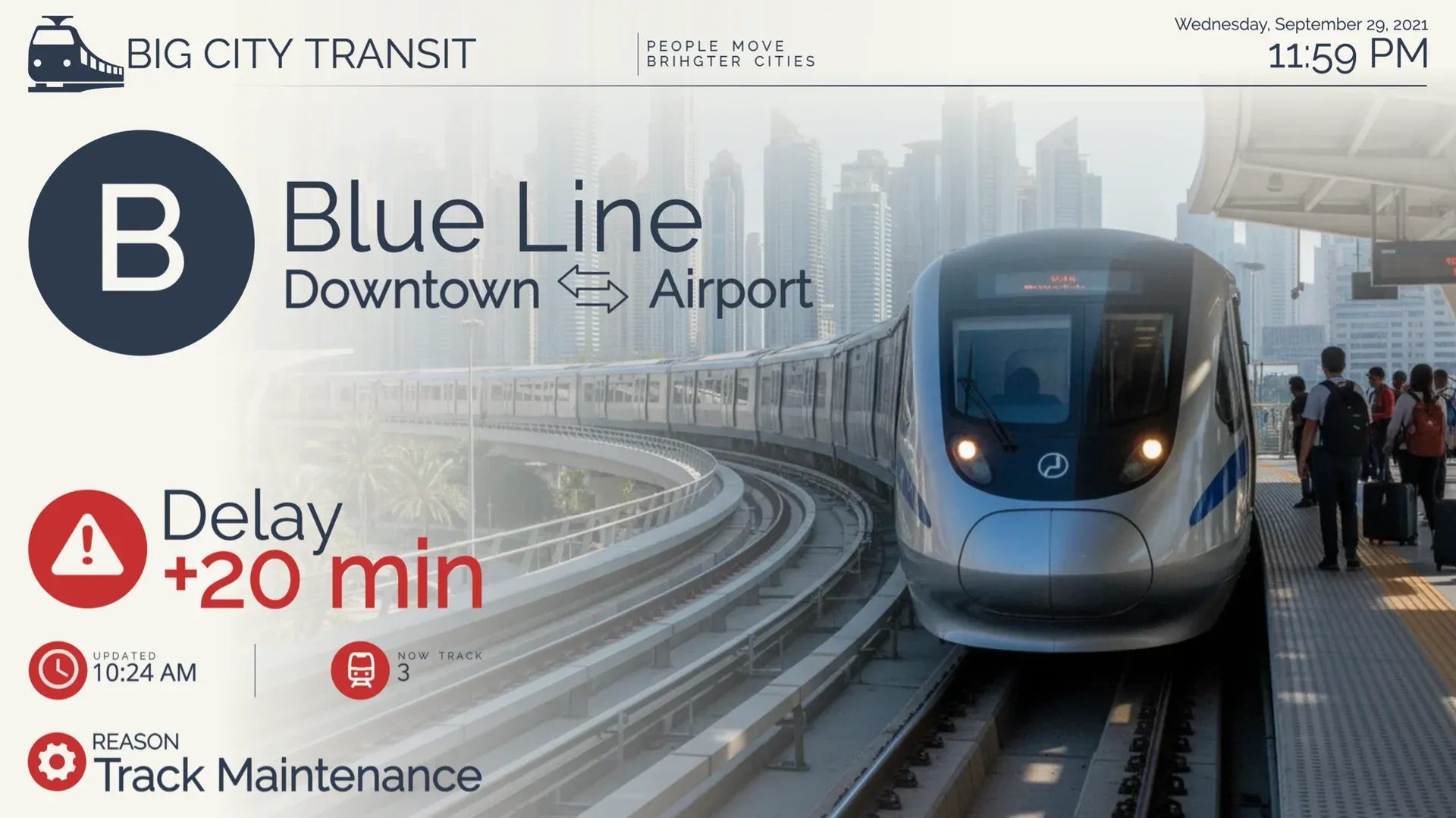
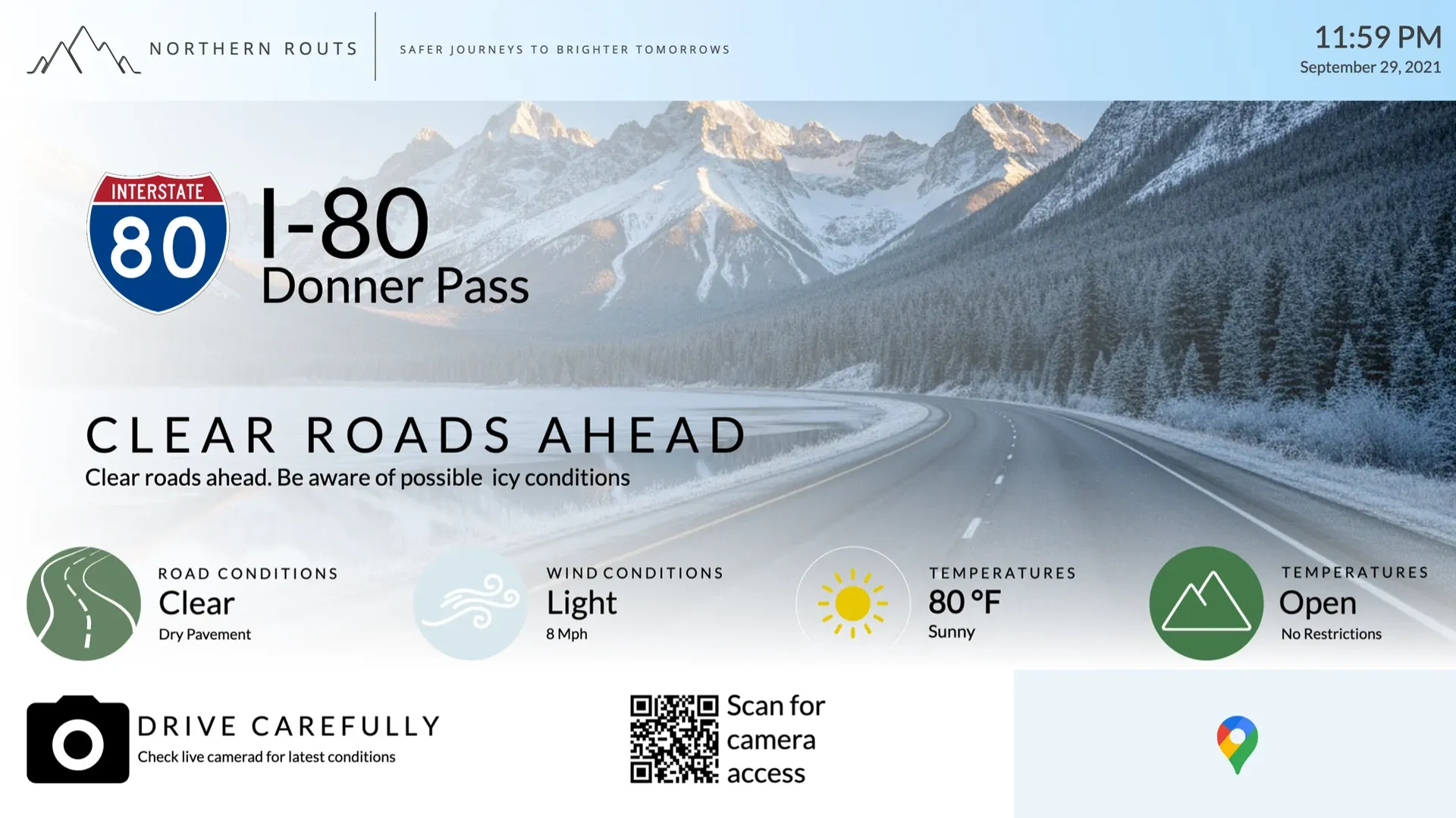
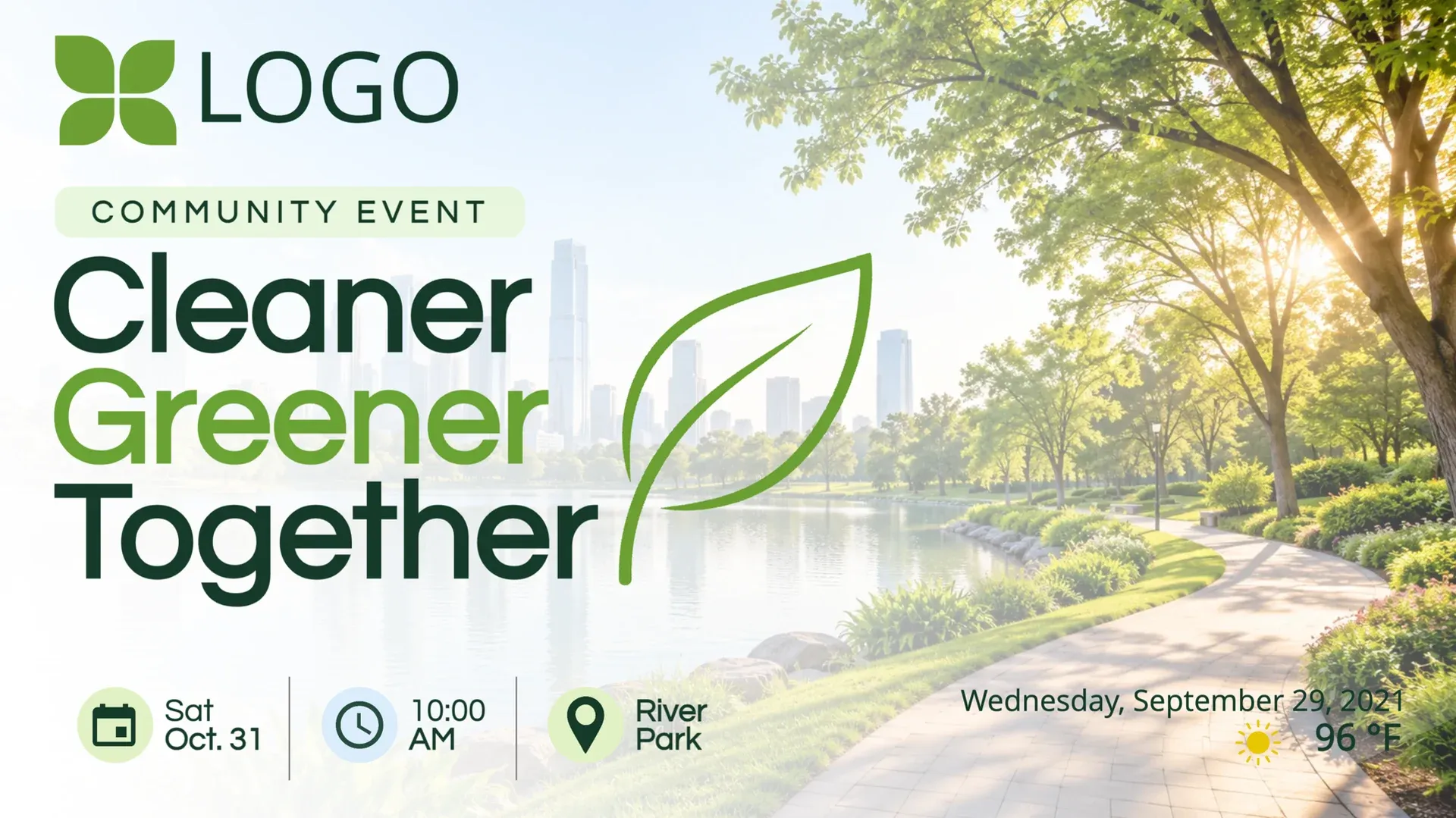
Use templates
or design your own.
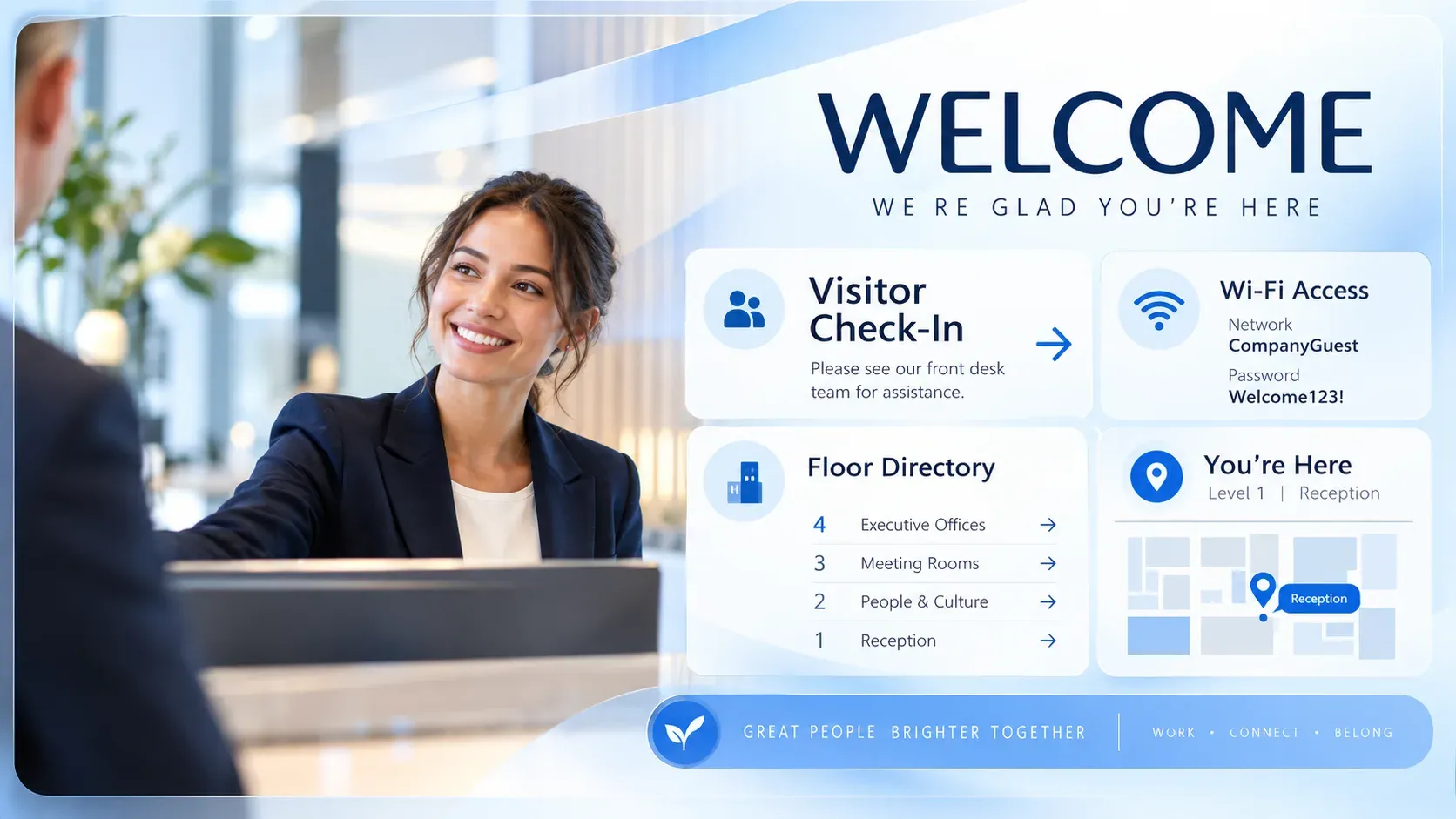
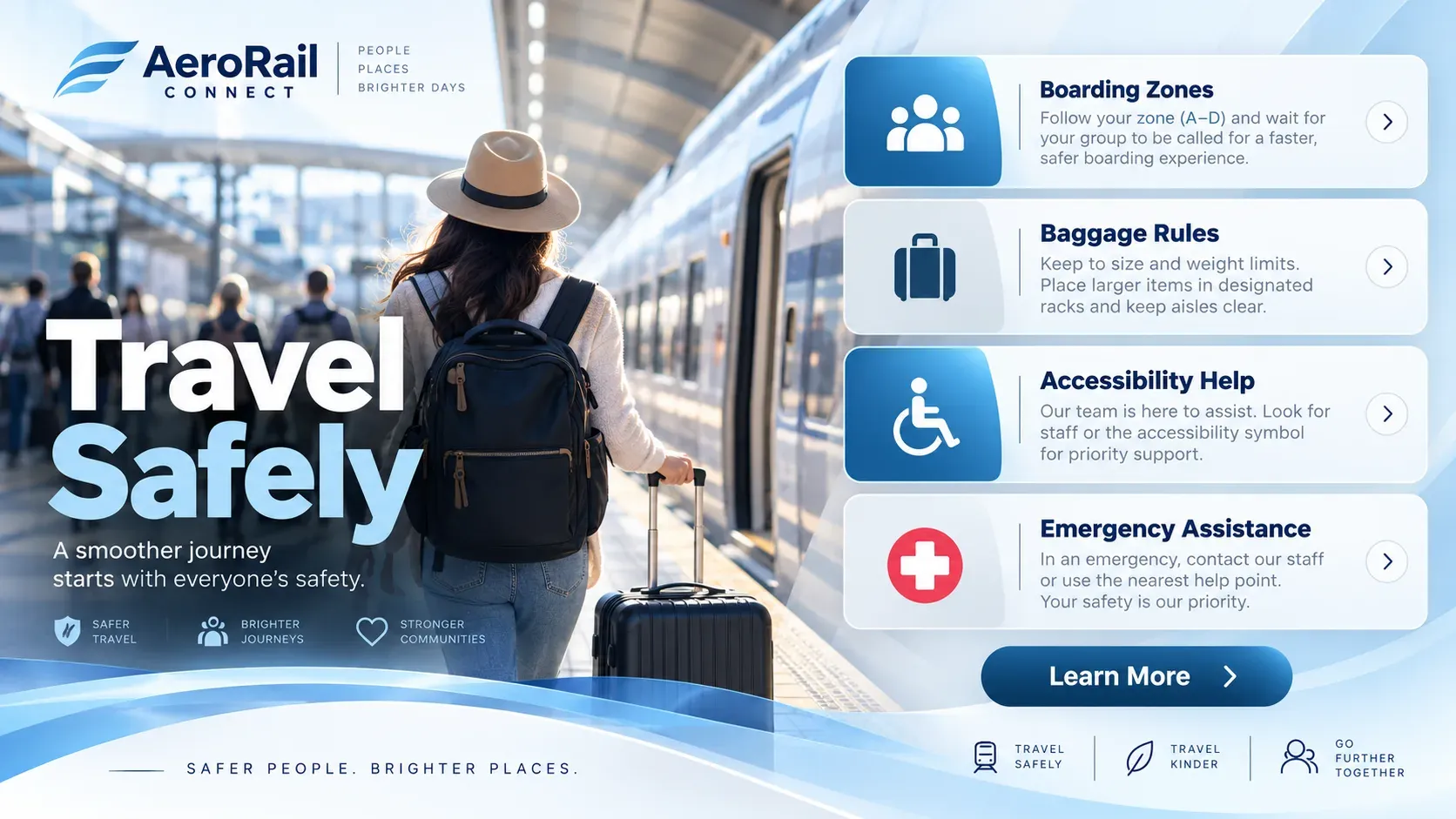
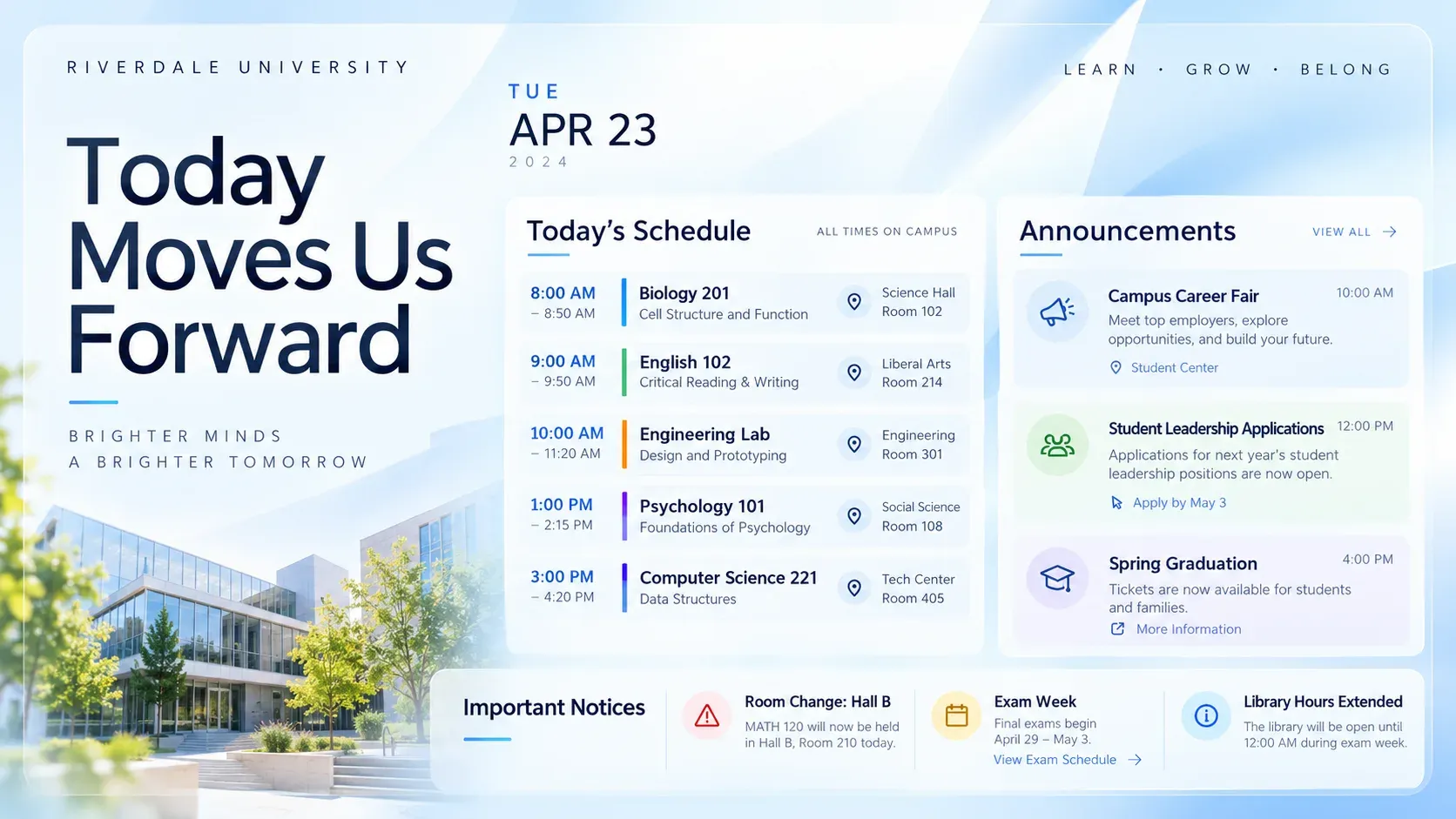
Start from Play’s templates for service updates, road conditions, community events, welcome desks and schedules. Change text and colors, then publish.
No one can compete with the price, you get so much for your money.
 Jake SorensenDirector of Sponsorships & Advertisement, The University of Utah
- Organizations manage their screens with Play
- 2,500+
- Screens connected worldwide
- 25,000+
- Countries with Play-powered screens
- 100+
- Email and live chat support, every day
- 24/7
Any issues? We offer 24/7 human support to all our customers.
- 24/7We’re always here
- Human supportReal experts, not bots
- <2min average replyFast and helpful responses
Part of our solutions for



Frequently asked questions
Answers to common questions about digital signage for government and the public sector.
Is Play FedRAMP or StateRAMP authorized?
No. Play doesn’t hold FedRAMP, StateRAMP, CJIS, SOC 2 or ISO 27001 authorization. For security documentation or questionnaires, contact us, and see our security page and Privacy Policy.
Where is our data hosted?
Your team’s content is hosted by DigitalOcean in Europe (Amsterdam and Frankfurt, where data of EU customers is stored) or in the United States (San Francisco). Some service providers may process data elsewhere; our Privacy Policy has the details.
How does Play handle privacy?
We process personal data of EEA, UK and Swiss customers under the GDPR and UK GDPR, as described in our Privacy Policy. Send privacy requests to gdpr@playsignage.com.
Do government agencies get the non-profit discount?
Only organizations with a government-issued non-profit certificate qualify for the 20% non-profit discount. It isn’t applied to agencies automatically.
How do emergency alerts work?
On Pro, the Emergency System uses tags and CAP to take over screens that are online. Screens that are offline show the alert once they reconnect. It is a product feature, not an emergency-system accreditation.
Can we control who publishes?
Yes. Roles and sub-teams (Pro), single sign-on with Okta or Microsoft Entra, two-factor authentication, and an Audit Log on Ultimate. These are access-control features, not certifications.
Can we buy through an RFP or a reseller?
Yes. Ask for a quote for larger rollouts, or work through a Play reseller.
How much does it cost?
Essential is $8.00, Pro $12.00 and Ultimate $16.00 per screen per month for up to five screens. From the sixth screen the price per screen drops, paying annually saves 10%, and non-profits with a government-issued non-profit certificate save 20%. Running more than 10 screens? Ask for a personal quote.
Is there a free option?
Yes. Your first screen is free forever when you leave a review within 30 days on Capterra, G2, Trustpilot, Google, Software Advice or GetApp. No credit card is needed, and the free screen includes every Pro feature. App Store and Google Play reviews don’t count.
Can I resell or white label Play?
Yes. Resell Play under the Play brand through the reseller program, or run it under your own logo and domain with white label for a monthly fee of USD 99 plus reseller screen prices. Contact us for the screen prices.
What support do I get?
Email and live chat 24/7, and phone (+1 844 384 5554) from 8 AM to 4 PM Pacific Time, Monday to Friday.
Still have questions? Contact our support