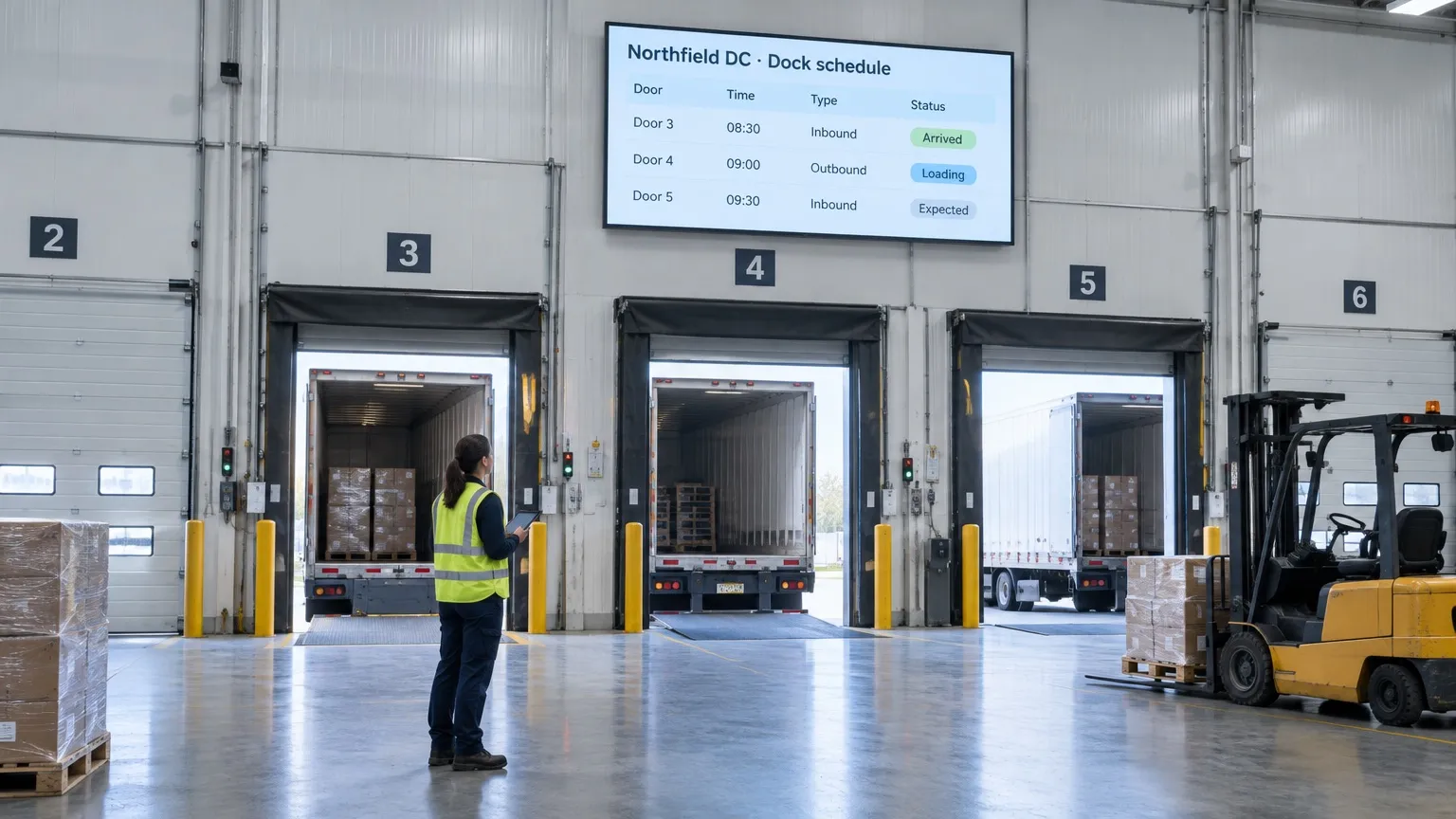

Dock scheduling signage
Digital signage for
warehouse dock
scheduling
Put dock windows, door assignments and driver notices on every bay screen, and keep the last schedule playing if floor Wi-Fi drops.


Receiving & shipping docks
Dock windows and door assignments where trucks and forklifts meet.
- Window tables from a Google Sheet
- Now and next at each door
- Inbound and outbound views
- Clock or ticker beside the table
Drivers & check-in
Clear instructions for drivers, so nobody walks the floor looking for a door.
- Check-in steps and yard rules
- Door calls from your schedule
- Staging and parking notices
- QR codes to your own pages
Ops, sites & resellers
Shift views, ops reports and one account for every distribution center.
- Day and night views on a schedule
- Power BI reports on the wall (Pro)
- A team per site (Pro)
- Resell or white label Play
From the gate
to the last trailer.
Show drivers, clerks and dock crews the window they need, at the spot where they need it.
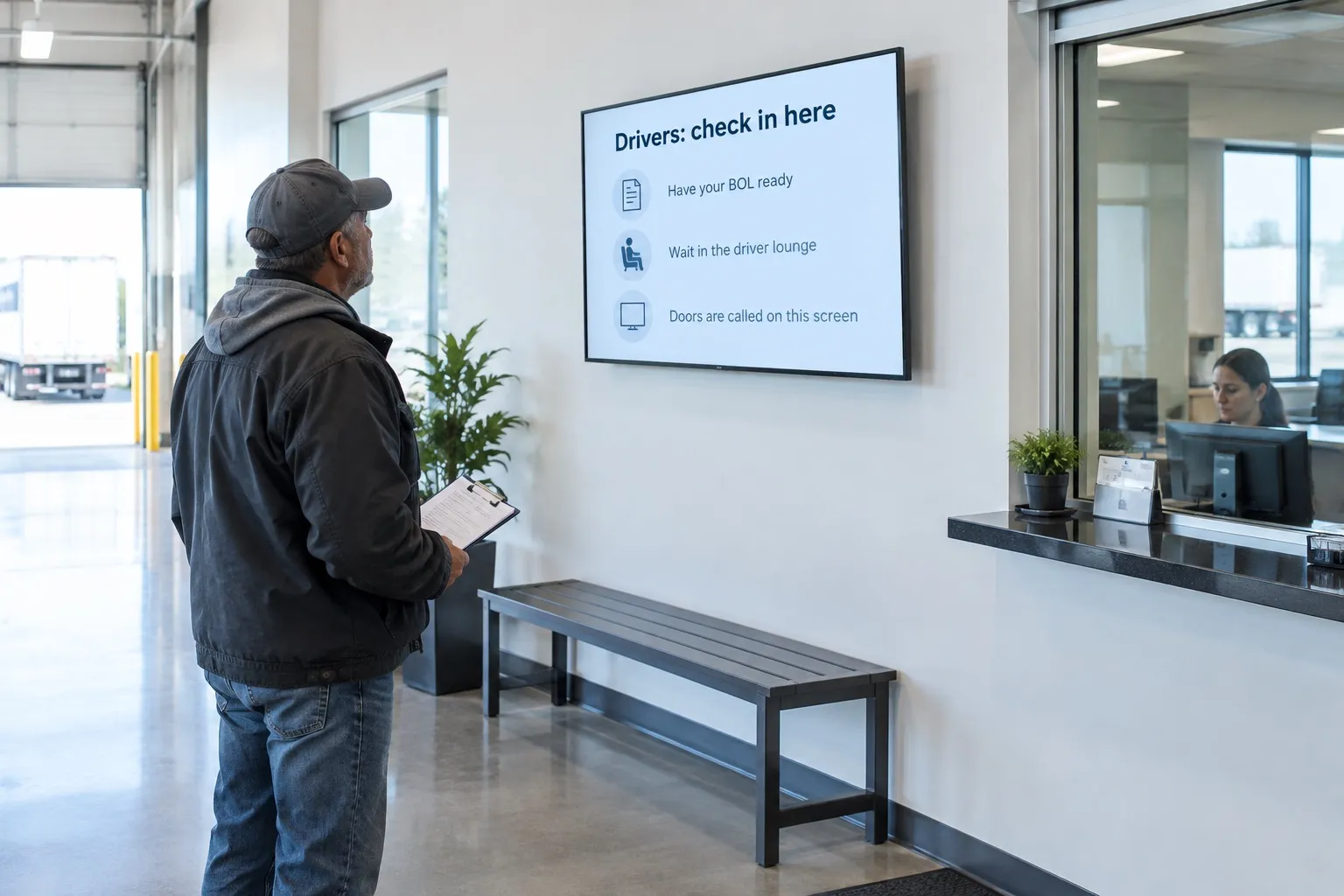
01 · Check-in
Drivers know what to do
Check-in steps, paperwork and where to wait, on the screen by the driver window.
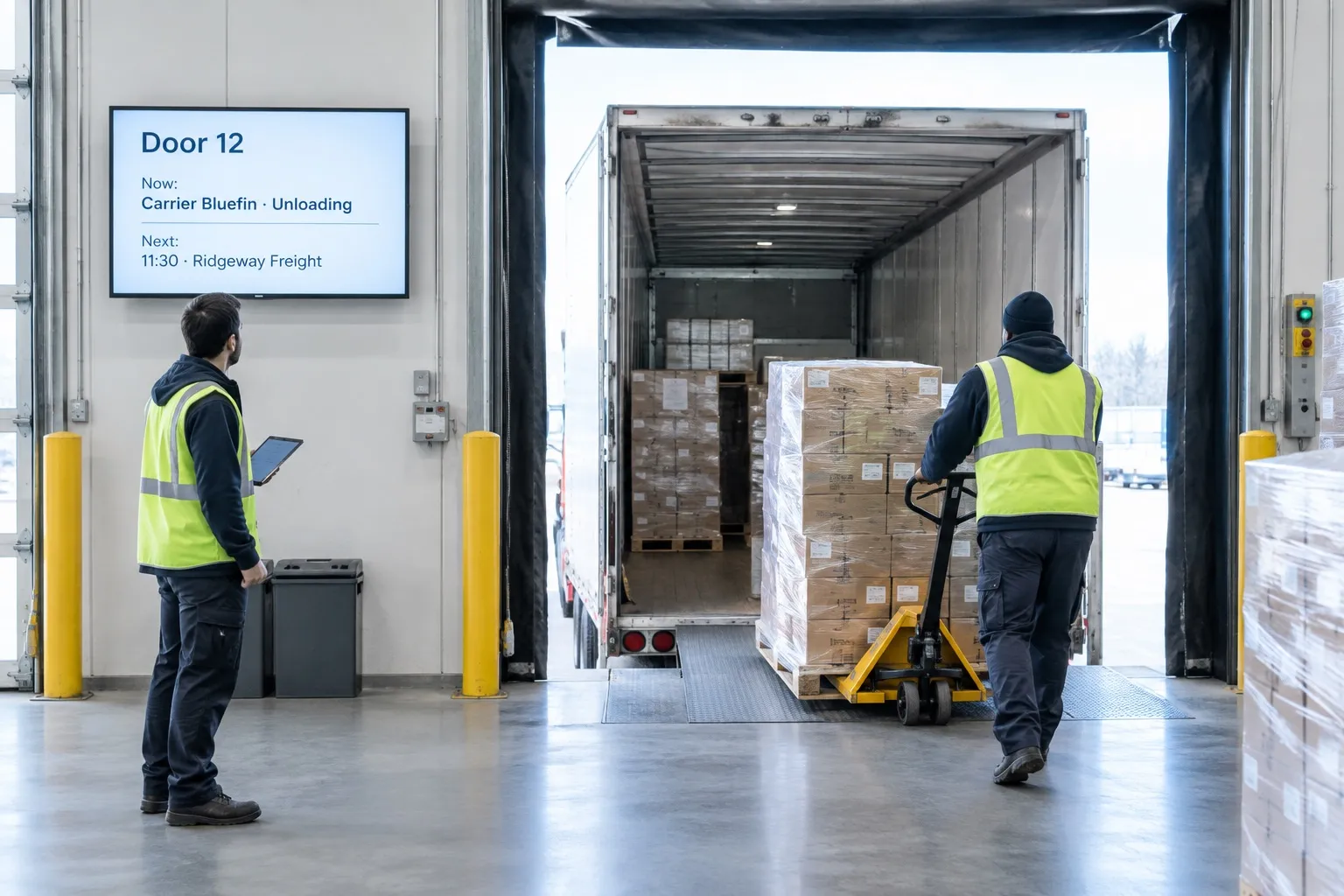
02 · At the door
Now and next at every door
Each door screen shows the truck it is working on and the next window, from the same schedule.
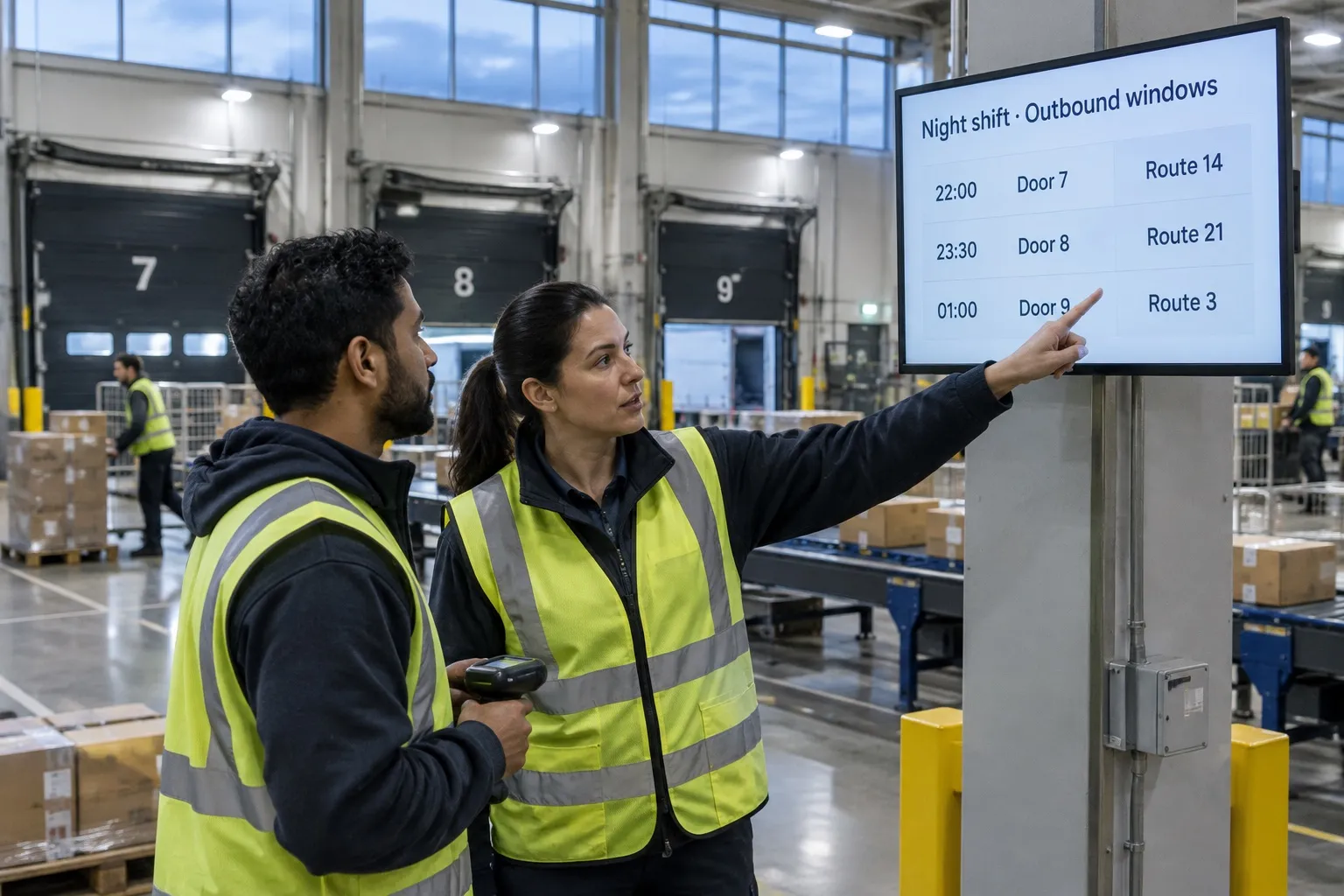
03 · Night shift
The right board for the shift
Schedules and Slide Conditions (Pro) switch to the night-shift outbound windows on their own.
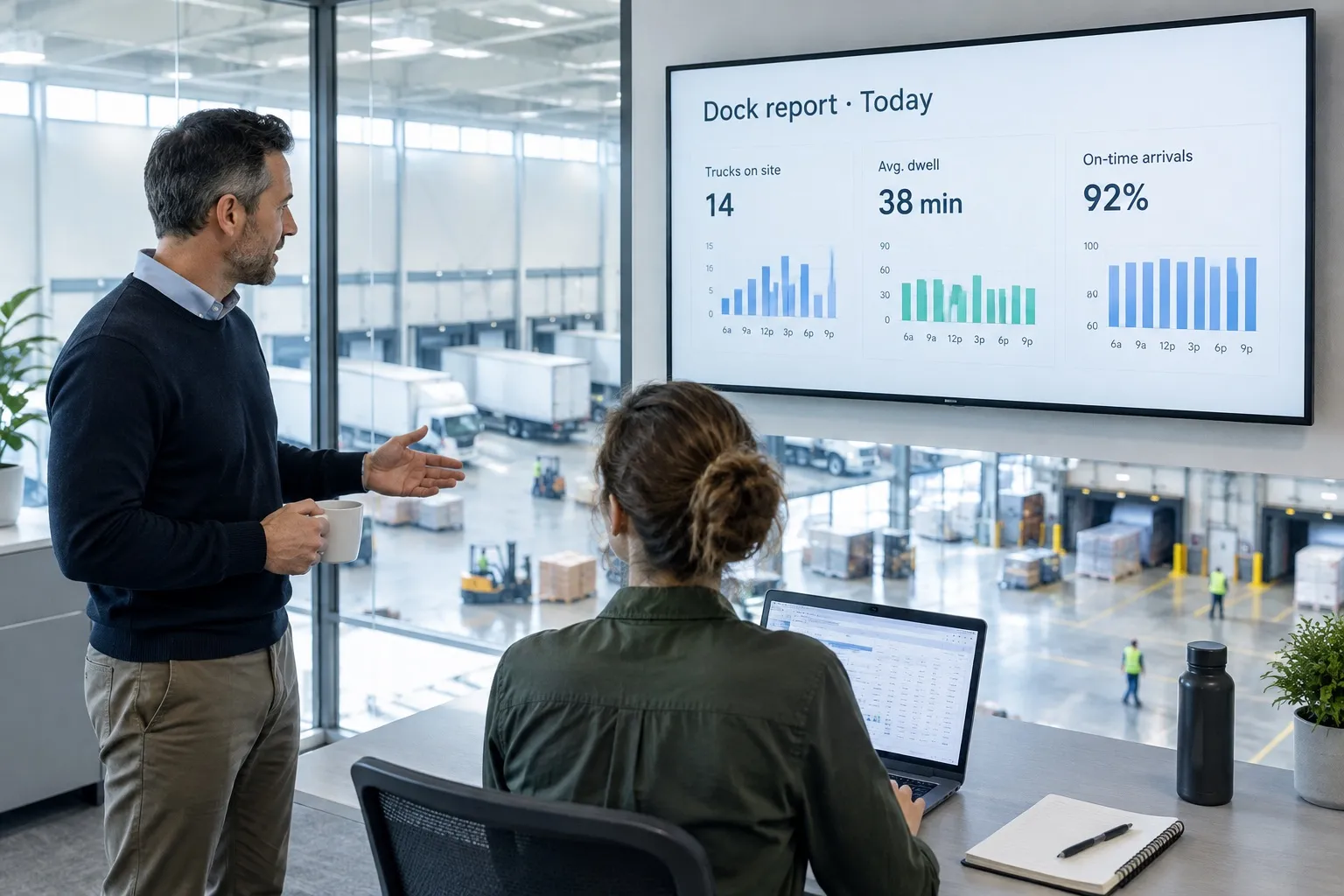
04 · Ops office
Your dock report on the wall
Already have a dock or yard report in Power BI? Put it on the ops office screen (Pro).

Free live demo
See your screens come alive in one hour.
A Play expert shows you the whole platform with your own content, and answers every question on the way.
- 1 hour
- Google Meet
- Free
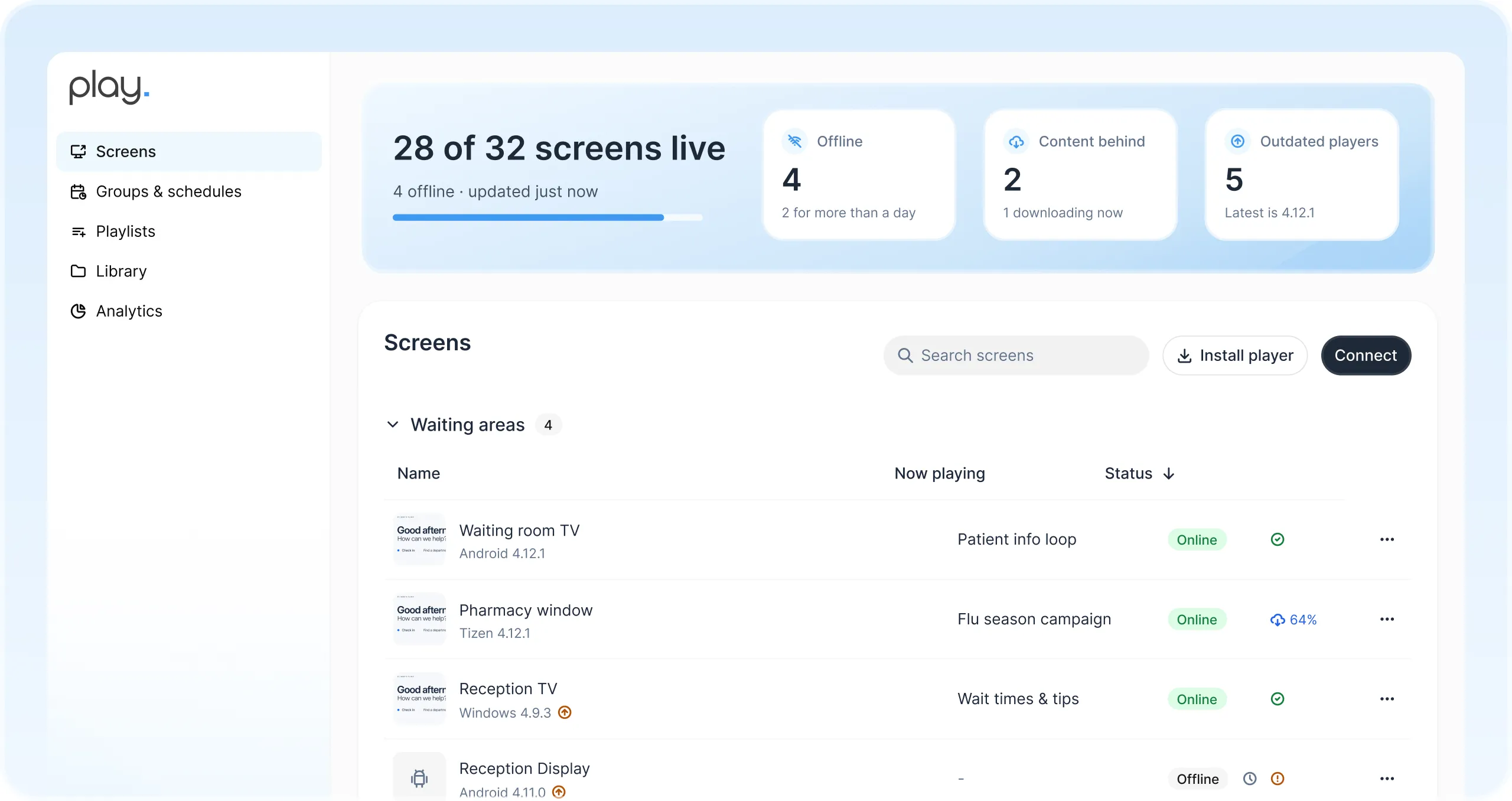

Dock windows straight
from a Google Sheet
Keep your windows in a Google Sheet, or embed the web board you already use. Dynamic Text fills the table from the sheet, so every bay screen updates when the sheet does (Pro and Ultimate). Play shows the schedule; it doesn’t replace your WMS, TMS or yard system.
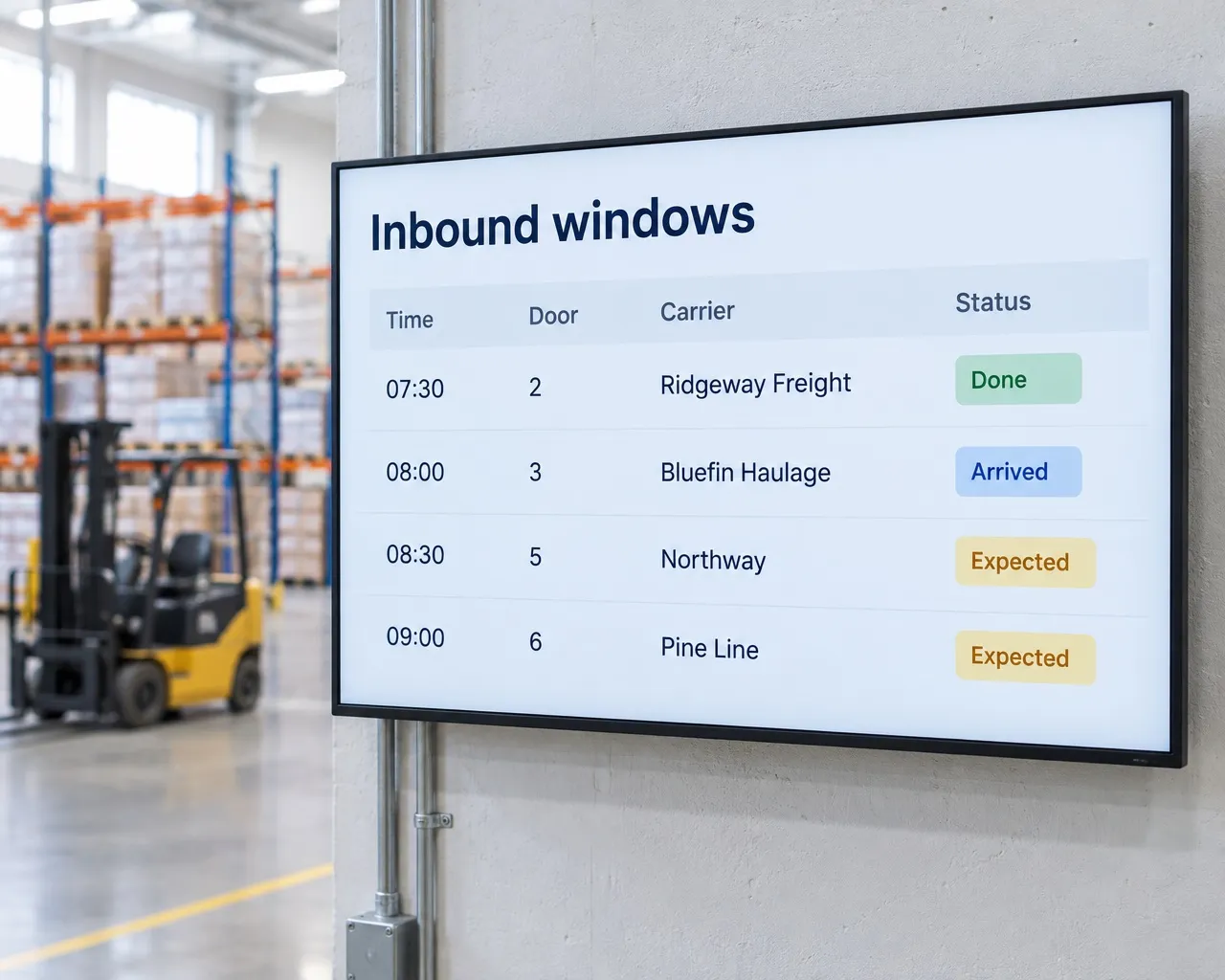
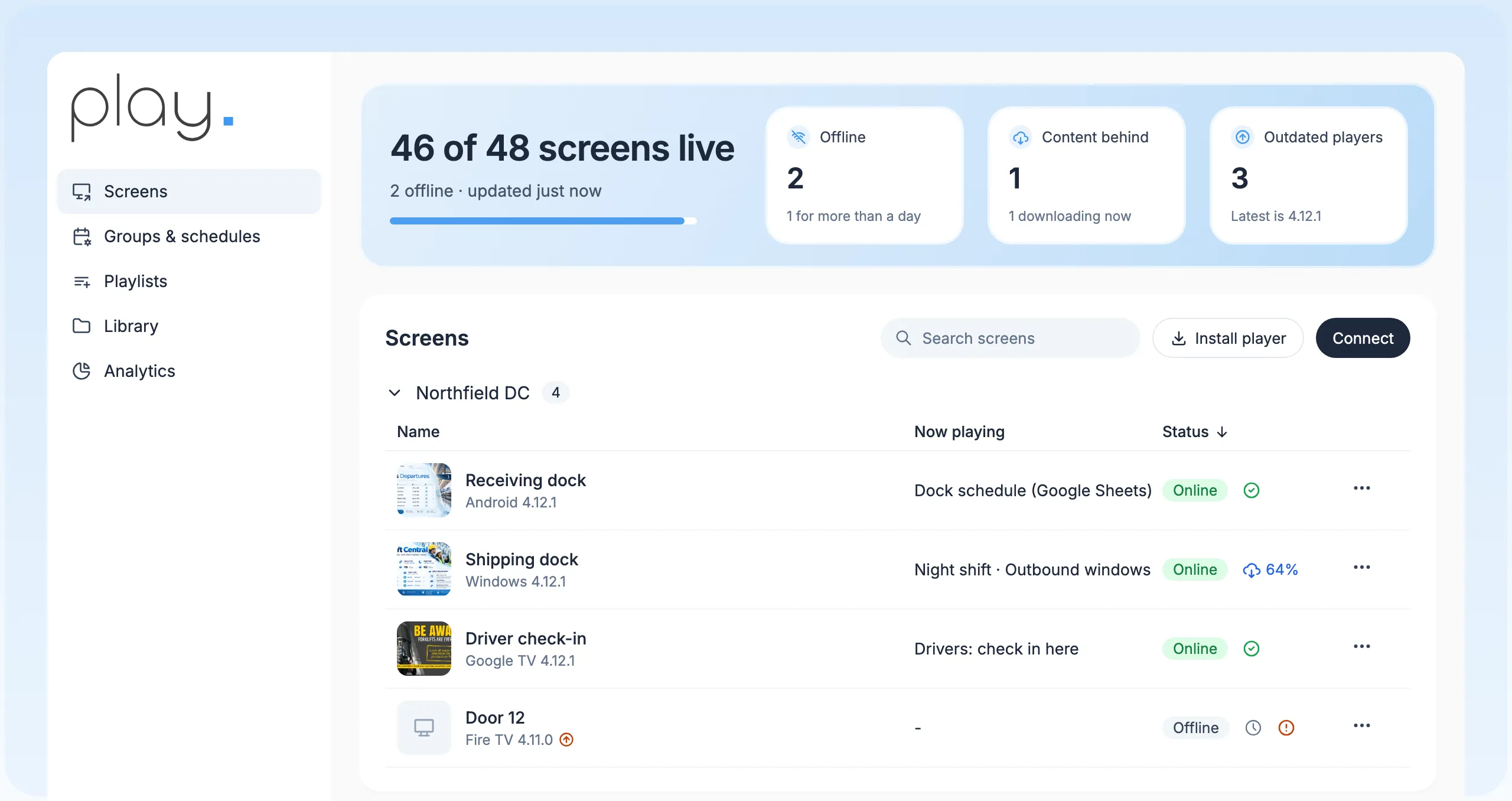
One dashboard for every
bay screen in every DC
Manage receiving, shipping, door and check-in screens across your distribution centers from one web dashboard, and see at a glance which screens are online.
Templates and editor
Dock-window, door and driver-notice layouts, on every plan.
Living tables
Google Sheets, Docs or a web page; Dynamic Text on Pro and Ultimate.
Tags per door or DC
One playlist, a different board per door, shift or site (Pro).
Day and night windows
Schedules on every plan; Slide Conditions for the shift (Pro).
Keeps running offline
The last schedule keeps playing if floor Wi-Fi drops; Alerts flag dark screens (Pro).
Ops reports on the wall
The Power BI widget shows the dock report you already have (Pro).
Built for multi-site DCs,
resellers and your screens.
Groups and schedules
Group screens and schedule once, on every plan, so one change reaches a region, a brand or every site.
A team per site
Sub-teams with roles (Pro and up) give each distribution center, dock or client its own workspace while head office keeps the overview.
Share and transfer
Share playlists across teams and move screens between teams you manage.
Reseller program
Resell Play under the Play brand to the warehouses and logistics firms you work with.
About the reseller programWhite label
Your logo, your domain and the SignagePlayer app, for USD 99 a month plus reseller screen prices.
About white labelBring your own screens
Play runs on Android, Windows, Google TV, Fire TV, LG webOS, Samsung Tizen, BrightSign and more. We don’t sell hardware.
Find a media player
Up and running
in an afternoon.
- 1
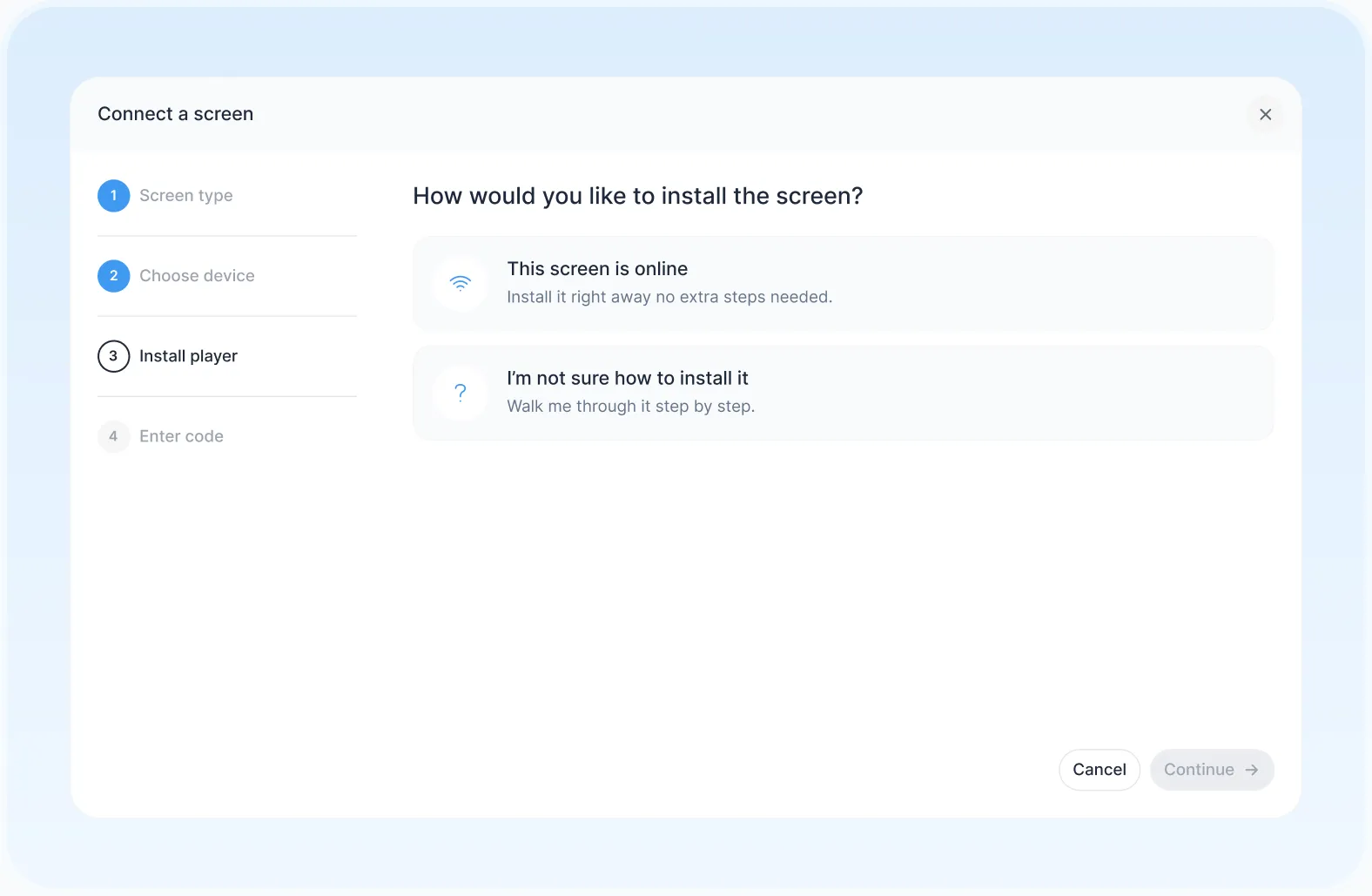
Connect a screen
Install Play on a supported player and pair it with your account.
- 2
Build and schedule
Start from a template, connect your dock schedule sheet and set which board runs on which shift.
- 3
Publish everywhere
Send it to one door, a dock or every distribution center at once.
Use templates
or design your own.
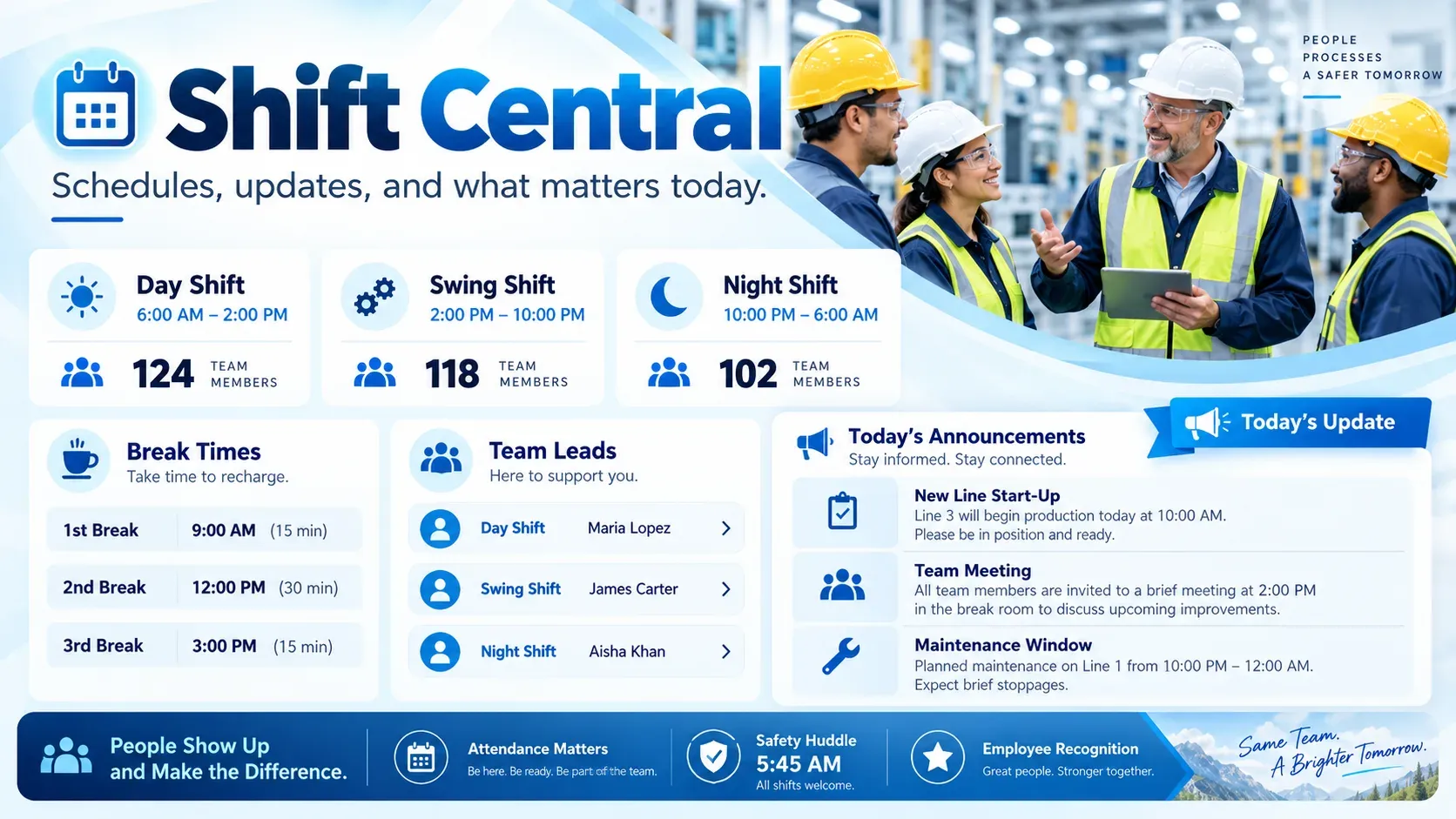
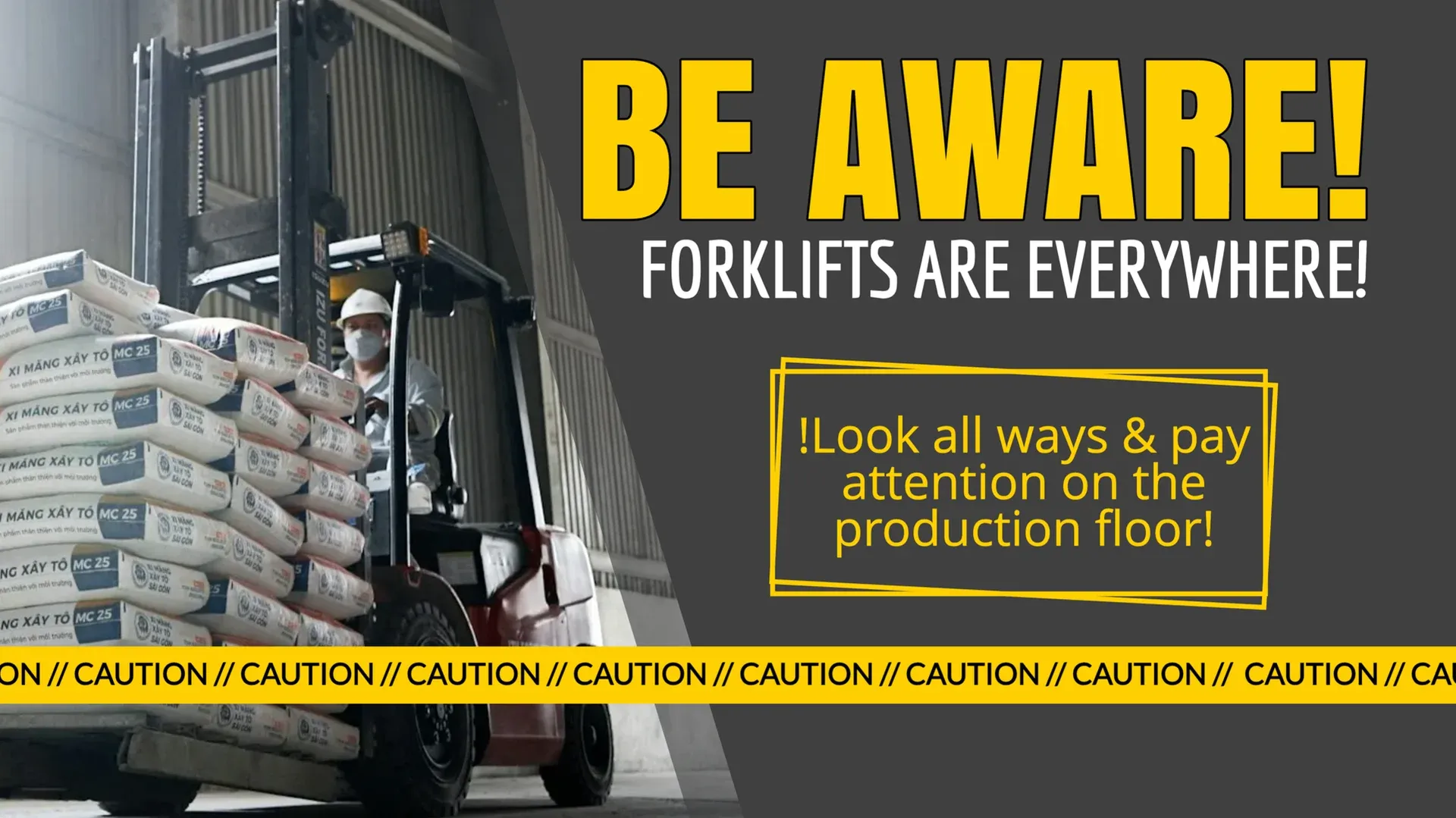
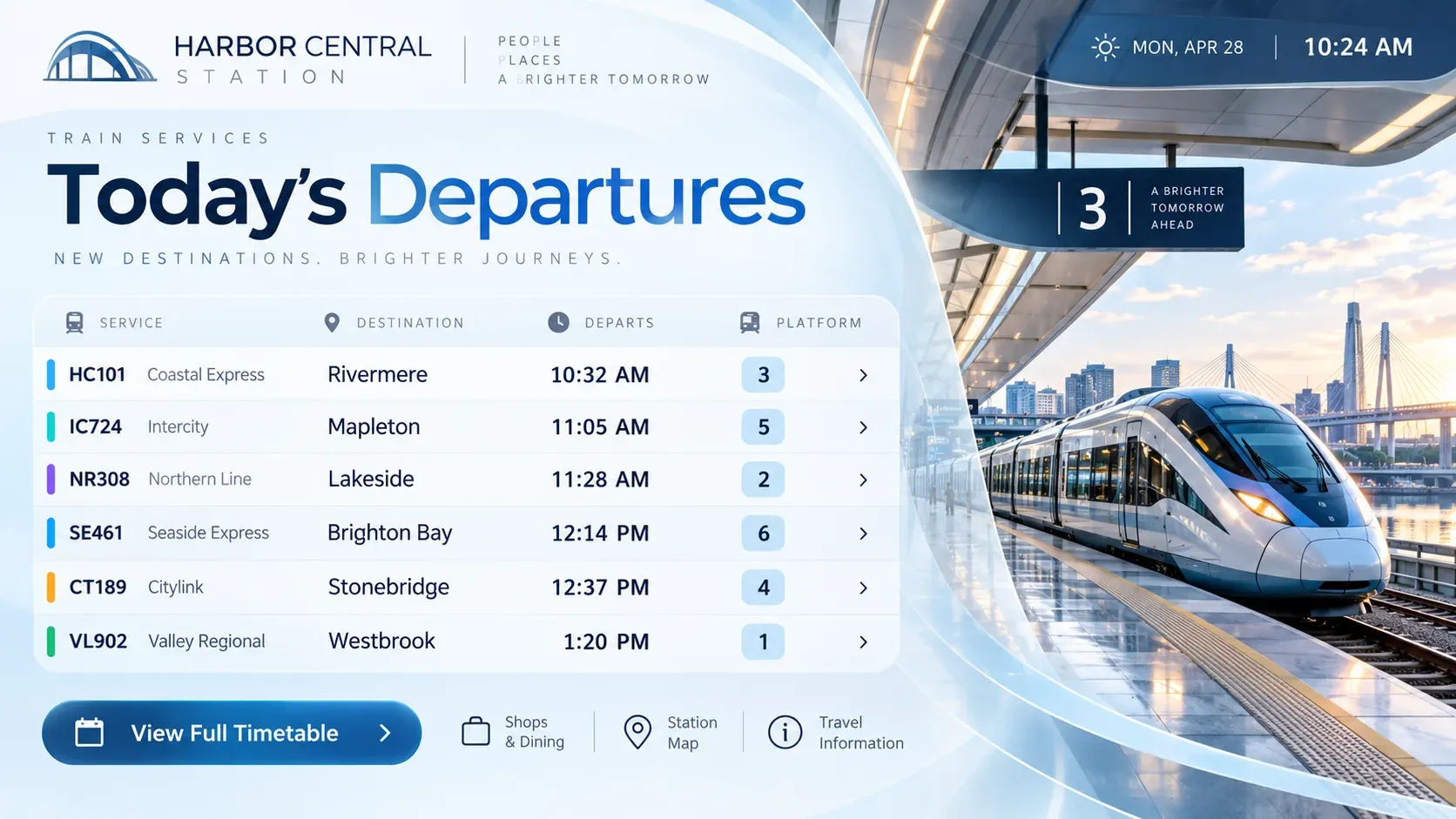
Start from Play’s templates for warehouses, transport and safety. Change the text, pictures and colors, then publish.

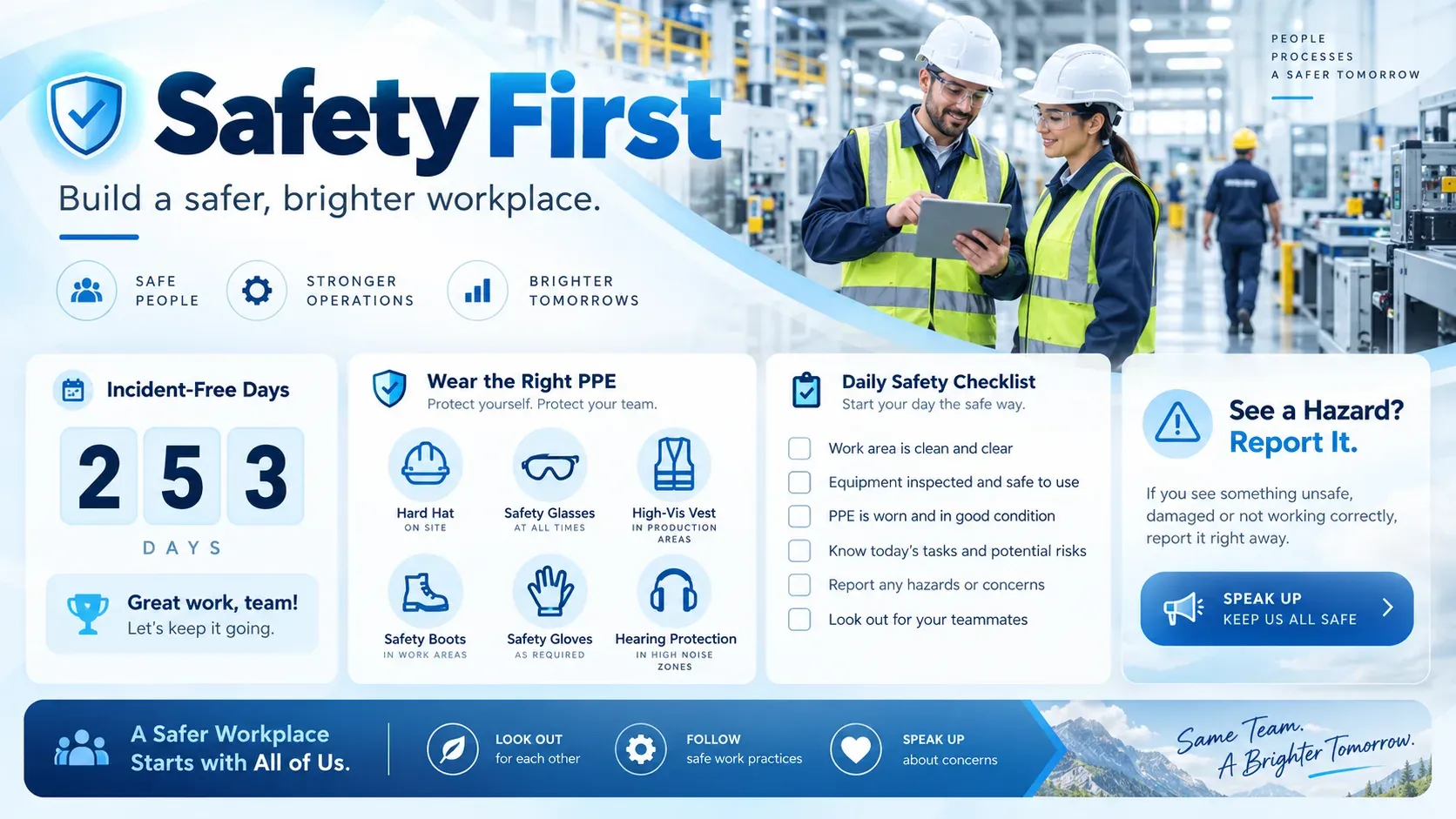
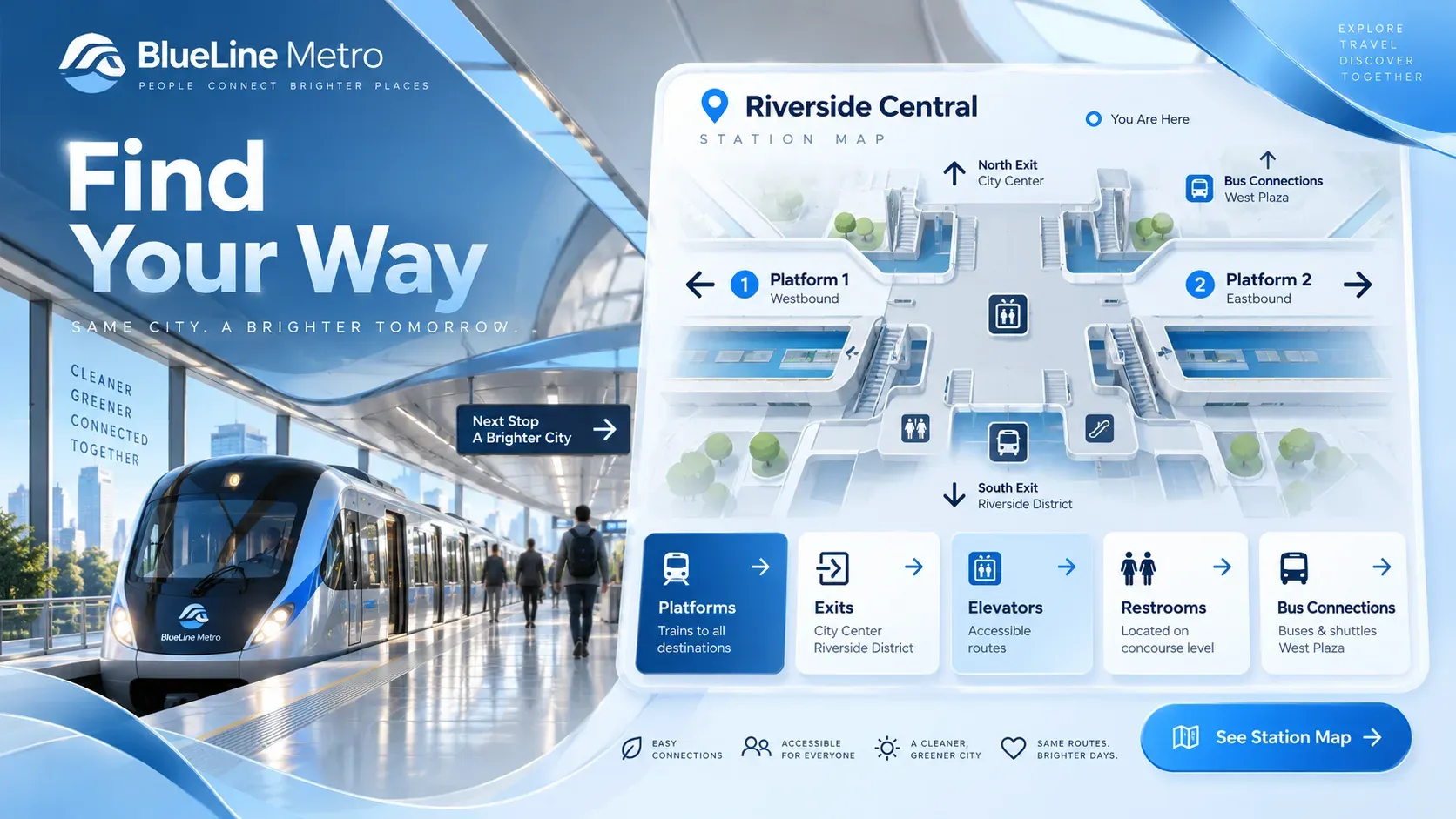
Play makes workplace communication easier to notice and easier to maintain, right in the spaces our teams share.
- Organizations manage their screens with Play
- 2,500+
- Screens connected worldwide
- 25,000+
- Countries with Play-powered screens
- 100+
- Email and live chat support, every day
- 24/7
Any issues? We offer 24/7 human support to all our customers.
- 24/7We’re always here
- Human supportReal experts, not bots
- <2min average replyFast and helpful responses
Part of our solutions for


Frequently asked questions
Answers about digital signage for warehouse dock scheduling. Can’t find yours? Our support team replies within minutes.
Does Play replace our WMS, TMS or yard system?
No. Play shows the dock windows and door assignments you already have, from Google Sheets, a web page, Power BI or the API. It isn’t a WMS, TMS, yard management or dock-appointment system, and there are no built-in connectors to those systems.
Can each door or distribution center show a different board?
Yes. Tags, sub-teams and screen groups (Pro and up) give each door, dock or site its own board from one account.
Do the boards keep playing when warehouse Wi-Fi drops?
Yes. Screens keep showing the last published content offline and update when the connection returns. Alerts (Pro) tell you when a screen goes offline.
Can we show a Power BI yard report next to the window list?
Yes, with the Power BI widget on Pro and Ultimate. Your organization needs its own Microsoft Power BI licenses.
Is this a safety or traffic-control system?
No. The screens are digital signage. Emergency messages and CAP alerts (Pro) are product features, not a certified life-safety, fire-alarm or traffic-control system.
Which plan do I need for spreadsheet-driven dock boards?
Pro or Ultimate for Dynamic Text, Tags, Slide Conditions, Alerts, the API and Power BI. Templates, the editor, schedules and offline playback are on every plan.
How much does it cost?
Essential is $8.00, Pro $12.00 and Ultimate $16.00 per screen per month for up to five screens. From the sixth screen the price per screen drops, paying annually saves 10%, and non-profits with a government-issued non-profit certificate save 20%. Running more than 10 screens? Ask for a personal quote.
Is there a free option?
Yes. Your first screen is free forever when you leave a review within 30 days on Capterra, G2, Trustpilot, Google, Software Advice or GetApp. No credit card is needed, and the free screen includes every Pro feature. App Store and Google Play reviews don’t count.
Can I resell or white label Play?
Yes. Resell Play under the Play brand through the reseller program, or run it under your own logo and domain with white label for a monthly fee of USD 99 plus reseller screen prices. Contact us for the screen prices.
What support do I get?
Email and live chat 24/7, and phone (+1 844 384 5554) from 8 AM to 4 PM Pacific Time, Monday to Friday.
Still have questions? Contact our support