-
Download the app
Windows 10/11: Download the Windows app (64-bit).
Looking for the 32-bit version? Download the 32-bit version (Windows 10/11).
Windows 7 or 8 device? Download an older version of our app.
Stuff you should know
We’ve gathered some of the most common features you may need to get your Windows media player up and running smoothly.
Auto-Launch
Launching the app on startup is not turned on when you first install our app. If you want the app to launch after a power outage, or simply when you power on your player, go to my.playsignage.com, Screens, open the settings for the screen, and toggle on Launch player on startup.
Portrait mode on Windows
See the Windows section of our portrait guide.
Disable automatic updates
Unlike previous versions, there is no official way to turn off automatic updates on Windows 10 machines. That is good from the security perspective; however, digital signage operators often prefer that their devices not start updating in the middle of the day. If the updates are disabled and an exploit is found in Windows, your device will be exposed to the exploit, as it won’t get the latest security updates. If you decide to turn off the automatic updates, we recommend making sure that at least the Windows Defender Firewall is turned on.
- Download a program called Windows Update Blocker (WUB).
- Unzip the folder
- Run the Wub.exe file
- Select “Disable Service” and press the “Apply now” button
This software is created by Sordum. Read more about the update blocker here.
Updating the app
There is a built-in auto-updater; however, in certain circumstances, the software is not automatically updated. You can apply the update manually without having to link the screen again:
- Close the player application if it’s running.
- Download the latest version (64-bit; 32-bit).
- Double-click on the downloaded .exe file.
- When an update is applied, the player will be launched.
Options & FAQ
Options can be accessed directly on the TV by using OPTIONS.
Options
Options can be accessed directly by the player or in settings for your player.
- Launch player on startup - Toggle this ON to make sure our app starts when your player starts up, for example after a power outage.
- Always on top - Tells the operating system to keep our app window above other windows. This prevents pop-ups or notifications from showing on top of it.
- Show top menu bar - Toggle this ON if you want the top bar to appear when moving the mouse or using the remote for your player. Toggle this OFF if you want a kiosk experience where users can’t exit the app by clicking the exit button on the top menu bar. You can still access the menu with the “Ctrl + O” command.
- Optimize for touchscreen - Toggle this ON if you are planning on using our app on a touchscreen. This setting will make small adjustments to how our app works in conjunction with a touchscreen.
- Analytics - Toggle this ON if you need analytic data from this particular player. Read more about Analytics
- Display Orientation - This option should only be used if your player operating system does not support changing the orientation, as we recommend the adjustment on an operating system level instead. You have the option of portrait (Clockwise) and portrait (Counter-clockwise).
- UserAgent - UserAgent is a piece of text that browsers use to identify themselves to the web server. Certain websites will render a mobile view, although the site is displayed on a big screen. With this option, you can work around this issue and spoof a desktop computer’s UserAgent. The UserAgent lets you pick Default, Mobile, Desktop, or Custom.
- Reload player every day at - It is good practice to clear the cache on the player once every 24 hours. Here you can set a convenient time, for example at night when no one is watching your TVs.
- Tags - If you are using tags, they are listed here. You can also find and add a tag.
- Clear cache - If you need to clear the cache manually, you can do that here. For example, if you are changing your content continually and you experience something not working as expected, clearing the cache should help, as it removes any old data stored on the players’ storage.
- Transfer Screen - Move screens between teams without deleting or relinking them. Learn more about Transfer Screen
- Reload - Reloading your player is similar to clearing the cache. In addition, reloading will close and start the app.
- Status - Status tells you if the app is connected to the cloud. Green means you are connected, and red means you are not connected. If you see a red status, you should check the internet and wifi connection to your player.
- Device Time - The device time tells you the player’s time and date. If the device time is wrong, it will also be wrong in our app and thus all time-related scheduling will be off, so make sure to correct the time on the player operating system if you are having problems.
- Resolution - The resolution is the resolution according to your player’s operating system. If the operating system on the players tells us it’s running HD, your content on the TVs will be optimized for HD. Please note that many devices that are advertised as 4K can only decode video in 4K but run apps in a lower resolution. This means you may see a lower resolution reported by our app, but any 4K video that you use will still be played as 4K. If you are seeing a lower resolution, you can install a 3rd party “resolution checker” app on the device to confirm the resolution from another app as well.
- Version - This is the version of our app.
- Screen ID - Also called UID: the unique ID of your player.
- Disc Usage - Disc usage will tell you how much data has been used on the player’s storage. We recommend using no more than 80% of the storage.
- Screen edges - If you have an LED screen, a video wall or an older TV, you might have to adjust the edges so that they match your TV and the content.
- Browser - Here you can easily access the browser used by the app to check content, connectivity, etc.
- Reset - If you need to unlink your player or link it to another account, you can use reset.
FAQ
I got my screen linked. What next?
We recommend checking out our Getting Started video.
My device says it’s offline
If the device is offline, it means the device is not connected to the internet and therefore cannot connect to our digital signage cloud. See our Offline guide.
App outdated?
Under certain circumstances, the player may not update automatically. If you add a new plugin that is not supported in your current player version, it will simply not be shown to maintain backward compatibility. See our App Outdated guide.
The application starts, but the screen is black.
You probably have an outdated version of the .NET Framework. Download and install the most recent .NET Framework version.
Where are the files saved?
The player downloads files to C:\Users\%USERNAME%\AppData\Roaming\PlaySignage\assets
Please note that the AppData folder is hidden in Windows by default, see how to show hidden files in Windows.
Can I run several instances of the application?
By default, the application allows a maximum of one window. However, if you have a Windows machine with several monitors, you may need to run one player application per monitor. To do this, you need to set a different data directory for each application window using the --data-dir parameter, for example:
C:\Users\%USERNAME%\AppData\Local\Programs\PlaySignage\PlaySignage.exe --data-dir=C:\playsignage-app2
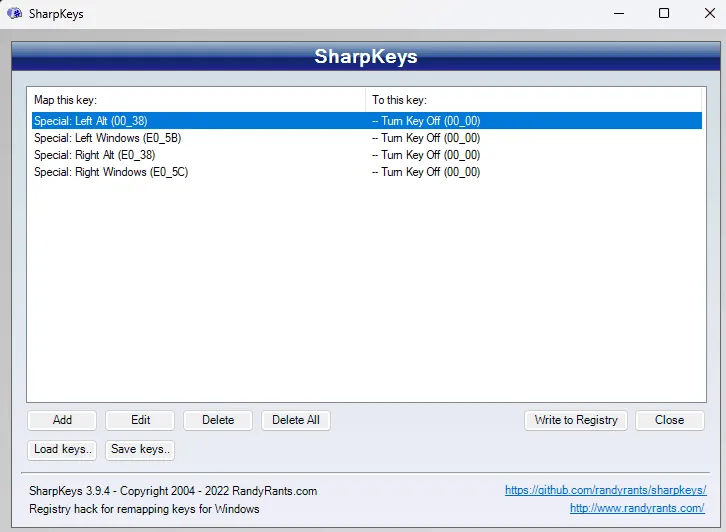
Preventing keyboard shortcuts from exiting the application (alt+f4, ctrl+alt+del, windows keys)
While our application cannot override system-level shortcuts, there is a free application called SharpKeys that can be used to remap the keyboard keys. Disabling both alt and windows keys will prevent any combination of the shortcuts. Just remember to “write to registry” and then reboot the machine for the changes to take effect. Below is a screenshot of how the configuration should look.
The mouse cursor is visible after restart?
Some Windows machines have a quirk where the cursor is showing after rebooting the player. This cannot be fixed by our software as Windows does not update the mouse cursor location after our app starts, so the cursor does not register as hovering over the app. The simple fix is to install additional software to auto-hide the cursor:
Download and unzip the file. You will find a simple program that works with the default configuration.
The taskbar is showing?
Though our app tells Windows to launch it in full screen and in kiosk mode, the taskbar can sometimes creep back up. This can also be triggered by third-party programs showing notifications. The simplest solution is to configure Windows to auto-hide the taskbar, however, some users have reported the taskbar not hiding even if it’s set to hide – it seems to be a Windows issue that happens inconsistently on some machines. You can work around the issue with a third-party program that hides the taskbar altogether with a configured hotkey: download TaskBar Autohider. Please note that after a restart this program does start up, but it does not hide the taskbar, so it is important to disable the nightly reboot of the player – you can do so in the screen settings in our web portal.
Does the app recover from a crash?
Our app has a built-in heartbeat mechanism where one process pings another process to ensure that it is running, and if not, it will start up again. While this solution recovers from most types of crashes, there is an exception when it comes to Windows killing our app when it is about to run out of RAM. Since both of these processes are part of the same program, the heartbeat mechanism would get killed as well. While not necessary for most installations, users who run our app in a more demanding environment, such as large public LED screens, can further increase reliability by having the heartbeat done by a third-party program instead, which is not killed by the operating system.
Option 1 – Windows scheduler batch script
We can schedule a repeating task using the Windows scheduler to start the Play Digital Signage player app every minute. If the app is already running, then the new instance will be exited immediately.
- Download the scheduler script.
- Right-click on it and select “Run as administrator“
- The script will prompt you to “run as password”, just press enter.
Option 2 – Windows scheduler manually via command
- Click Start and type “cmd”, then right-click on the “Command prompt” result and select “Run as administrator”
- Copy and paste the following two commands into the command prompt one by one:
SCHTASKS /CREATE /SC ONLOGON /DELAY 0001:00 /TN "PlaySignage watchdog" /TR "C:\Users\%%USERNAME%%\AppData\Local\Programs\PlaySignage\PlaySignage.exe"- After you run the next command, it will ask for a run-as password, just press enter
SCHTASKS /CHANGE /RI 1 /TN "PlaySignage watchdog"
In case you plan to use the Windows machine for other tasks, you’ll want to delete the task that starts the Play Digital Signage app every minute. You can do so with the following command in the “Run as administrator” command prompt: SCHTASKS /DELETE /TN "PlaySignage watchdog" /F
Option 3 – Play Digital Signage companion program
This is a simple program that runs every minute and checks that PlaySignage.exe is running. If it’s not, it starts it.
- Ensure you have the Windows app installed.
- Download PlaySignage_companion.exe program.
- Open the Windows Run window (press Windows key + R) and type shell:startup then select OK.
- Copy the downloaded PlaySignage_companion.exe file to the startup folder.
- Restart the computer. Now PlaySignage_companion.exe should be started by Windows and you can see it in the system tray.
Intranet website with a self-signed SSL certificate is not showing?
By default, as a security precaution, the application does not show websites with certificate errors. However, if you need to show a website that does not have a valid SSL certificate, you can launch the app with a --ignore-certificate-errors parameter, for example:
C:\Users\%USERNAME%\AppData\Local\Programs\PlaySignage\PlaySignage.exe --ignore-certificate-errors
How do I update the app software?
There is a built-in auto-updater; however, in certain circumstances, the software is not automatically updated. You can apply the update manually without having to link the screen again:
- Close the player application if it’s running.
- Download the latest version (64-bit; 32-bit).
- Double-click on the downloaded .exe file.
- When an update is applied, the player will be launched.
The player is not downloading files?
If you are using Windows Management Instrumentation (WMI), it may block our software from querying disc usage. You can fix it by executing the following command in the command prompt: winmgmt /resetrepository
Windows 7 starts the app but does not connect.
Since Microsoft no longer supports Windows 7, it has issues with root certificates. That means certain SSL (HTTPS) certificates that are issued aren’t considered valid by the operating system. You can try installing an update from here: https://www.microsoft.com/en-us/download/details.aspx?id=45633
The animations are not working?
Windows 10 has a special accessibility setting to disable animations. The animations are most likely disabled with that setting. You can find it in Settings -> Ease of Access -> Other options -> Play animations
The plugins don’t work
If one or more plugins don’t work on your Windows device, the Play Digital Signage app on your player may be out of date. Read how to update an outdated app.
How do I access OPTIONS if I disabled the top menu bar?
In the app options, you can hide the top menu bar, for example if you are running a touch screen. To access the top menu bar when it is hidden, you can use CTRL + O for options or CTRL + Q to close the app.
I installed the app from Windows Store, but I can not use it for Windows kiosk mode.
Windows 10 and 11 have the functionality to set up assigned access for a single user and application (kiosk mode), the caveat being the application must be UWP appx installed from the Windows Store. Our app is also listed in the Windows Store, but unfortunately Microsoft does not support the technology stack we use (Electron) for its kiosk mode. This is a limitation of the internal Edge browser webview.
Is Windows Digital Signage a great choice for large-area screens?
Windows Digital Signage is both stable and has the resources to run 24/7 production screens, large area screens, LED totems, etc. But keep in mind that Windows digital signage can be limited by the hardware. If the hardware is old and obsolete, it might not have the resources to run the content you’d like.